

Invite Members
Creating an Organization and Becoming Organization Admin
Sign up or create a new organization in Condense Console https://console.condense.zeliot.in/signUp
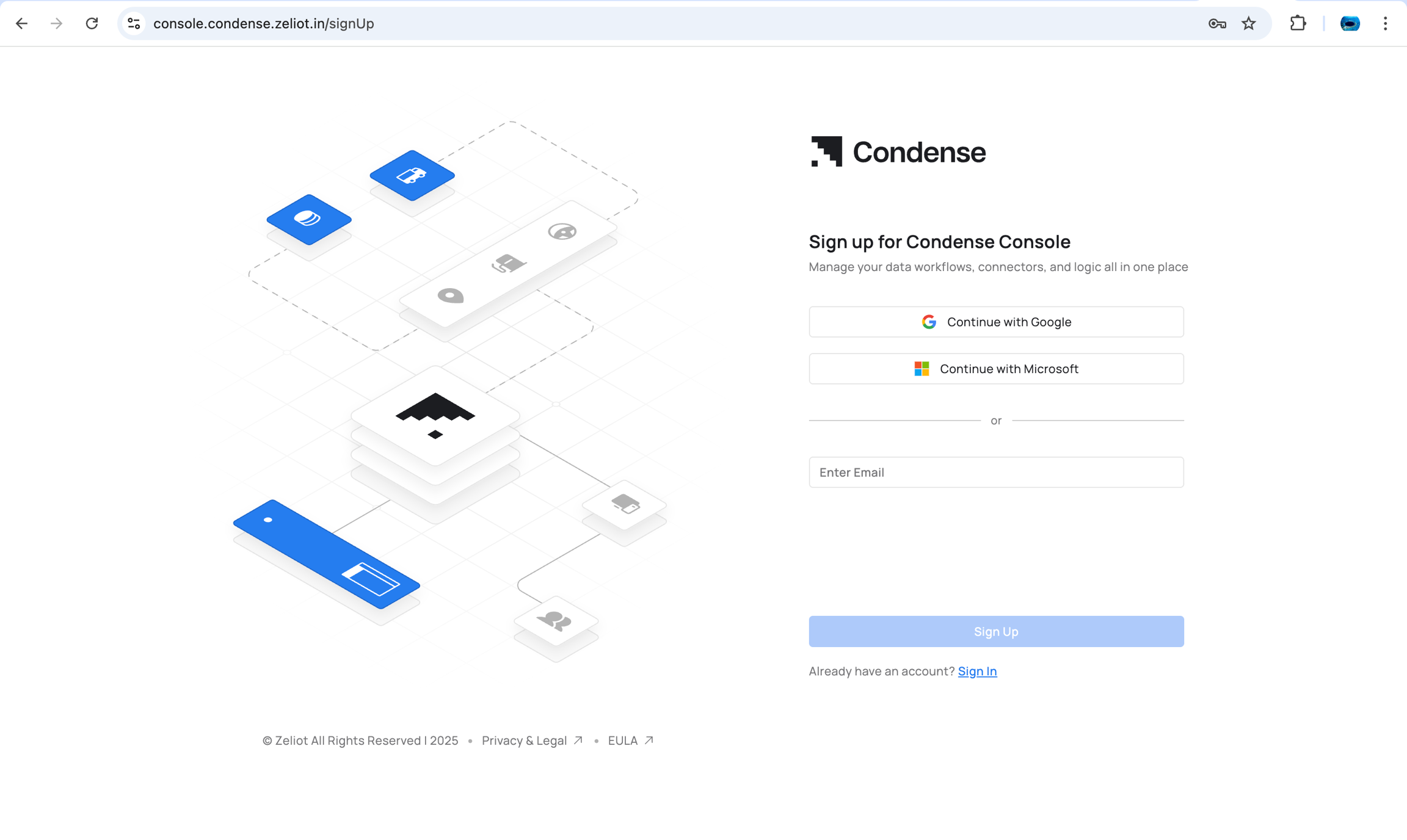
The creator automatically becomes the Organization Admin
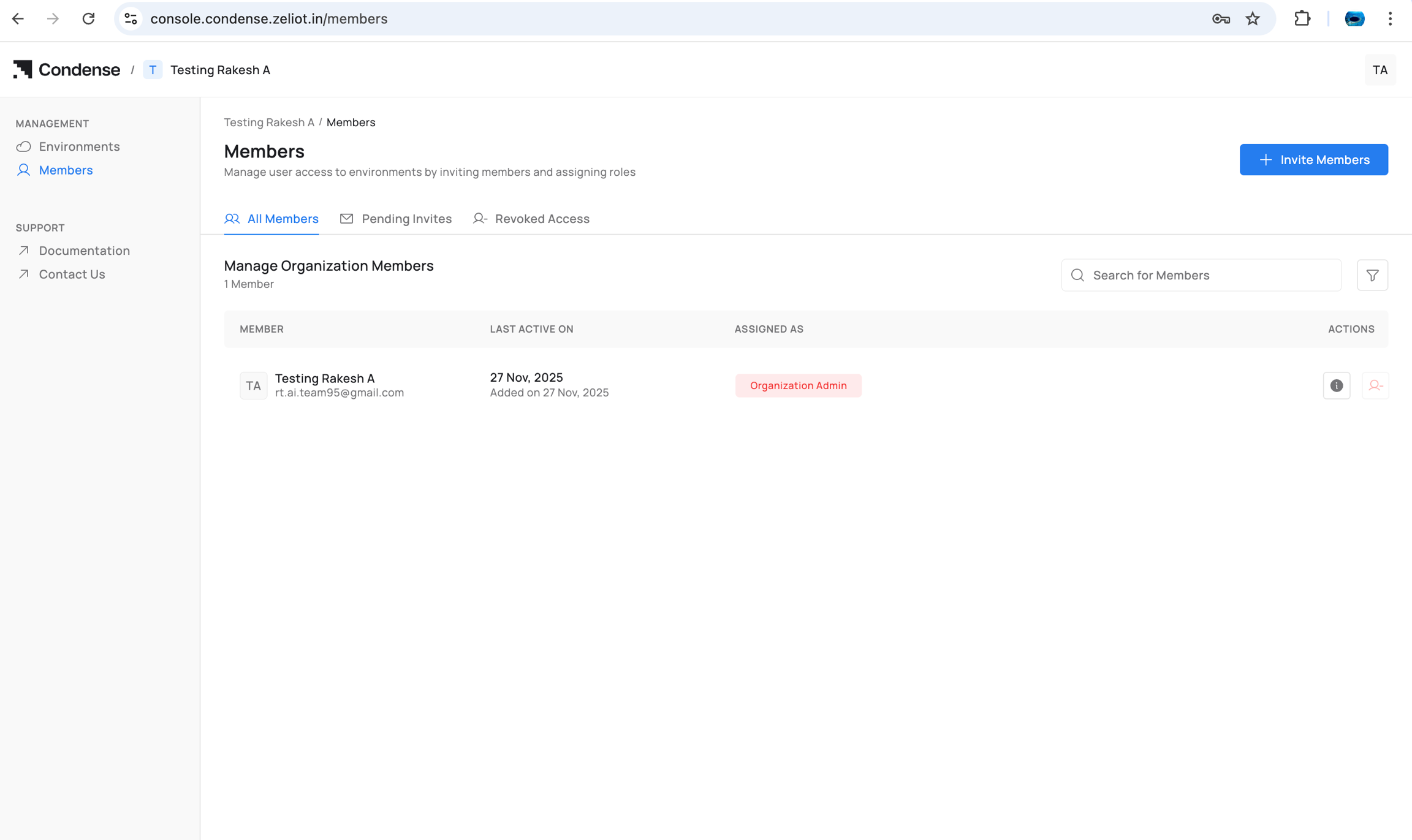
Environment(s) can now be linked to the organization
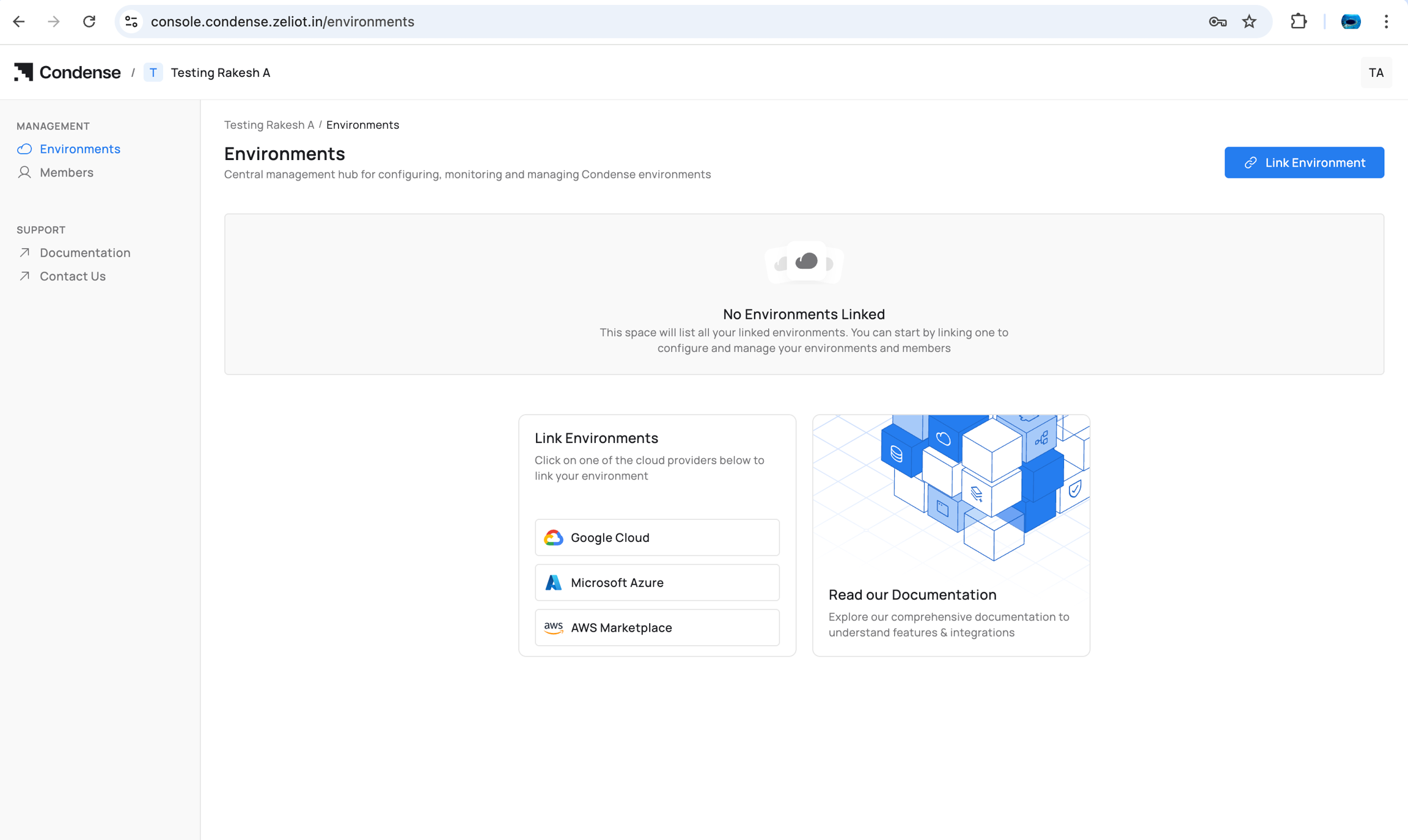
Inviting Members
As Organization Admin:
Go to Members
Select Invite Member
Enter user details
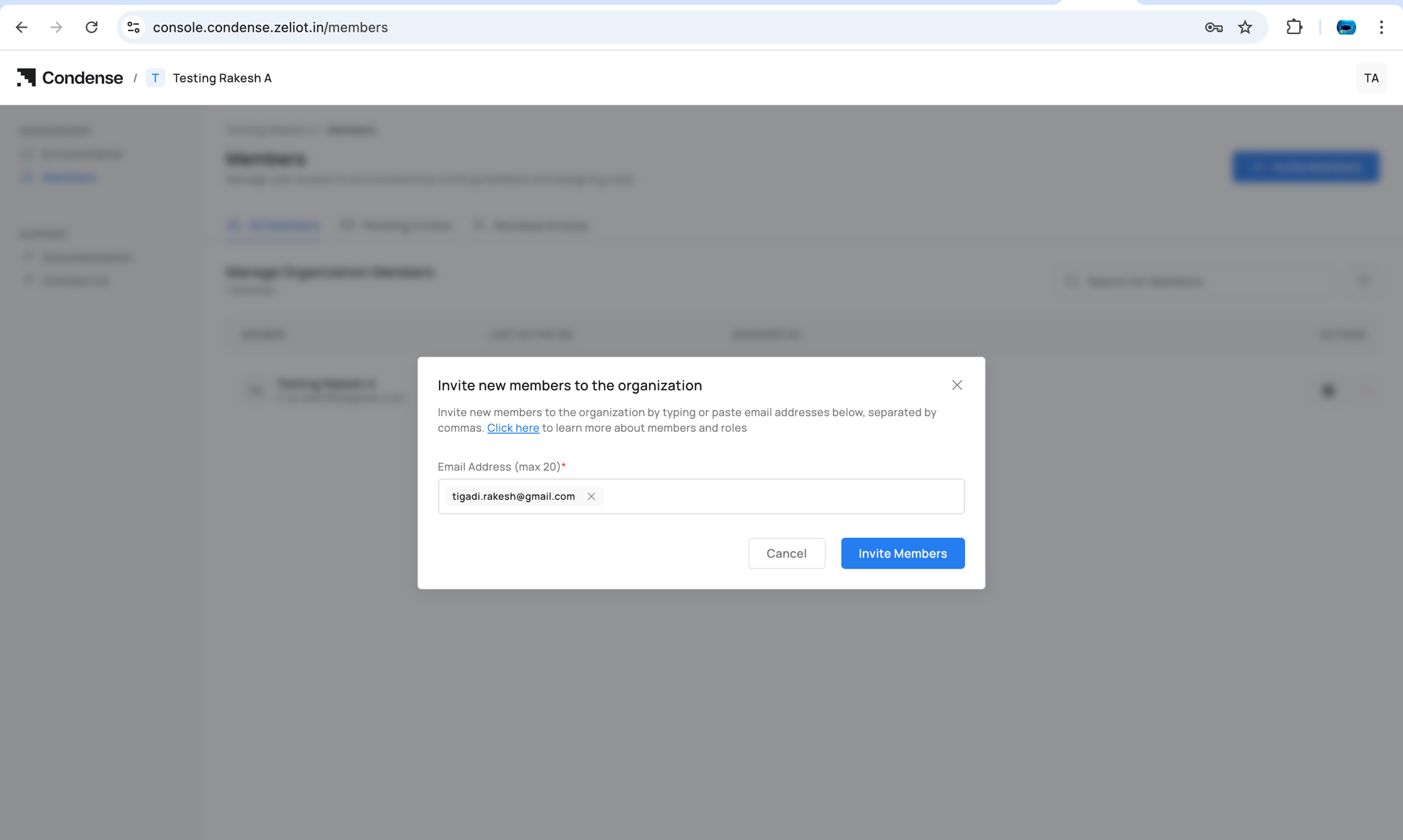
Send invite
Once accepted, the member appears under the organization.
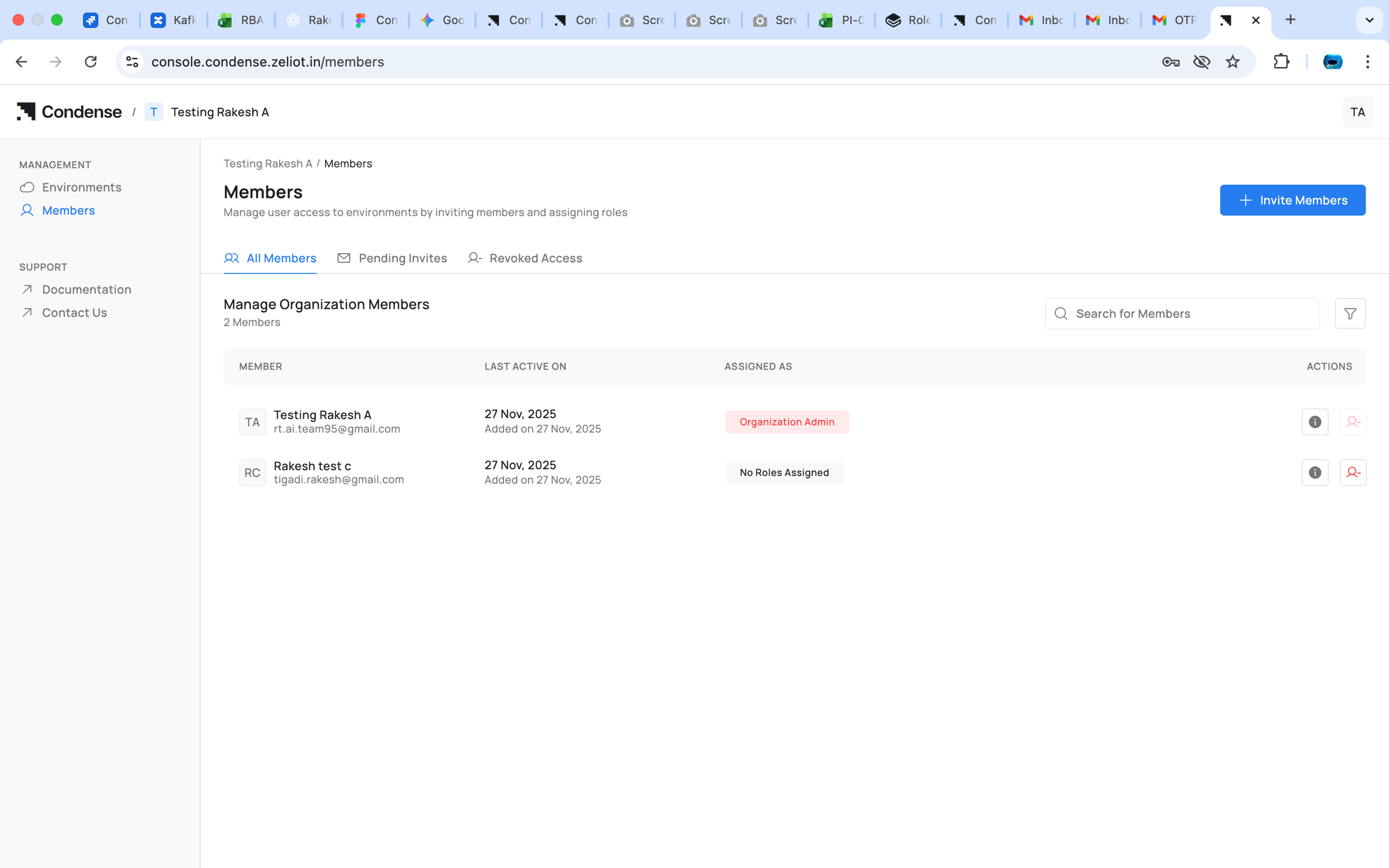
Select the member and assign one of the Organization-level roles:
Organization Admin
Account Admin
Billing Admin
Environment Admin (for selected environments)
Environment User (for selected environments)
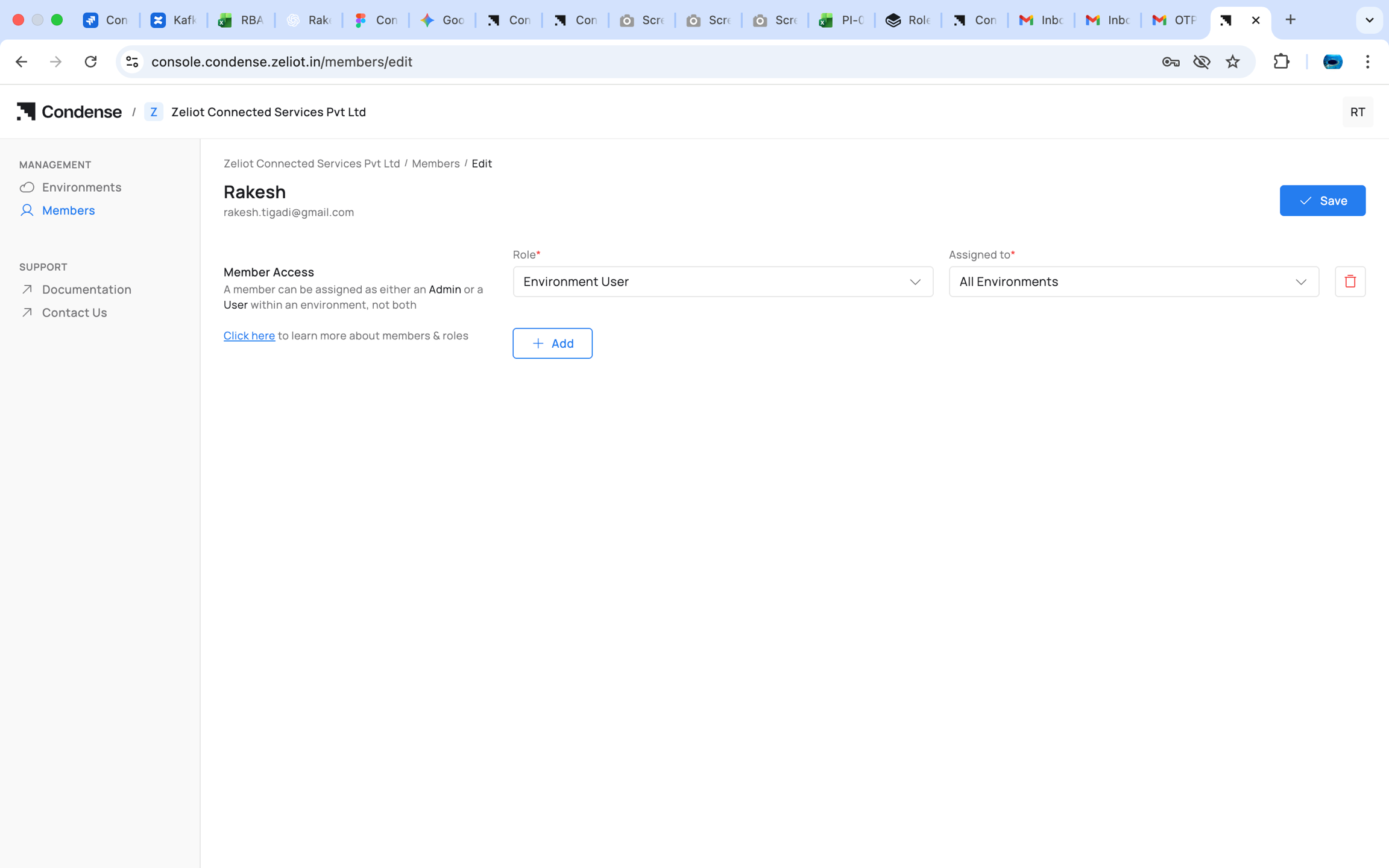
You cannot assign any role to member if there is no Environment is associated to organization
Assigning Organizational Roles
Organization Admins can assign:
Organization Admin
Account Admin
Billing Admin
These roles control access in Condense Console.
Assigning Environment Roles
Organization Admin or Account Admin can:
Select a member
Choose Add to Environment
Select an environment
Assign either:
Environment Admin
Environment User
This determines the member’s access level inside Corrdese Core.
Assigning Workspace Roles (inside Condense Core)
Only Environment Admins do this.
For an Environment User:
Navigate to Members in Condense Core
Select the Environment User
Choose Assign Workspace Role
Select role:
Kafka Admin
Maintainer
Developer
Viewer
Select one or more workspaces
Note The role selected applies to all selected workspaces. Later additions must use the same role.
Example Scenario
Setup
Environments: Production, Testing Workspaces: FleetTracking, ColdChain, Sandbox
Team
Anita
Organization Admin
Env Admin (Prod, Test)
—
Bharat
Account Admin
Env User (Prod)
Kafka Admin — FleetTracking
Divya
—
Env Admin (Test)
Maintainer — Sandbox
Eshan
—
Env User (Prod)
Developer — FleetTracking, ColdChain
Farah
—
Env User (Test)
Viewer — Sandbox
User Experience
Anita Full authority across both environments and all workspaces.
Bharat Sees Production only. Sees only FleetTracking because of the Kafka Admin role.
Divya Sees all workspaces in Testing. Can deploy and manage connectors in Sandbox.
Eshan Sees Production. Sees FleetTracking and ColdChain as Developer.
Farah Sees Sandbox with read-only access.
Behavior
Environment Admins see and operate across all workspaces of their environments
Environment Users only see the workspaces they have a role for
Workspace roles for an Environment User always remain uniform across all selected workspaces
Capability Overview
Access all Workspaces


Access only assigned Workspaces
Not applicable
Create / delete Workspaces
Manage Workspace members
Deploy connectors
Maintainer only
Develop applications
Developer only
Kafka operations
Kafka Admin only
View everything
Viewer only
Condense RBAC provides a structured, predictable access model across three layers:
Organization Layer : governs who administers the organization and who can assign access
Environment Layer : determines seniority and visibility for operations
Workspace Layer : controls fine-grained operational capabilities
Environment Admins manage the entire environment and all workspaces. Environment Users gain workspace access only through explicit workspace-role assignments using a consistent role across selected workspaces.
This model keeps permissions clear, secure, and scalable, supporting diverse teams collaborating across multiple environments and workspaces.
Lifecycle Guide
Frequently Asked Questions (FAQs)
Last updated