> For the complete documentation index, see [llms.txt](https://docs.zeliot.in/condense/llms.txt). Markdown versions of documentation pages are available by appending `.md` to page URLs; this page is available as [Markdown](https://docs.zeliot.in/condense/v2.4.0/utilities/alert-utility.md).
# Alert Utility
## **Overview**
The **Alert Utility** is a real-time monitoring tool that allows users to define conditions on streaming data and trigger alerts when those conditions are met for a specified duration. Alerts are published to an output topic for further action without manual intervention.
## **Key Features**
### **Real-Time Alerting**
Dynamically monitors data streams and triggers alerts instantly when conditions are met.
### **Flexible Rule Configuration**
Supports multiple conditions (e.g., `>`, `<`, `=`) on numeric, string, and boolean fields.
### **Configurable Alert Duration**
Set a time window (0–1800 seconds) to ensure alerts only trigger after conditions persist.
### **Topic-Based Integration**
Reads from a single input topic and publishes alerts to a designated output topic.
### **Grouped Alerts**
Aggregates alerts by a user-defined key (e.g., `device_id`, `user_id`) for targeted monitoring.
### **No-Code Setup**
Intuitive UI for rule creation—no scripting required.
## **How to Use the Alert Utility**
{% hint style="info" %}
**Prerequisites**
* Admin or Developer access in Condense
* Kafka topics created with proper permissions
* Basic understanding of your data schema
{% endhint %}
### **Step 1: Access the Alert Utility**
1. Log in to your Condense account
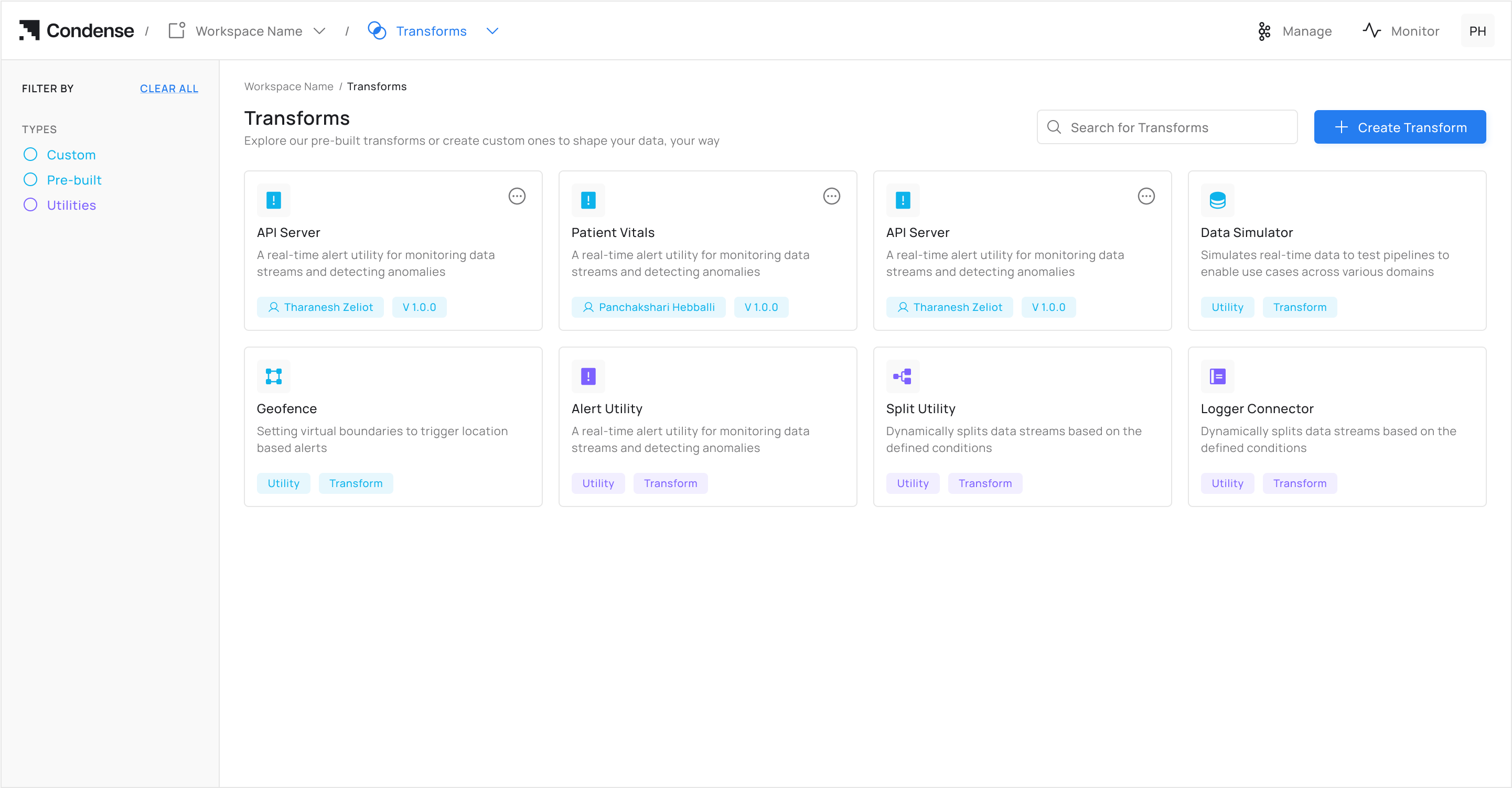
2. From the main menu, select **Transforms**
3. Click on **Alert Utility** from the Transforms page
### **Step 2: Choose Configuration Method**
#### **Option A: Auto-Fill from Topic (Recommended)**
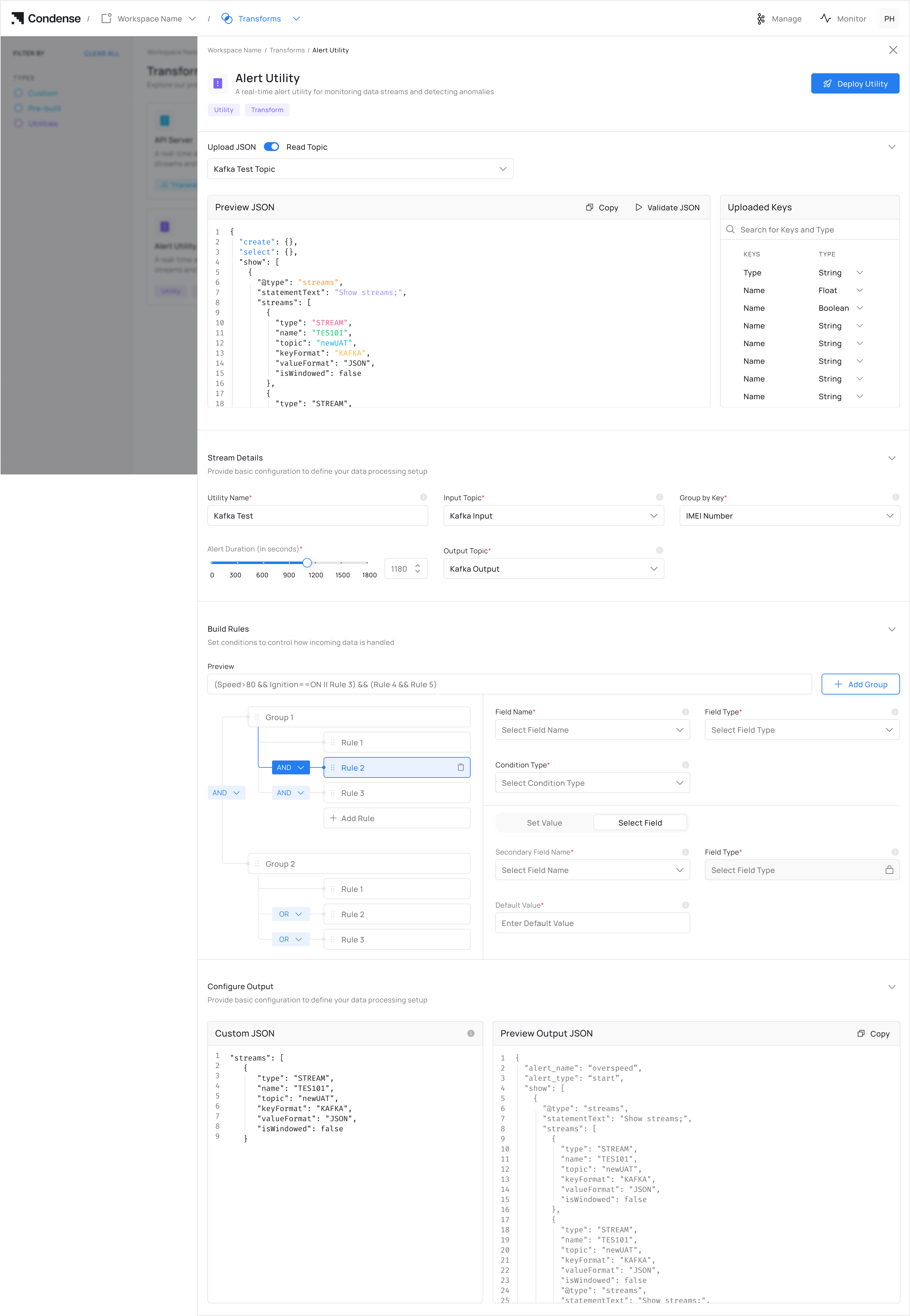
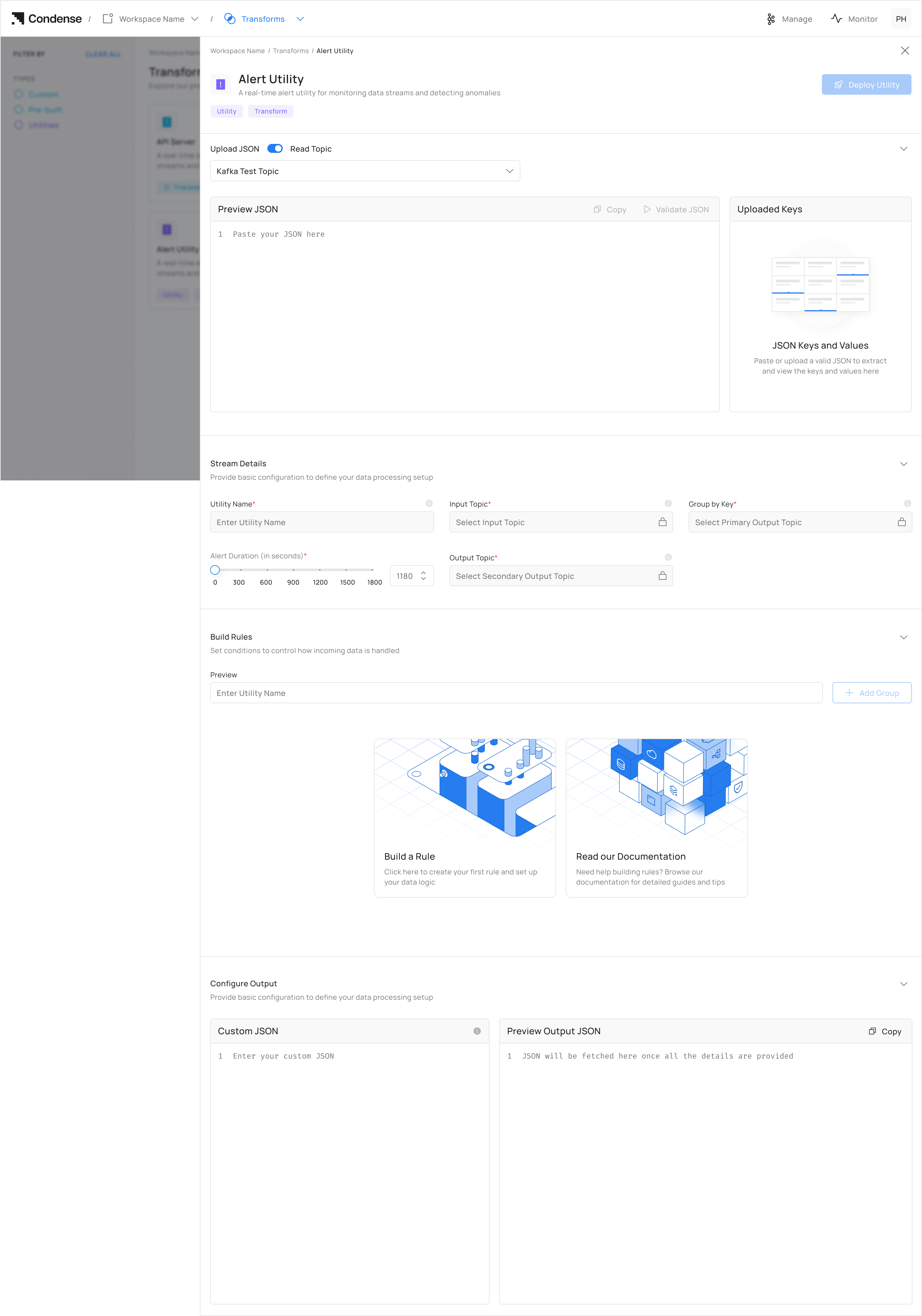
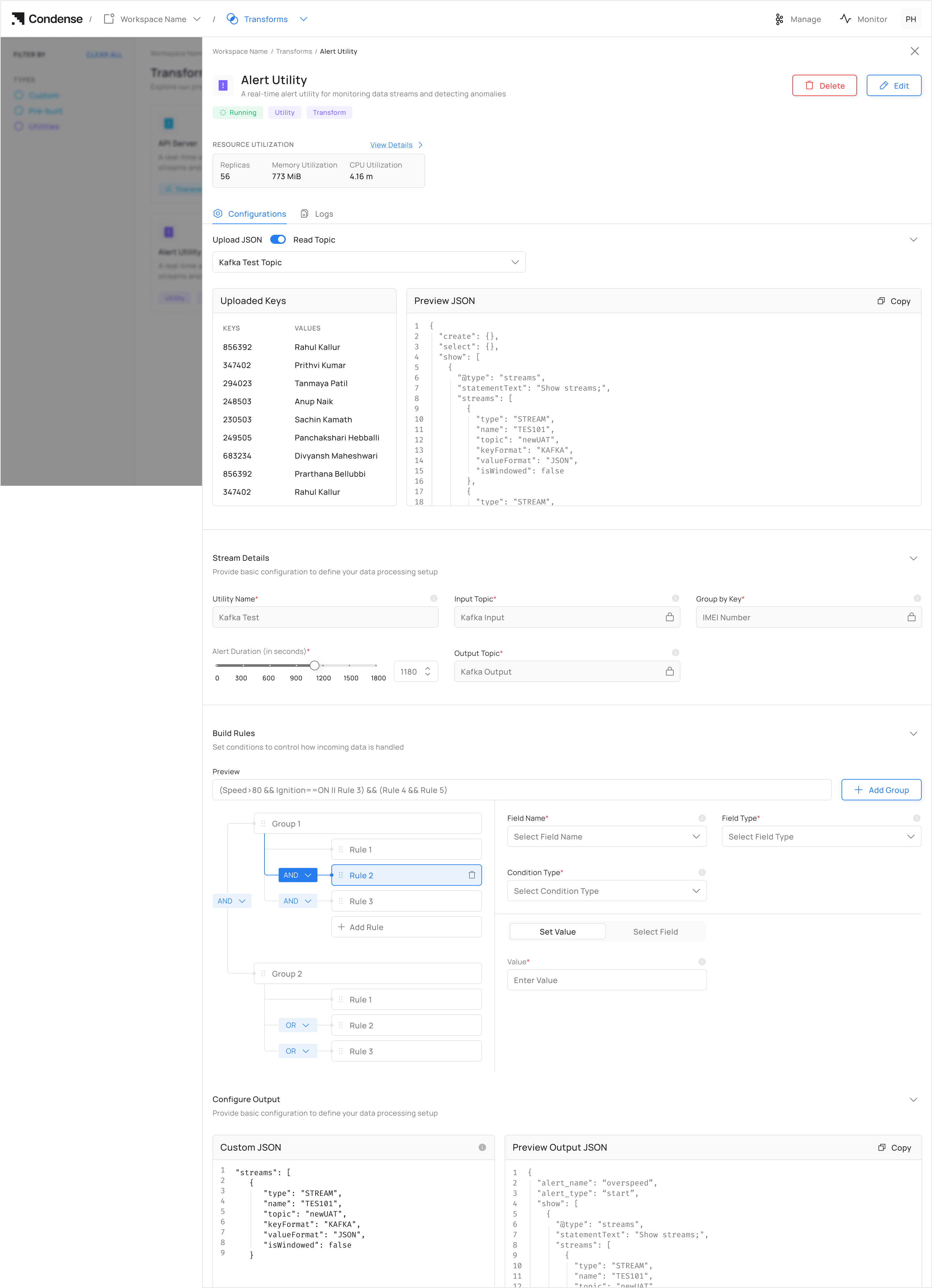
1. Click **"Choose a Topic"** under *Read Topic.* It auto-populates schema fields for the configuration of the Alert utility.
{% hint style="info" %}
If the topic is empty, the user will not be able to set up the configuration for the Alert utility
{% endhint %}
#### **Option B: Manual JSON Upload**
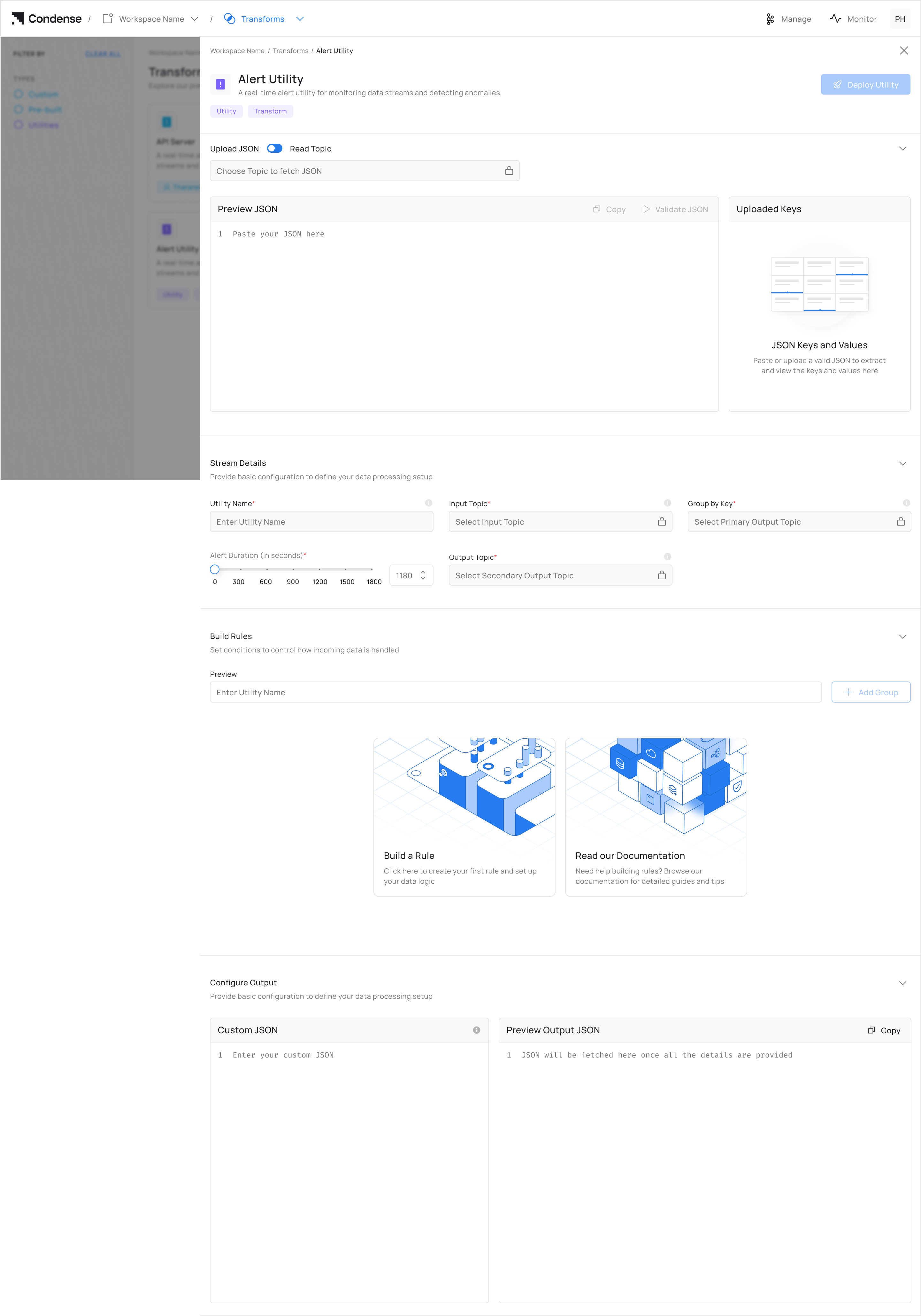
Click "Upload" and provide JSON as well as validate it. It auto-populates schema fields for the configuration of the Alert utility.
{% hint style="info" %}
Manual JSON must exactly match your Kafka topic schema
{% endhint %}
### **Step 3: Set Up Configurations for Topics**
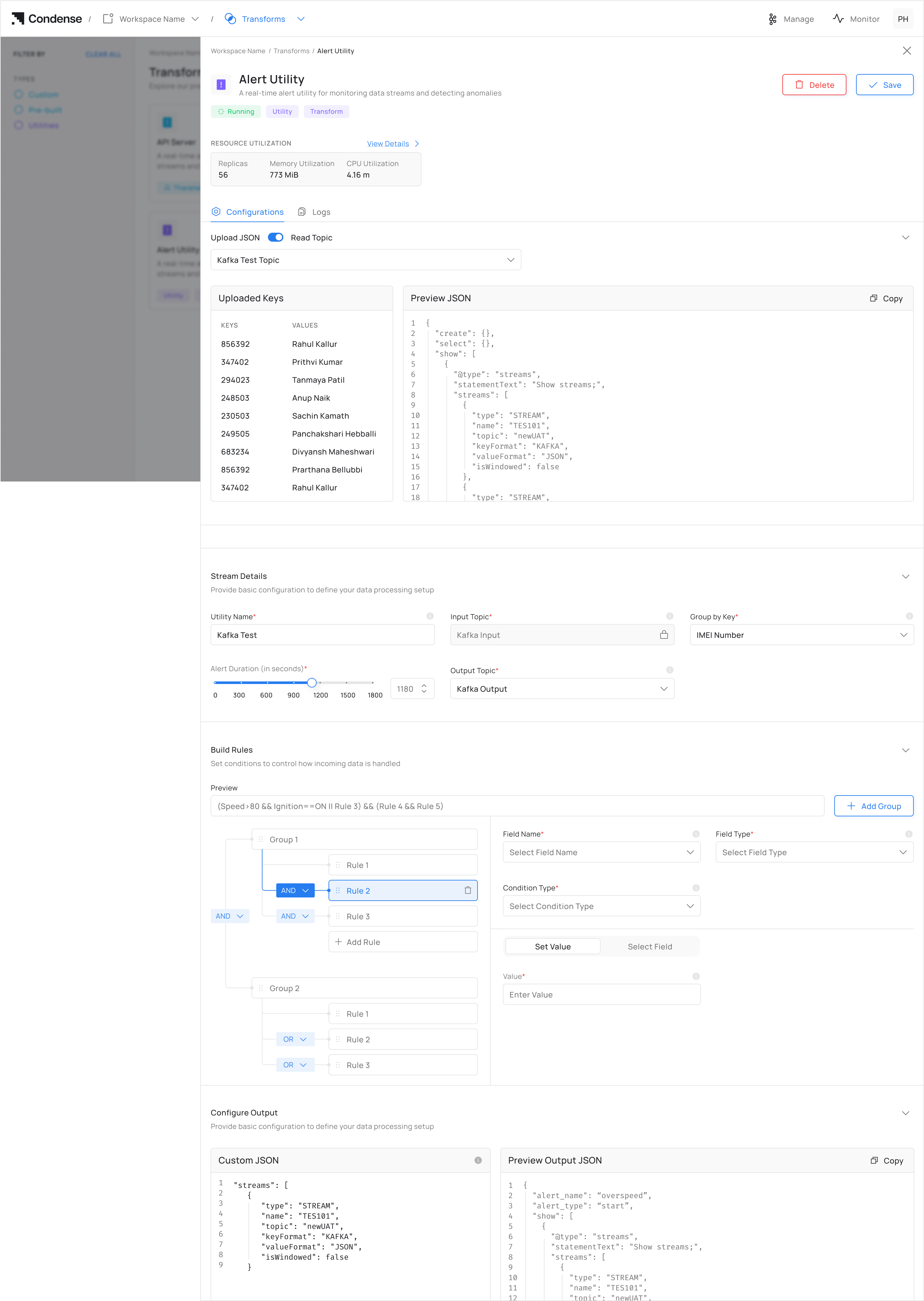
1. Enter a descriptive **Utility Name** for your Alert configuration
2. Select or specify the **Input Topic** that will provide data to the utility
3. Group incoming records by a selected **Group By** key field to configure alert logic
4. Specify the alert duration to control how long a condition must persist before triggering an alert
5. Define a unique **Output Topic** for the alerts utility.
### **Step 4: Configure Rules for Alert**
1. Click **Add Rule**
2. For each rule:
* **Field Name**: Select from auto-populated list (never type manually)
* **Condition**: Set operator (>, <, =) and threshold
3. Grouping Rules - Click **"Add Group"** to combine multiple rules *(Example: Group "Engine Alerts" with rules for temperature AND pressure).* Rules follow logical evaluation order.
### **Step 5: Deploy**
Real-Time Rule Preview - The top preview bar shows your current rule structure\
(Updates instantly as you add/change rules)
#### Check the preview bar to verify:
* Correct grouping with parentheses
* Logical operator priority matches your intent
2. Click **Deploy Utility**
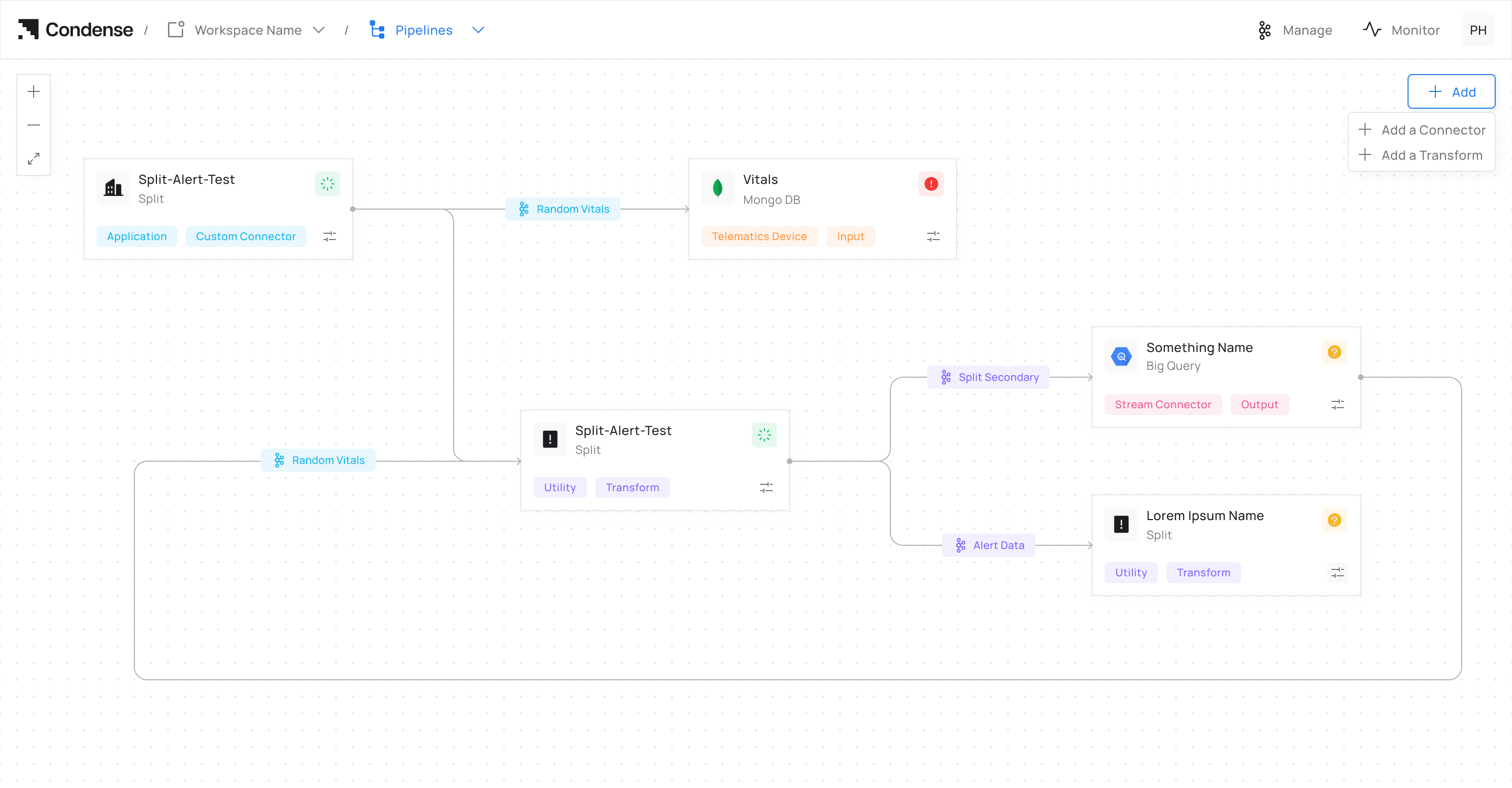
3. Go to **Pipelines** > Your Alert Name to monitor your alert deployment on the pipeline.
{% hint style="warning" %}
The process of editing or deleting a deployed utility remains the same
{% endhint %}
## **Editing an Alert Configuration**
1. Navigate to the **Pipelines** page
2. Select the deployed Alert Utility you wish to modify
3. Click **Edit Configurations** to access settings
4. Update rule parameters as needed
5. Click **Deploy Utility** to apply changes
## **Deleting an Alert Configuration**
1. Navigate to the **Pipelines** page
2. Select the deployed Alert Utility you wish to remove
3. Click the **Delete Utility** button
4. Confirm deletion in the prompt window
## Frequently Asked Questions (FAQs)
#### Q1: Can I monitor multiple input topics with one alert configuration?
No, each alert configuration can only monitor a single input topic. If you need to monitor multiple topics, you'll need to create separate alert configurations for each.
#### Q2: How does the "Alert Duration" setting work?
The Alert Duration determines how long a condition must be continuously met before an alert is triggered. For example, if you set it to 60 seconds, the specified condition must persist for a full minute before an alert is sent to the output topic.
#### Q3: Can I send alerts to multiple output topics?
No, each alert configuration can only send alerts to a single output topic. If you need to distribute alerts to multiple destinations, consider implementing additional logic downstream from your output topic.
#### Q4: What field types are supported for alert conditions?
The Alert Utility supports Integer, Float, String, and Boolean field types.
#### Q5: What condition types are available for rule configuration?
The available conditions include greater than (>), less than (<), equal to (=), matches (for strings), and between (for ranges).
#### Q6: Can I create rules in bulk?
No, rules must be added individually through the interface. Bulk rule creation is not currently supported.
#### Q7: How do I know if my alert utility is functioning correctly?
You can verify alert functionality by:
1. Checking the status on the Pipelines page
2. Monitoring the output topic for alert messages
#### Q8: Can I temporarily disable an alert without deleting it?
The current version does not support temporarily disabling alerts. You would need to delete the alert configuration and recreate it when needed again.