> For the complete documentation index, see [llms.txt](https://docs.zeliot.in/condense/llms.txt). Markdown versions of documentation pages are available by appending `.md` to page URLs; this page is available as [Markdown](https://docs.zeliot.in/condense/v2.4.0/overview/roles-and-governance.md).
# Roles and Governance
## Overview
Condense provides a layered Role-Based Access Control (RBAC) system that defines how users are onboarded, granted access, and permitted to operate within the platform.\
This RBAC model supports:
* Clear administrative separation
* Strong isolation between environments and workspaces
* Predictable and least-privilege access assignment
* Smooth governance for teams of all sizes
The RBAC model spans two areas of the Condense platform:
**Condense Console** – the organization control plane\
**Condense Core** – the operational data plane containing environments and workspaces
This document describes each role, how access propagates, and how administrators assign members across these layers.
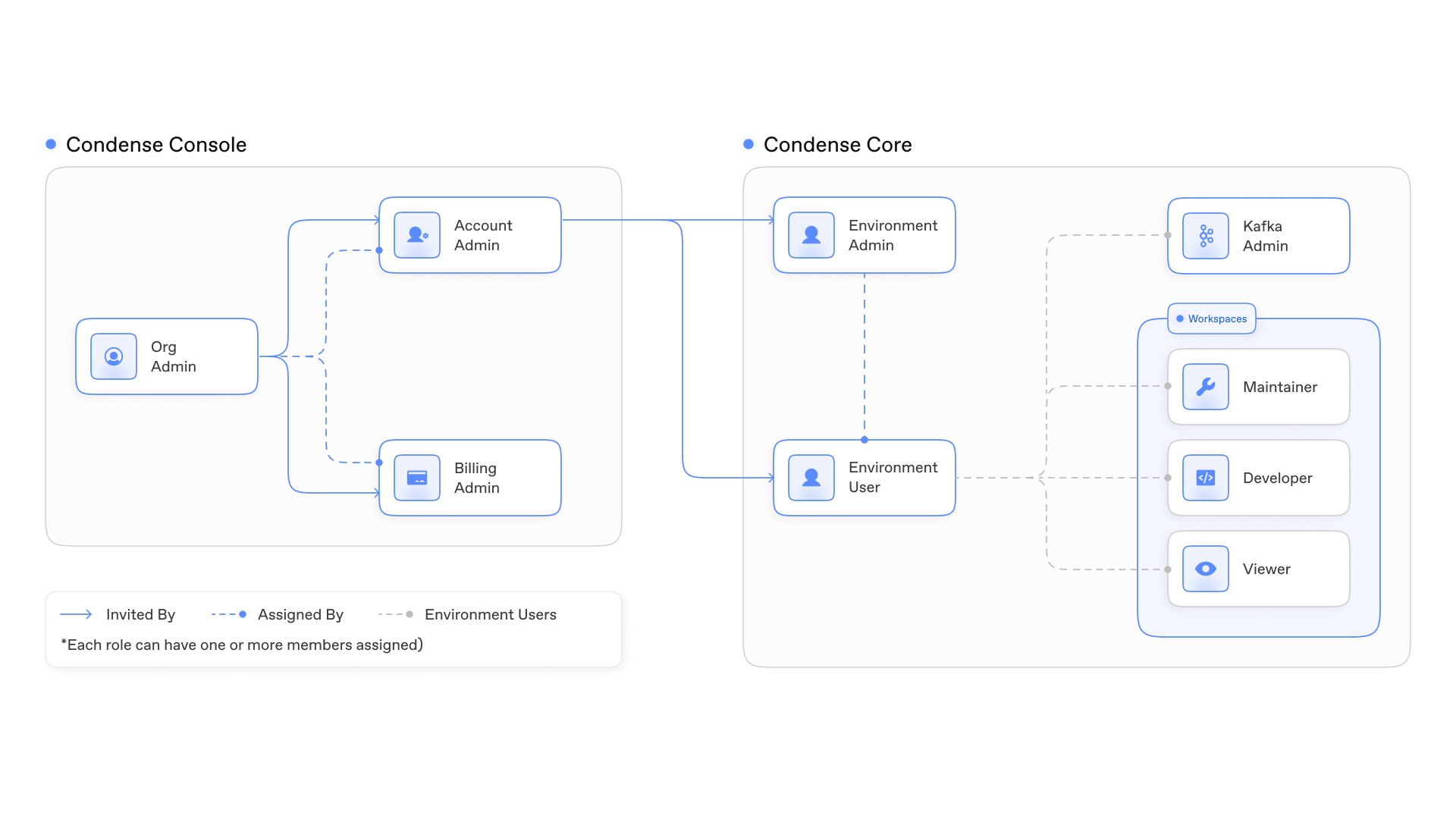
## Access Layers in Condense
Condense access is structured into three layers:
```
Organization → Environment → Workspace
```
Each layer has its own hierarchy, responsibilities, and roles. The diagram below shows the complete flow of access across Organization, Environment, and Workspace layers in Condense
***
## Organization Layer (Condense Console)
The Organization layer controls the company’s identity within Condense.\
Here, administrators manage:
* Organization profile
* Users and roles
* Environment onboarding
* Member invitation
* Billing visibility
> Organization roles control **who governs the organization**, and **who can grant access to specific environments**.
### Organization Roles
#### Organization Admin
The top-level administrative role for the entire organization.
**Responsibilities**
* Set up and manage the organization
* Invite new members
* Assign Organization-level roles (Billing Admin, Account Admin, Environment Admin, Environment User)
* Assign environment access to members
* Link and manage environments associated with the organization
{% hint style="info" %}
**Access Flow**\
While Organization Admin manages access centrally, they must assign themselves an Environment Admin or Environment User role to operationally enter a specific environment.
{% endhint %}
#### Account Admin
Focused on access management for assigned environments.
**Responsibilities**
* Invite members to their assigned environments
* Assign environment roles (Environment Admin or Environment User)
* Suspend users in the environments they manage
#### Billing Admin
Role for financial governance and usage management.
**Responsibilities**
* View billing details and usage reports
* Manage payment information
* Visibility limited to the environments assigned to them
#### Environment Admin (assigned from Console)
An Organization Admin can assign a member to become Environment Admin for one or more environments.
This grants full access in those environments within Condense Core.
#### Environment User (assigned from Console)
A non-admin member of an environment.
Environment Users gain workspace-level access only through workspace-role assignments inside Condense Core.
***
## Environment Layer (Condense Core)
An Environment represents an isolated execution space containing Workspaces, applications, connectors, Kafka resources, and monitoring.
Each user entering an environment receives one of two roles:
* Environment Admin
* Environment User
These roles control access to Workspaces and operational features.
### Environment Admin
The highest authority within an environment.
**Capabilities**
* Full visibility into every workspace in the environment
* Create and manage workspaces
* Manage workspace membership
* Configure pipelines, connectors, transforms, and utilities
* Create, modify, and delete applications
* Access Kafka operations (topics, consumer groups, schema registry)
* View environment metrics and dashboards
Environment Admins do **not** need workspace-role assignments.\
They can operate across all workspaces automatically.
### Environment User
A non-administrative user who has access to the environment but **does not automatically see any workspace**.
Workspace visibility and workflow access depend entirely on the workspace roles assigned to them.
#### Single-Role Assignment Model
Within an environment:
* An Environment User receives **one workspace role** (e.g., Developer, Maintainer)
* The role applies to **all workspaces selected** during assignment
* If more workspaces are added later, they must receive **the same role**
* Environment Users **cannot** hold mixed roles (e.g., Developer in W1 and Viewer in W2) within the same environment
> This simplifies governance and preserves consistent privilege levels.
***
## Workspace Layer (Condense Core)
Workspaces are operational areas inside an environment, each hosting its own applications, connectors, pipelines, and Kafka-based resources.
{% hint style="success" %}
Workspace roles determine operational capability.
{% endhint %}
### Workspace Roles
#### Kafka Admin
Full Kafka management inside the assigned workspace(s).\
Manages topics, consumer groups, schema registry entities, and compatibilities.
#### Maintainer
Responsible for deploying and managing connectors, transforms, and utilities.
#### Developer
Creates, updates, and publishes applications.\
Can restore and delete applications in the assigned workspaces.
#### Viewer
Read-only access to applications, connectors, logs, and configurations.
***
## How Access Works Together
### Access to Condense Core
To enter an environment inside Condense Core, a user must have:
* Environment Admin, or
* Environment User
assigned at the organization layer.
{% hint style="success" %}
Environment Admin → full environment visibility\
Environment User → workspace visibility only after workspace-role assignment
{% endhint %}
### Workspace Access
Environment Admin\
→ Sees and manages all workspaces automatically
Environment User\
→ Sees only the workspaces for which a workspace role was assigned\
→ Workspace role must be the same across all selected workspaces
***
## Member & Role Assignment Flow
### Creating an Organization and Becoming Organization Admin
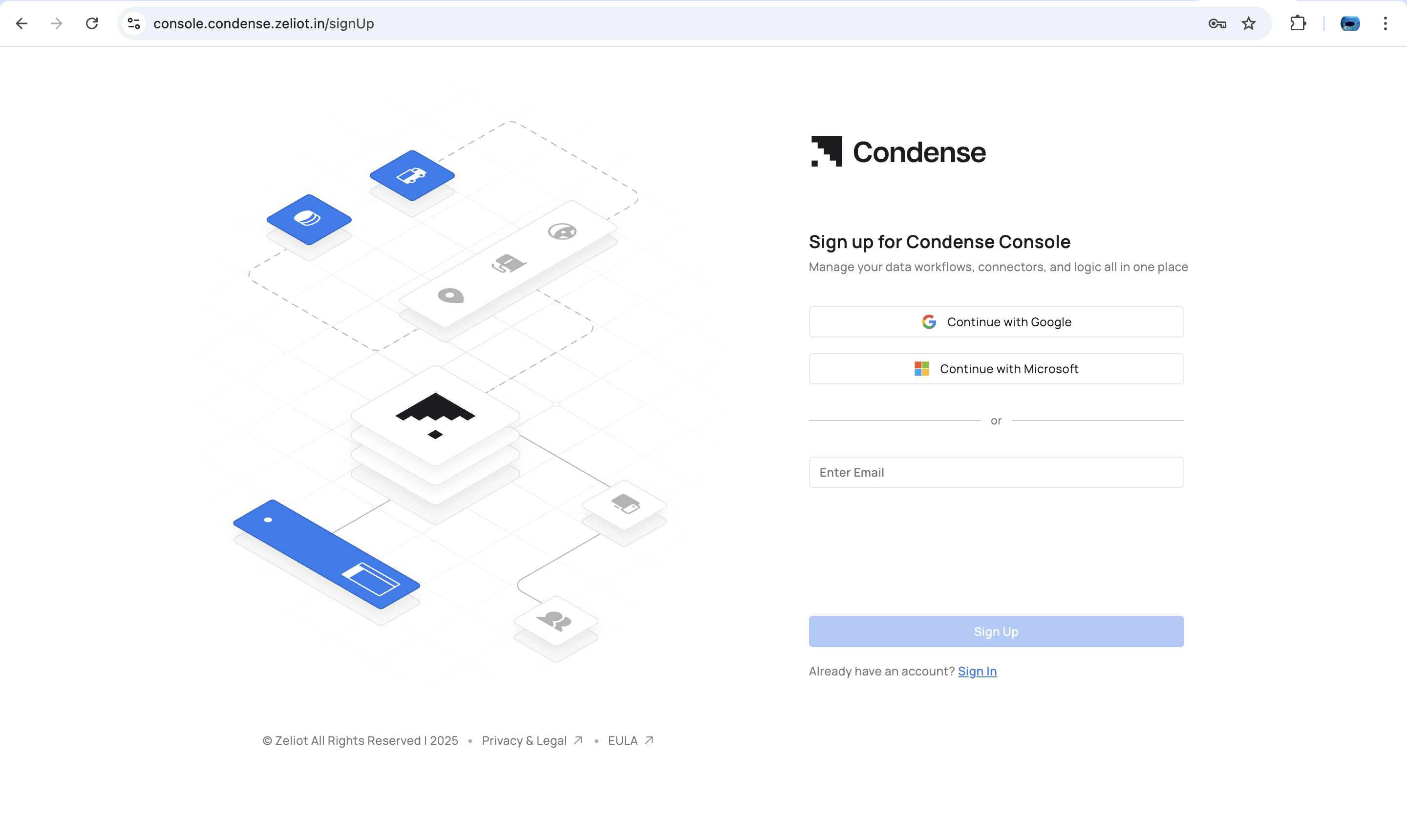
1. Sign up or create a new organization in Condense Console
2. The creator automatically becomes the **Organization Admin**
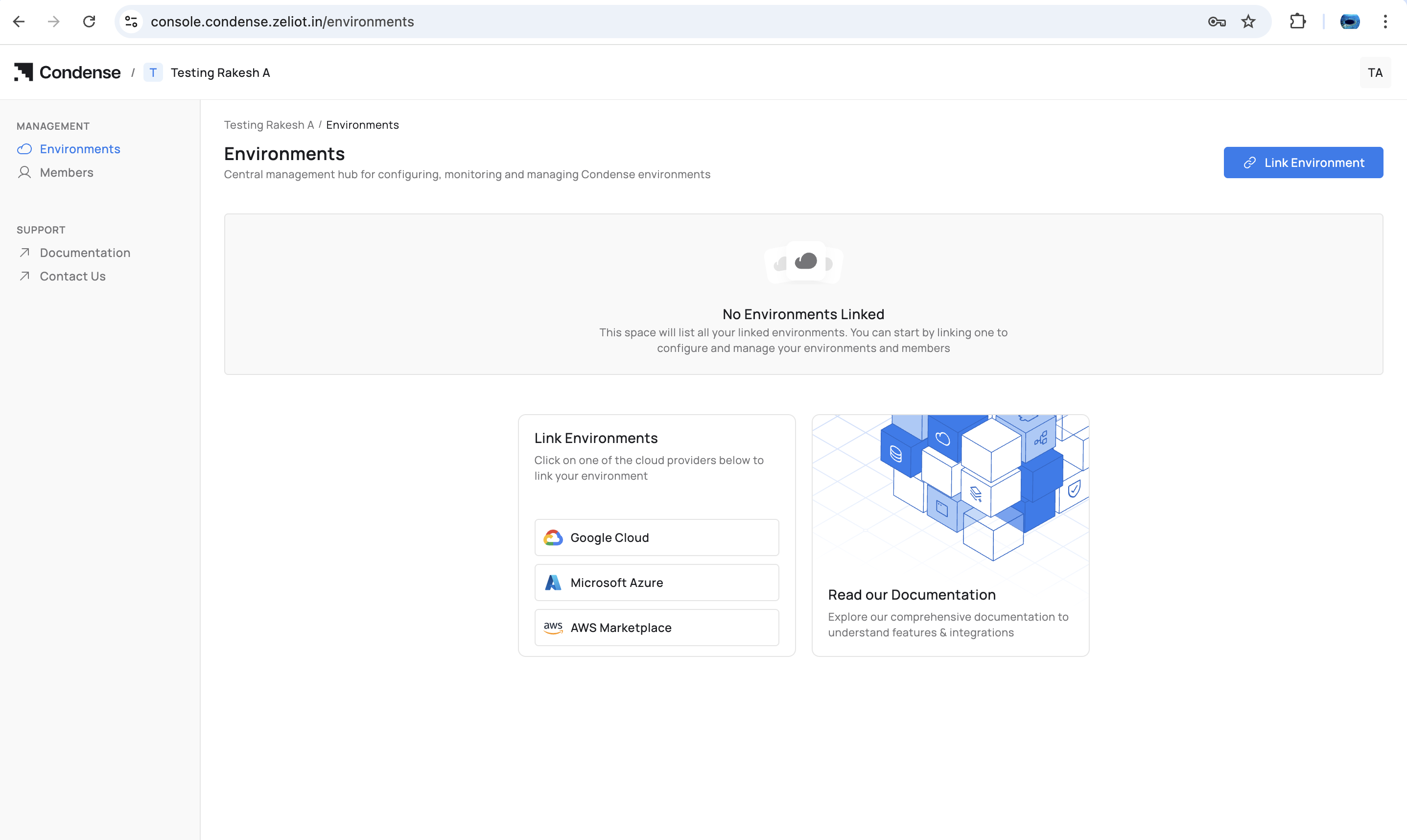
3. Environment(s) can now be linked to the organization
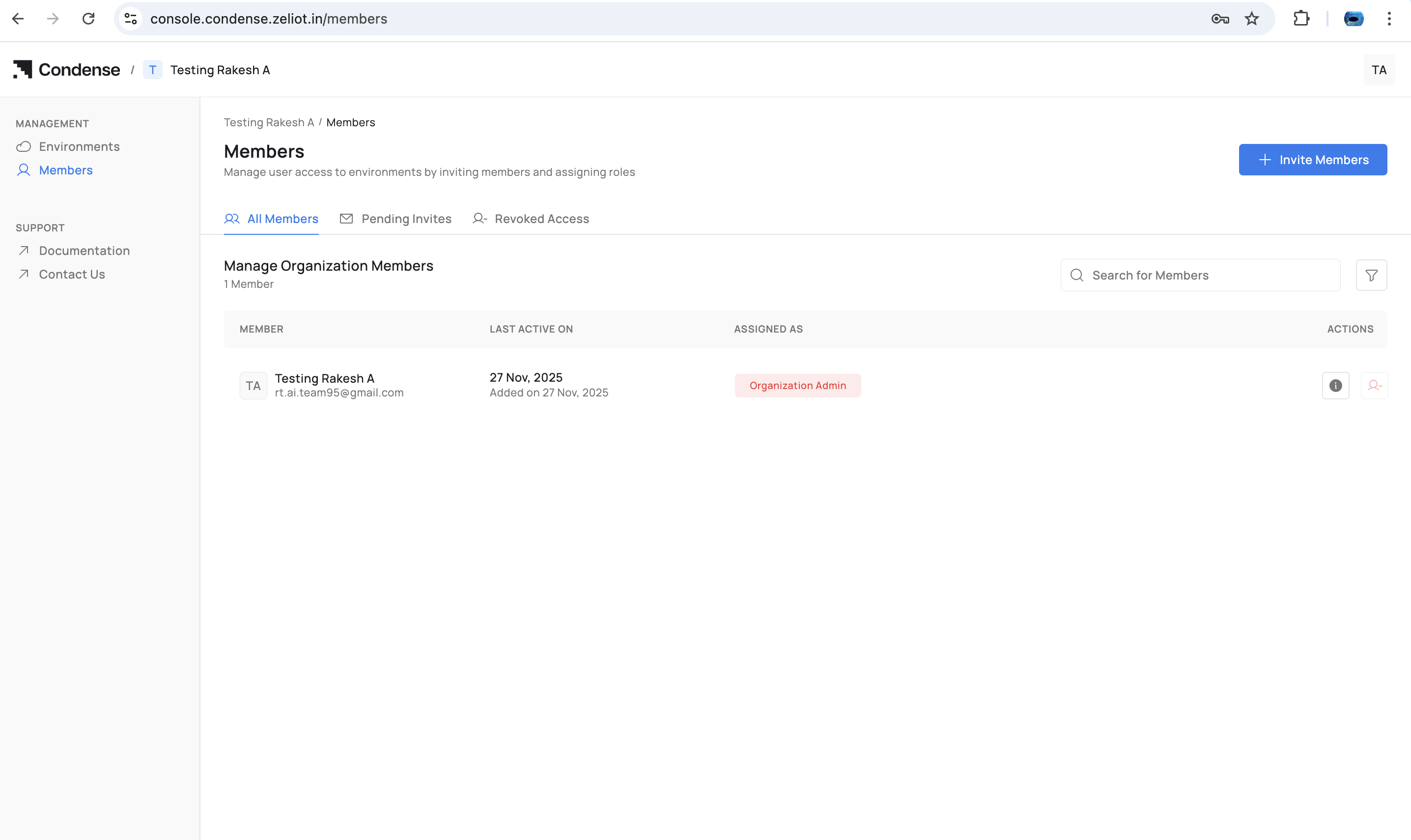
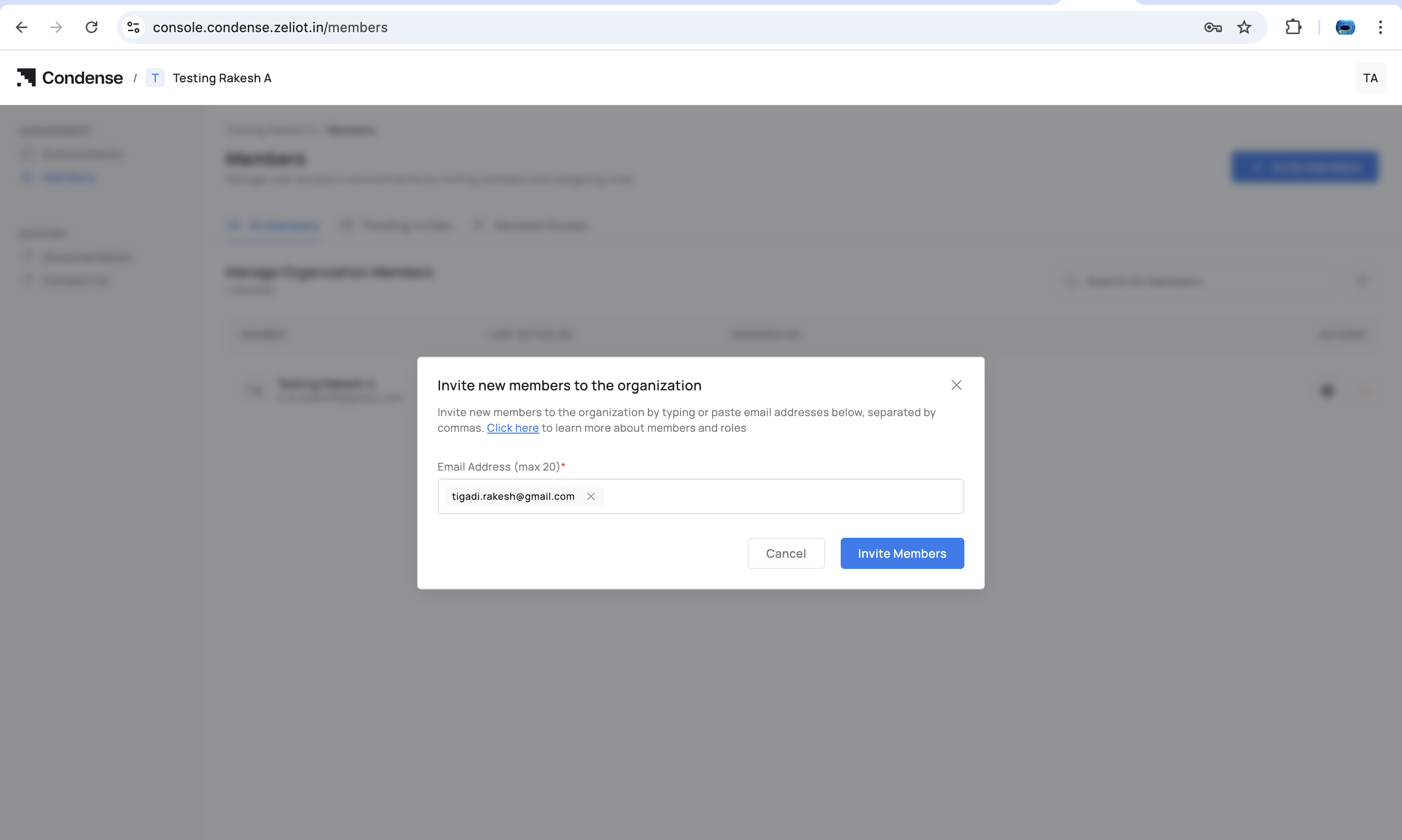
### Inviting Members
As Organization Admin:
1. Go to **Members**
2. Select **Invite Member**
3. Enter user details
4. Send invite
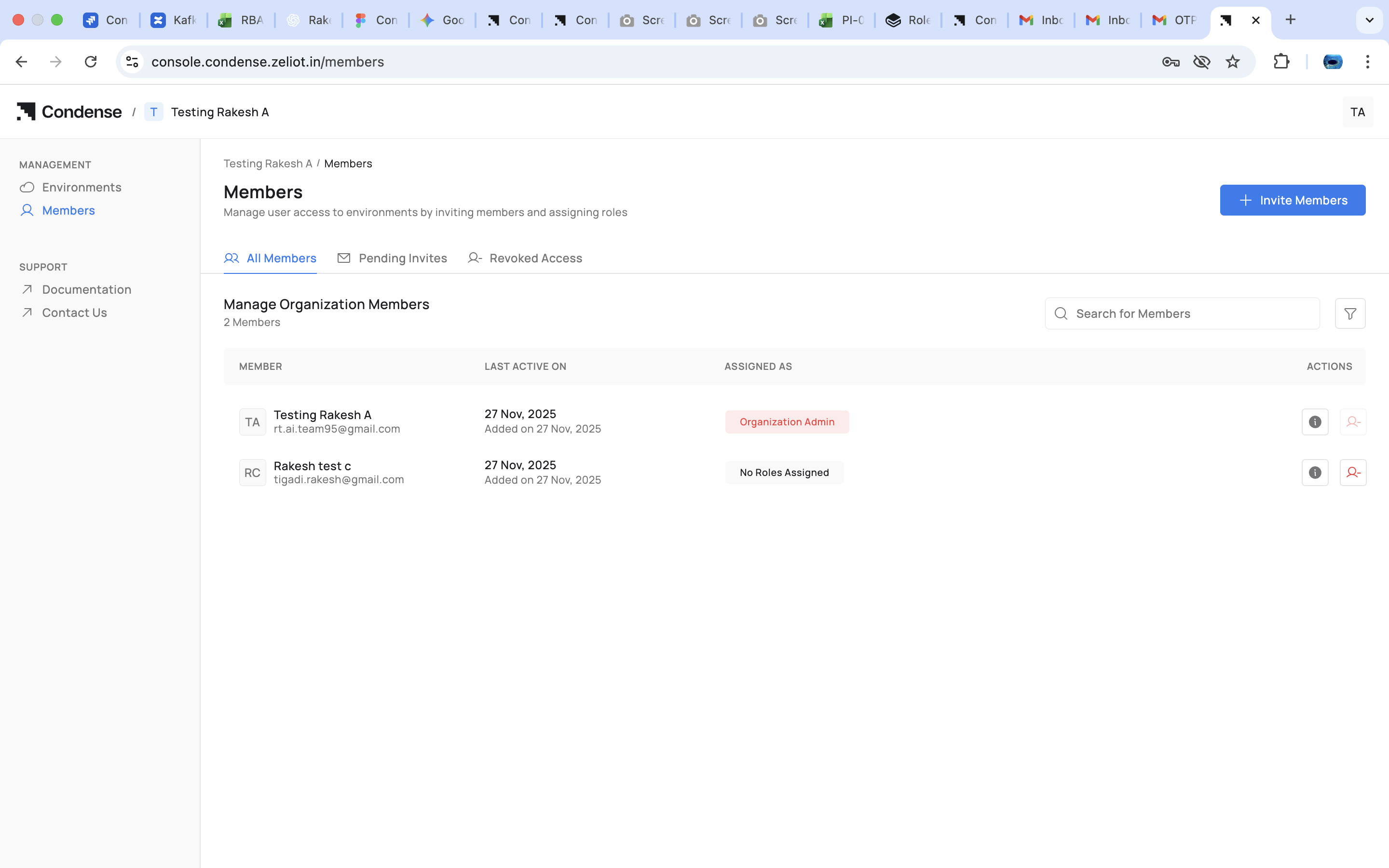
Once accepted, the member appears under the organization.
5. Select the member and assign one of the Organization-level roles:
* Organization Admin
* Account Admin
* Billing Admin
* Environment Admin (for selected environments)
* Environment User (for selected environments)
{% hint style="danger" %}
You cannot assign any role to member if there is no Environment is associated to organization
{% endhint %}
### Assigning Organizational Roles
Organization Admins can assign:
* Organization Admin
* Account Admin
* Billing Admin
These roles control access in Condense Console.
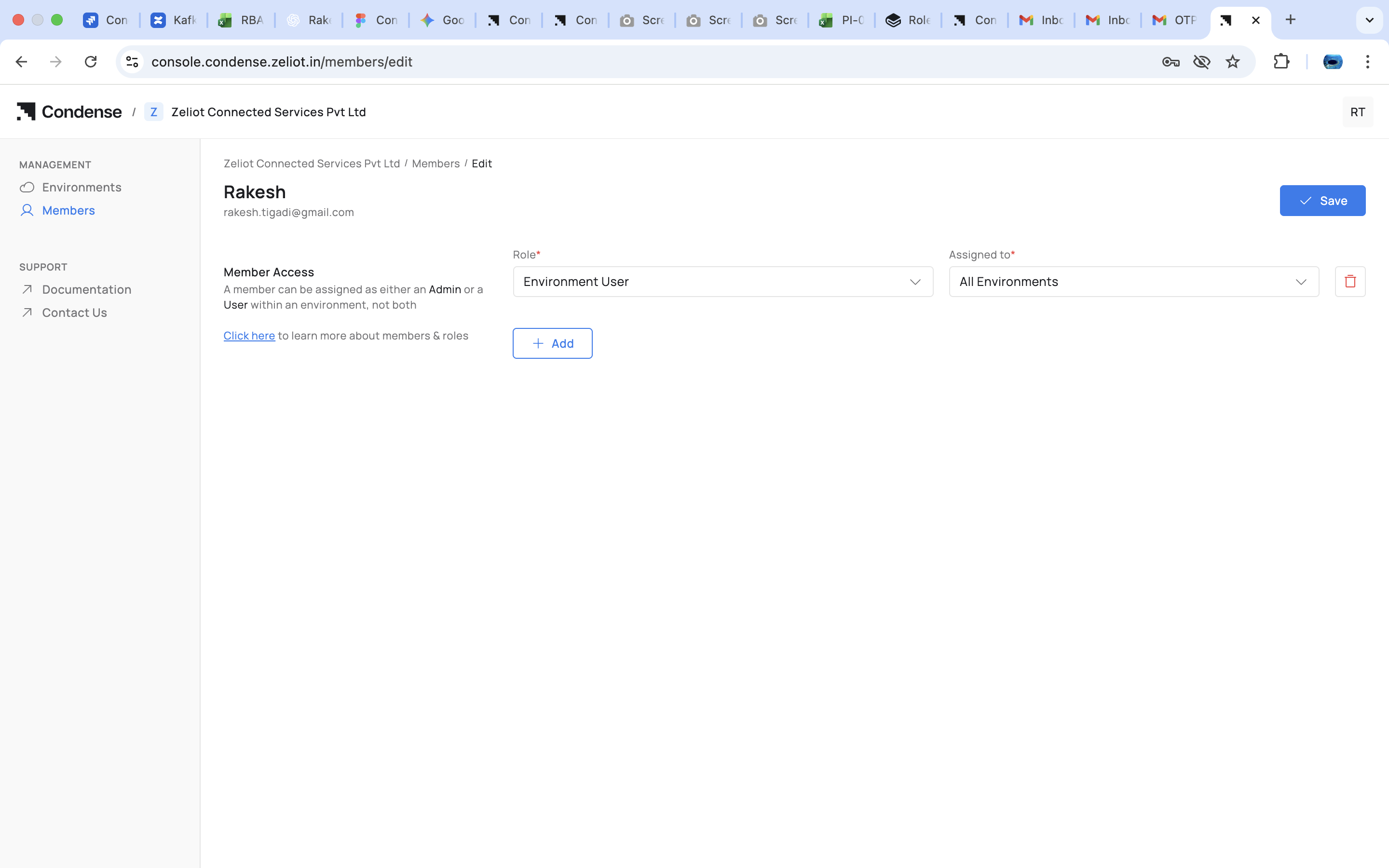
### Assigning Environment Roles
Organization Admin or Account Admin can:
1. Select a member
2. Choose **Add to Environment**
3. Select an environment
4. Assign either:
* Environment Admin
* Environment User
This determines the member’s access level inside Corrdese Core.
### Assigning Workspace Roles (Inside Condense Core)
Only **Environment Admins** do this.
For an Environment User:
1. Navigate to **Members** in Condense Core
2. Select the Environment User
3. Choose **Assign Workspace Role**
4. Select role:
* Kafka Admin
* Maintainer
* Developer
* Viewer
5. Select one or more workspaces
> **Note**\
> The role selected applies to all selected workspaces. Later additions must use the same role.
***
## Example Scenario
#### Setup
**Environments**: Production, Testing\
**Workspaces**: FleetTracking, ColdChain, Sandbox
#### Team
| Name | Org Role | Environment Role | Workspace Role |
| ------ | ------------------ | ---------------------- | ----------------------------------- |
| Anita | Organization Admin | Env Admin (Prod, Test) | — |
| Bharat | Account Admin | Env User (Prod) | Kafka Admin - FleetTracking |
| Divya | — | Env Admin (Test) | Maintainer - Sandbox |
| Eshan | — | Env User (Prod) | Developer -FleetTracking, ColdChain |
| Farah | — | Env User (Test) | Viewer - Sandbox |
#### User Experience
* **Anita**\
Full authority across both environments and all workspaces.
* **Bharat**\
Sees Production only.\
Sees only FleetTracking because of the Kafka Admin role.
* **Divya**\
Sees all workspaces in Testing.\
Can deploy and manage connectors in Sandbox.
* **Eshan**\
Sees Production.\
Sees FleetTracking and ColdChain as Developer.
* **Farah**\
Sees Sandbox with read-only access.
#### Behavior
* Environment Admins see and operate across **all workspaces** of their environments
* Environment Users only see the workspaces they have a role for
* Workspace roles for an Environment User always remain uniform across all selected workspaces
***
## Capability Overview
| Capability | Env Admin | Env User (Workspace Role) |
| ------------------------------- | -------------- | ------------------------- |
| Access all Workspaces | Yes | No |
| Access only assigned Workspaces | Not applicable | Yes |
| Create / delete Workspaces | Yes | No |
| Manage Workspace members | Yes | No |
| Deploy connectors | Yes | Maintainer only |
| Develop applications | Yes | Developer only |
| Kafka operations | Yes | Kafka Admin only |
| View everything | Yes | Viewer only |
Condense RBAC provides a structured, predictable access model across three layers:
* **Organization Layer** : governs who administers the organization and who can assign access
* **Environment Layer** : determines seniority and visibility for operations
* **Workspace Layer** : controls fine-grained operational capabilities
Environment Admins manage the entire environment and all workspaces.\
Environment Users gain workspace access only through explicit workspace-role assignments using a consistent role across selected workspaces.
This model keeps permissions clear, secure, and scalable, supporting diverse teams collaborating across multiple environments and workspaces.
***
## Lifecycle Guide
## Frequently Asked Questions (FAQs)