> For the complete documentation index, see [llms.txt](https://docs.zeliot.in/condense/llms.txt). Markdown versions of documentation pages are available by appending `.md` to page URLs; this page is available as [Markdown](https://docs.zeliot.in/condense/v2.4.0/other-features/campaigns.md).
# Campaigns
A **Campaign** is a targeted workflow designed to manage and execute tasks for telematics devices within a specified timeframe. Campaigns enable users to send commands to devices and monitor the progress of the campaign in real time.
## **Core Features of Campaigns**
### **Command Configuration**
* **Predefined Commands**: Select from a list of pre-defined commands
* **Custom Commands**: Write device-specific commands
### **Bulk Operations**
* Upload multiple devices using the template.
* Save time with **Bulk Upload** or **Download Template** for standardized format
### **Progress Tracking**
* Monitor completion status via **Campaign Progress**
* Filter campaigns by date, creator, or name
### **Expiry Date Management**
Set deadlines to ensure campaigns auto-conclude, preventing outdated tasks
### **Search & Filter**
Quickly locate campaigns using keywords or dates in the **Search Campaign** bar.
## **Step-by-Step Guide for Campaign Creation and Execution**
## **Step 1: Navigate to Actions**
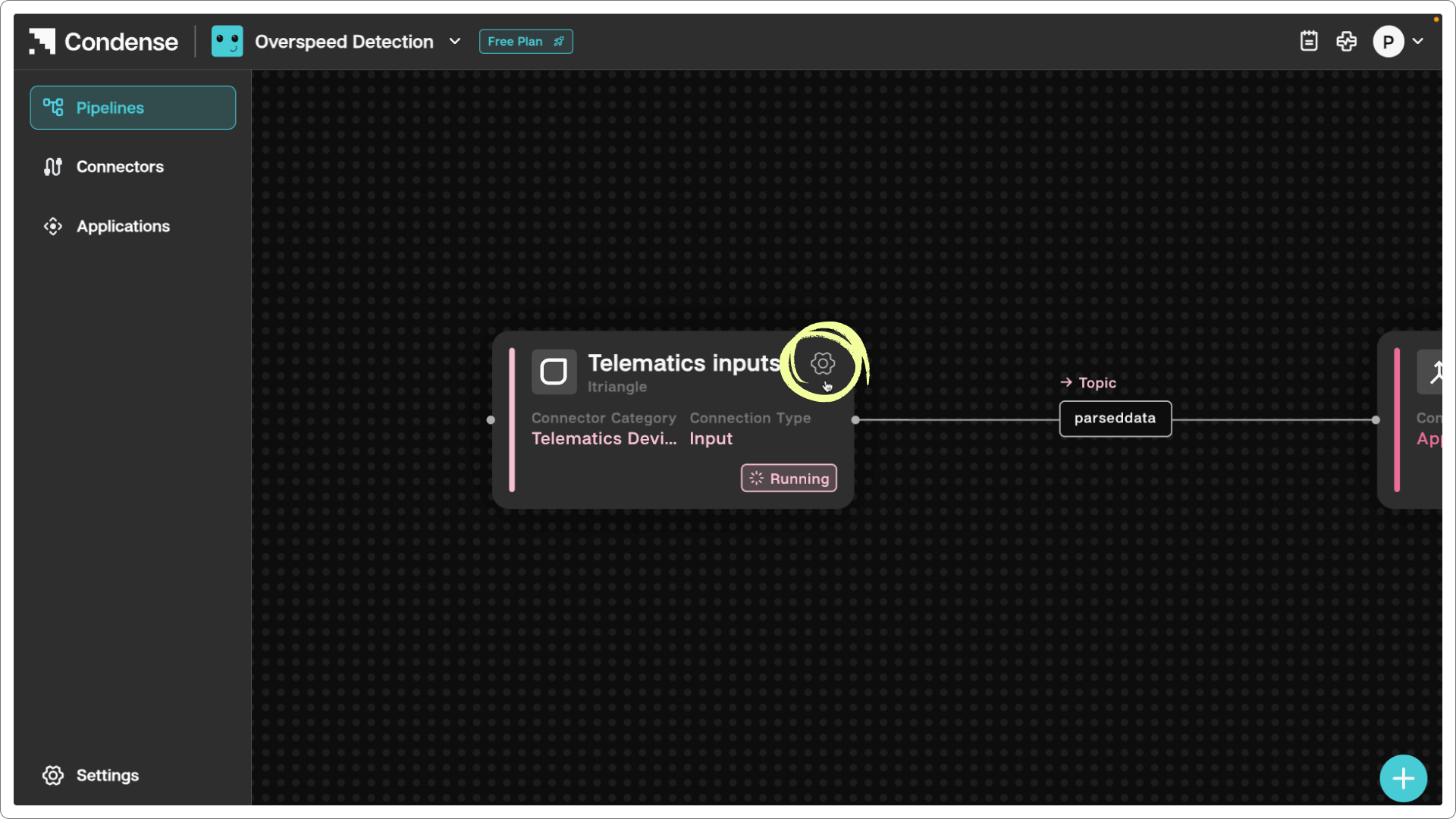
1. Go to Pipelines for Telematics device type connector
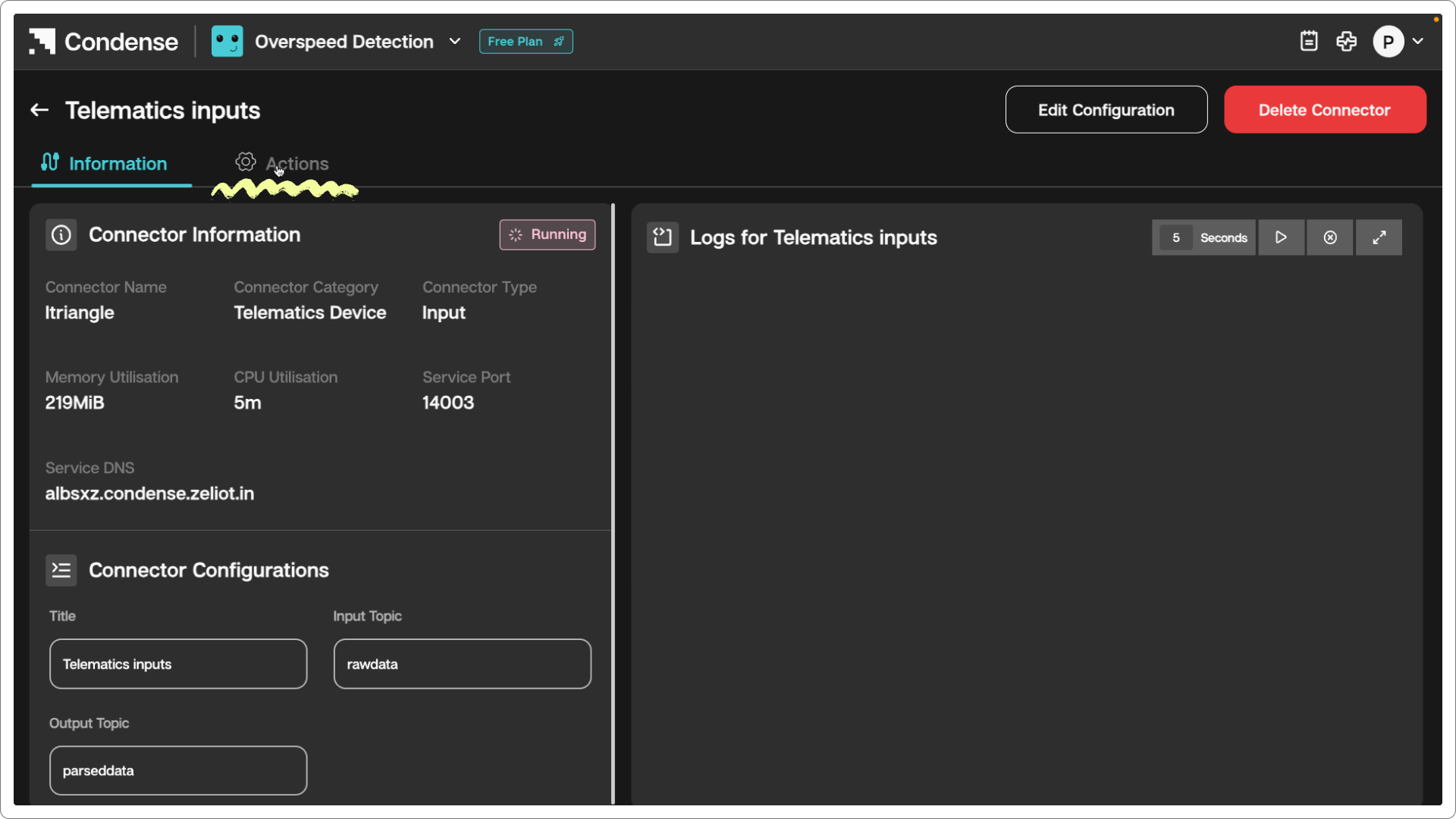
2. Click on the Telematics device type connector card and click on the Actions tab.
{% hint style="info" %}
To learn more about Pipelines, please read the detailed guide on [Pipelines](/condense/v2.4.0/deep-dive/pipelines.md)
{% endhint %}
## **Step 2: Creating a New Campaign**
### **Initiate Campaign Creation**
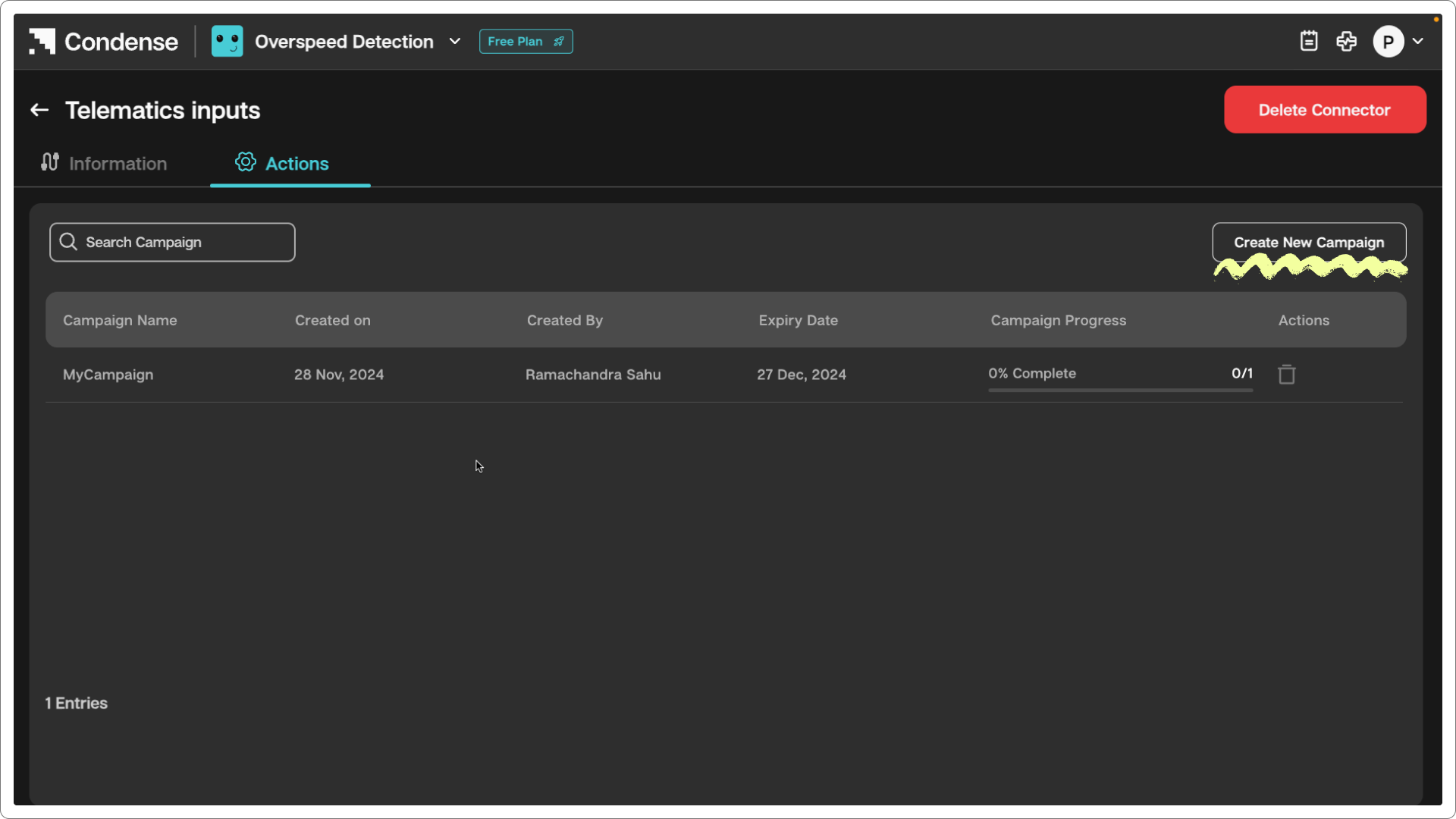
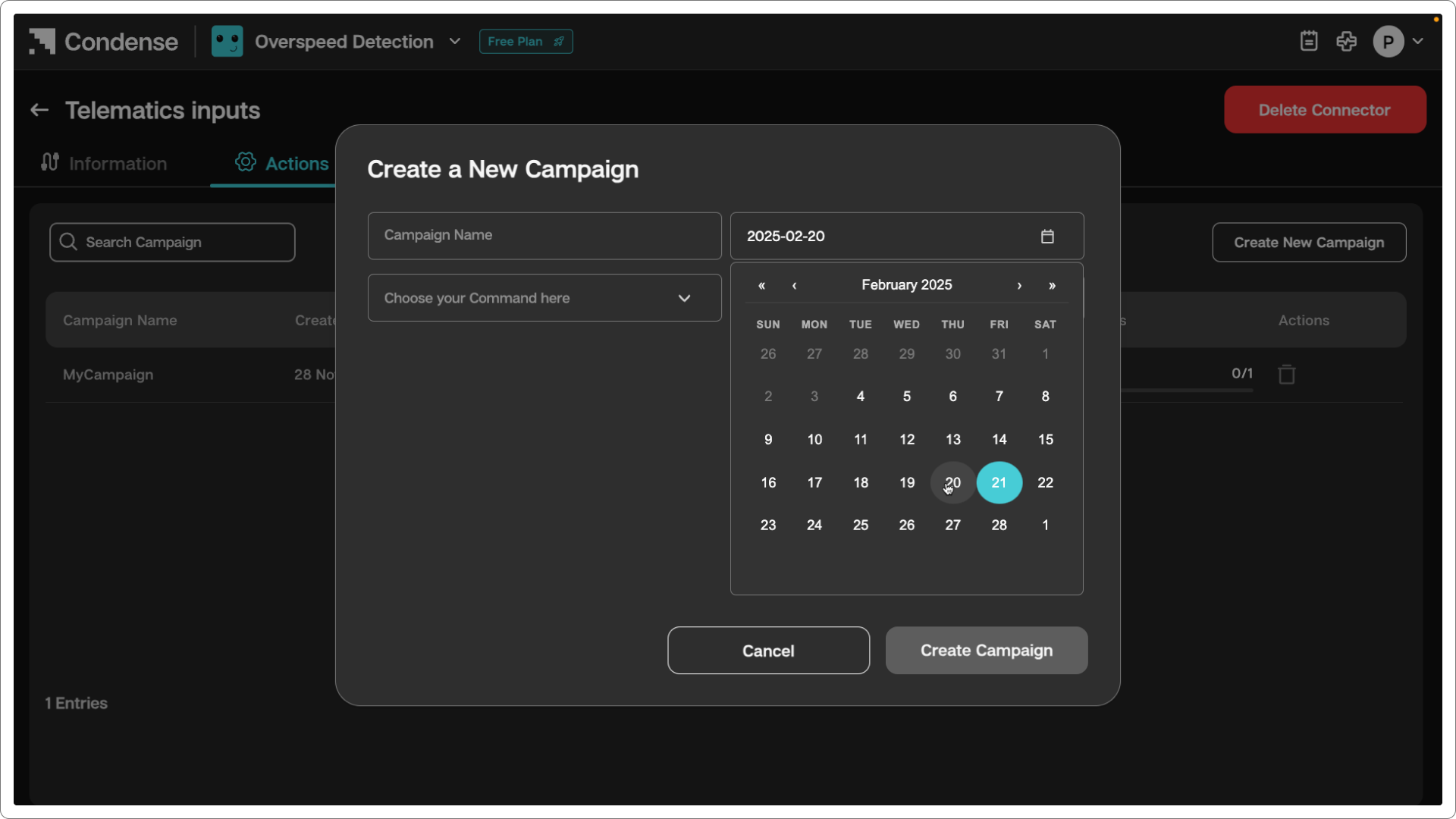
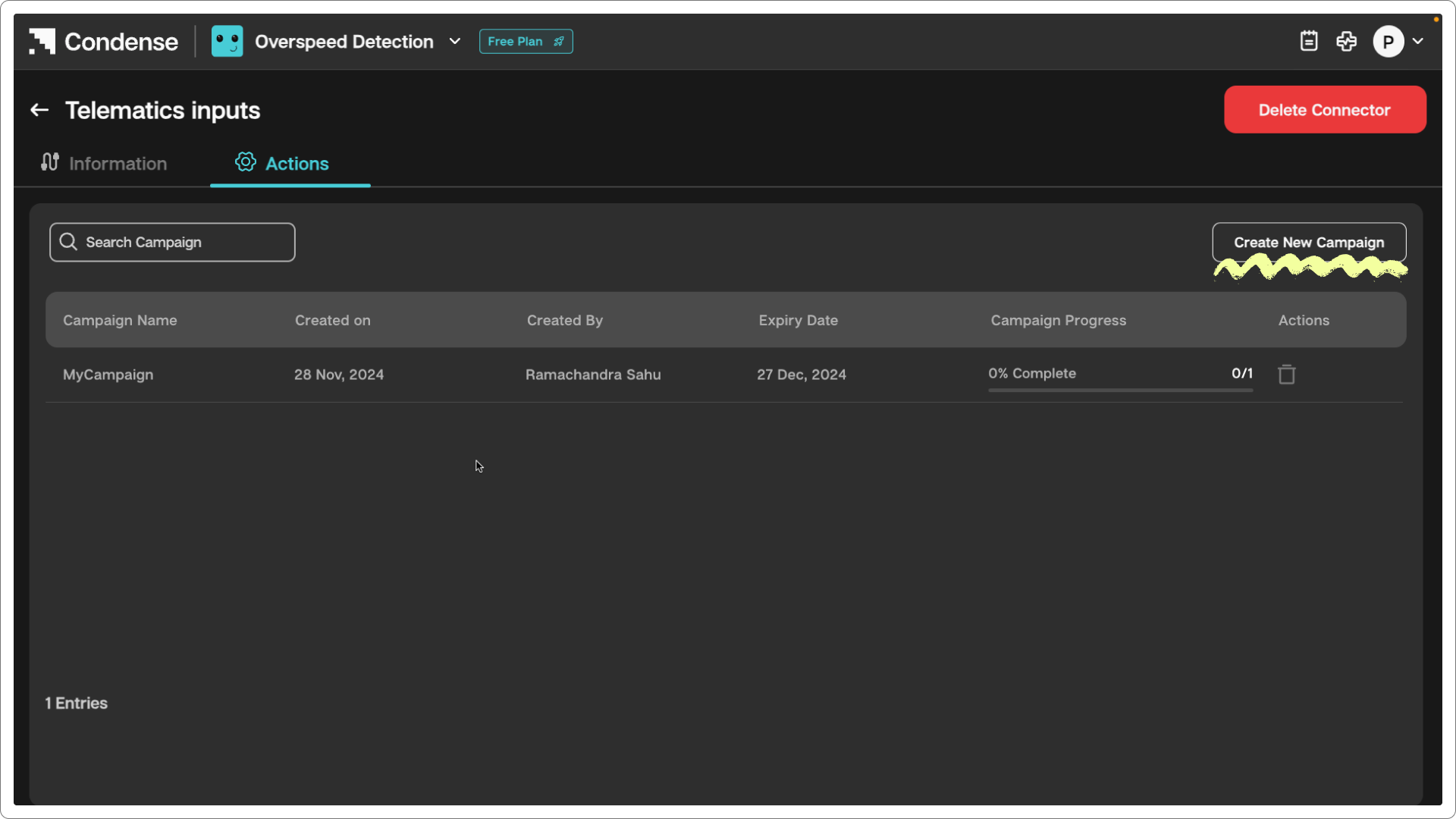
Click **Create New Campaign** on the campaign page.
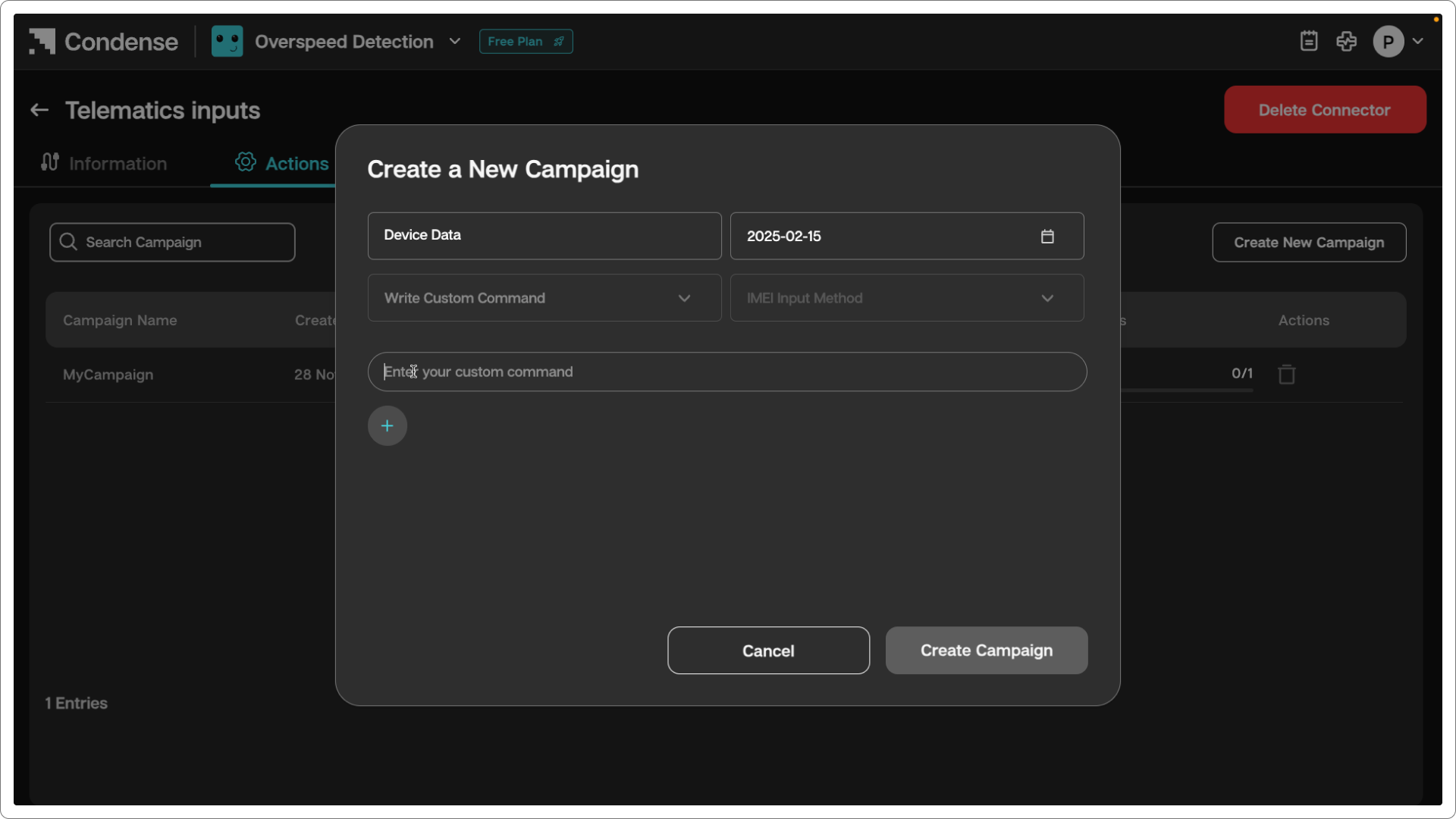
### **Campaign Details**
**Campaign Name**: Enter a unique name (e.g., "Q3 Fleet Tracking").
**Expiry Date**: Select an end date for the campaign.
2. **Add IMEI details**:
* **Manual IMEI**: Enter the **IMEI Number** manually.
* **Bulk Upload**:
1. Download the **Template** for bulk entries.
2. Fill in IMEI numbers
3. Upload the file.
3. **Commands Configuration**:
* **Choose Command**: Select predefined commands from the dropdown.
* **Custom Command**: Write a custom command if needed.
4. **Finalize**:
* Click **Create Campaign** to save.
* Use **Cancel** to discard changes.
### **Step 3: Managing Campaigns**
#### **Campaign List View**:
* Access the list by clicking the **Search Campaign**.
* Columns include
* **Campaign Name -** A unique, user-defined identifier for the campaign
* **Created On -** The timestamp (date and time) when the campaign was created.
* **Created By -** The username associated with the Condense account who created the campaign
* **Expiry Date -** The deadline by which the campaign must be completed. After this date, the campaign will cease execution.
* **Progress** (% and entries completed) - The proportion of devices that have finished executing the command (ex - 1200 out of 2000 devices).
#### **Actions**:
* **Search**: Filter campaigns by name or date.
* **Monitor Progress**: Track completion via the **Campaign Progress** bar.
* **Delete**: Remove outdated campaigns (if supported).
### **Step 4: Track Progress and status of each IMEI in the campaign**
#### **IMEI List View**
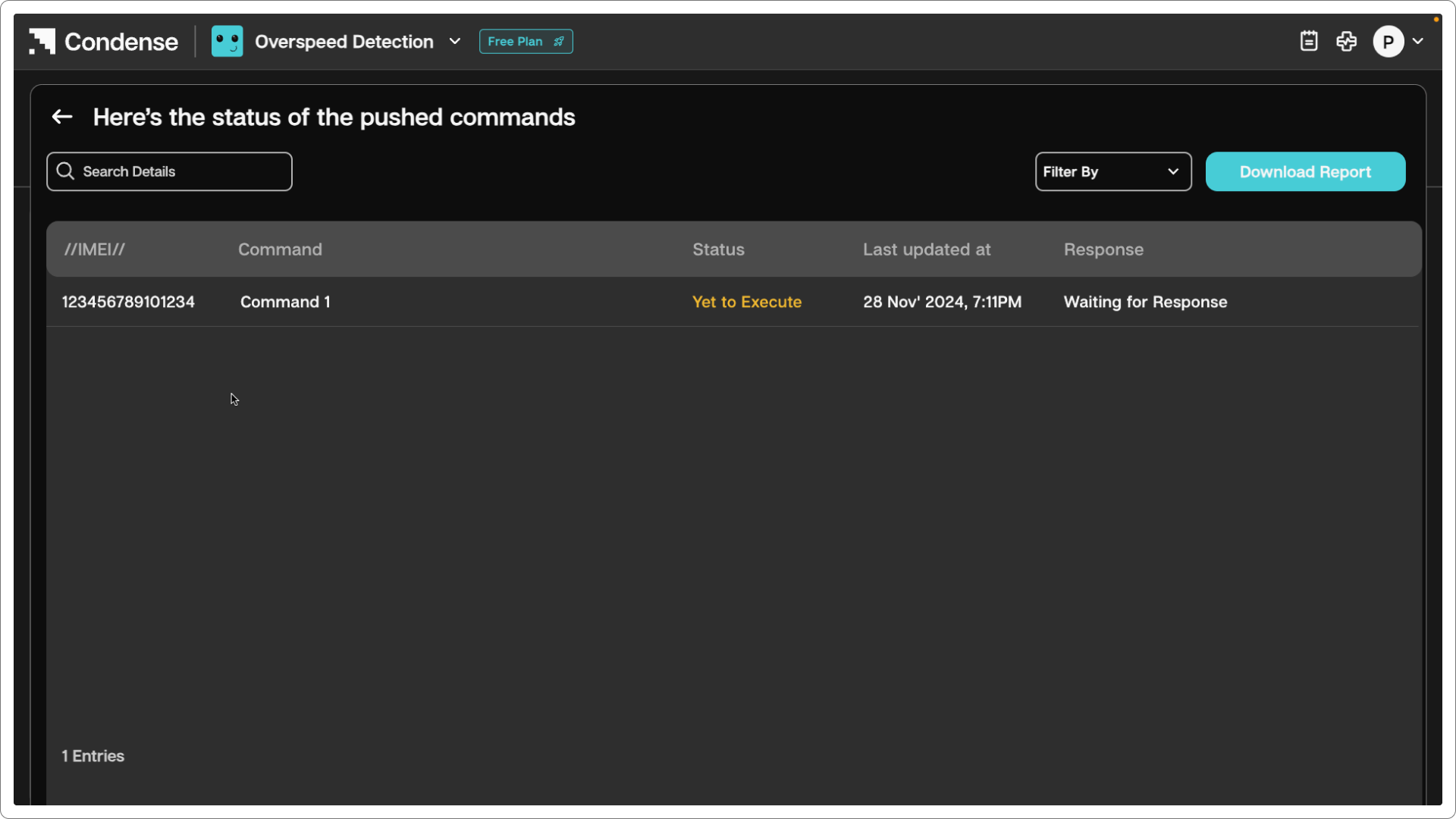
Click the campaign name to view a table/list of all targeted devices, filtered by their IMEI.
* Access the list by clicking the **Campaign**.
* Columns include:
* **IMEI -** Unique Identifier for each device
* **Command:** Selected during campaign creation from a list of pre-defined commands or custom commands
* **Status**: Indicates the current state of the command execution. It includes below statuses:
* **Yet to Execute**: Command is queued but not yet processed
* **Executing**: The device is actively performing the command
* **Time Out**: The device failed to respond within a predefined window (may require retrying).
* **Executed**: Command completed successfully.
* **Last Updated At:** Timestamp showing when the response from the device was received.
* **Response:** Feedback from the device after executing the command
## FAQs
1. **After how much time is a command marked as timed out?**\
A command is marked as **Timed Out** if it remains in the *Executing stage* for **more than 60 minutes**. This applies only if the device is online during this period.
2. **Do pre-built and custom commands follow the same timeout rules?**\
Yes, the **60-minute timeout** applies uniformly to both pre-built and custom commands in the *Executing stage*.
3. **When is the manual retry option available?**\
The manual retry option becomes available **only after a command has timed out**.
4. **How are overlapping campaigns handled?**\
If two campaigns targeting the same device (e.g., IMEI 1) with the **same start/expiry dates** are created, the system processes them in a **campaign creation order**. The earlier-created campaign executes first.
5. **What happens to queued commands during retries?**\
Timed-out commands are **automatically removed** from the queue. Retrying adds the new campaign to the queue, subject to the same prioritization rules.
6. **What are the stages for command execution?**\
Commands typically transition through:
**Queued** → **Executing** → **Completed**/**Timed Out**/**Failed**.