> For the complete documentation index, see [llms.txt](https://docs.zeliot.in/condense/llms.txt). Markdown versions of documentation pages are available by appending `.md` to page URLs; this page is available as [Markdown](https://docs.zeliot.in/condense/v2.4.0/other-features/activity-auditor.md).
# Activity Auditor
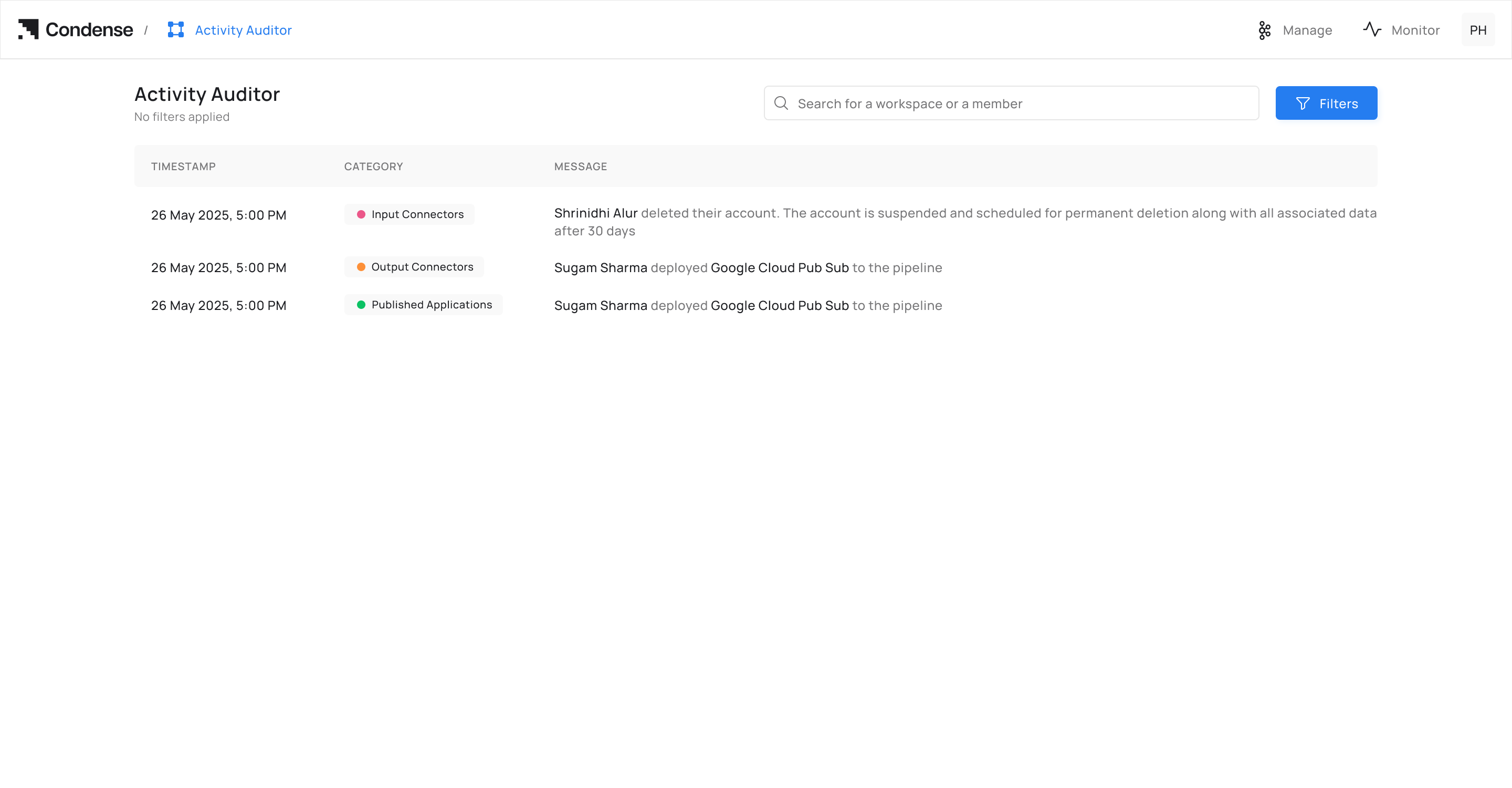
The **Activity Auditor** is a feature within the Condense platform that provides a centralized view of activities and logs across various components of your account. It helps users monitor, track, and audit actions performed in workspaces, pipelines, connectors, applications, and user roles. This feature is essential for maintaining transparency, troubleshooting issues, and ensuring compliance with organizational policies.
## **Key Features**
### **Workspace Activity Tracking**
* Tracks activities performed within **workspaces**, such as creating, editing, or deleting workspaces.
* Provides a log of actions taken in specific workspaces.
### **Connector Activity Logs**
* Tracks actions performed on **connectors**, such as creating, editing or deleting connectors along with failure logs.
* Provides insights into the lifecycle of connectors and helps users monitor and troubleshoot activities.
### **Application Activity Tracking**
* Log activities related to **applications**, such as creating, editing or deleting connectors along with failure logs.
* These logs provide visibility into the lifecycle of applications and help users monitor and troubleshoot activities.
### **User and Role Management**
* Monitors actions related to **users and roles**, such as adding, editing, or removing users.
* Tracks role assignments and permission changes.
### **Account Actions**
Logs high-level account actions, such as signing in, signing out, or deleting the account.
## **How to Use the Activity Auditor**
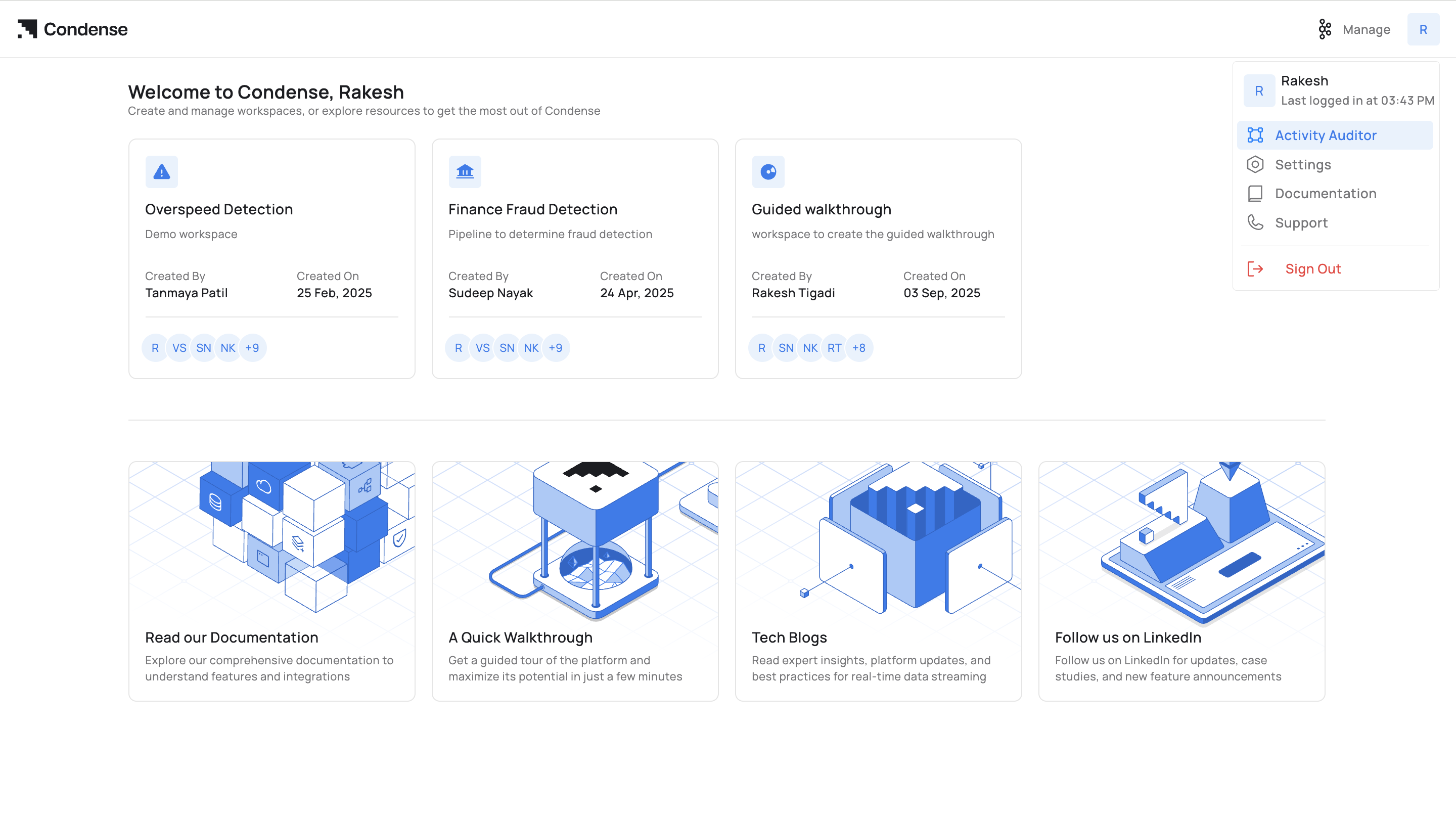
### **Accessing the Activity Auditor**
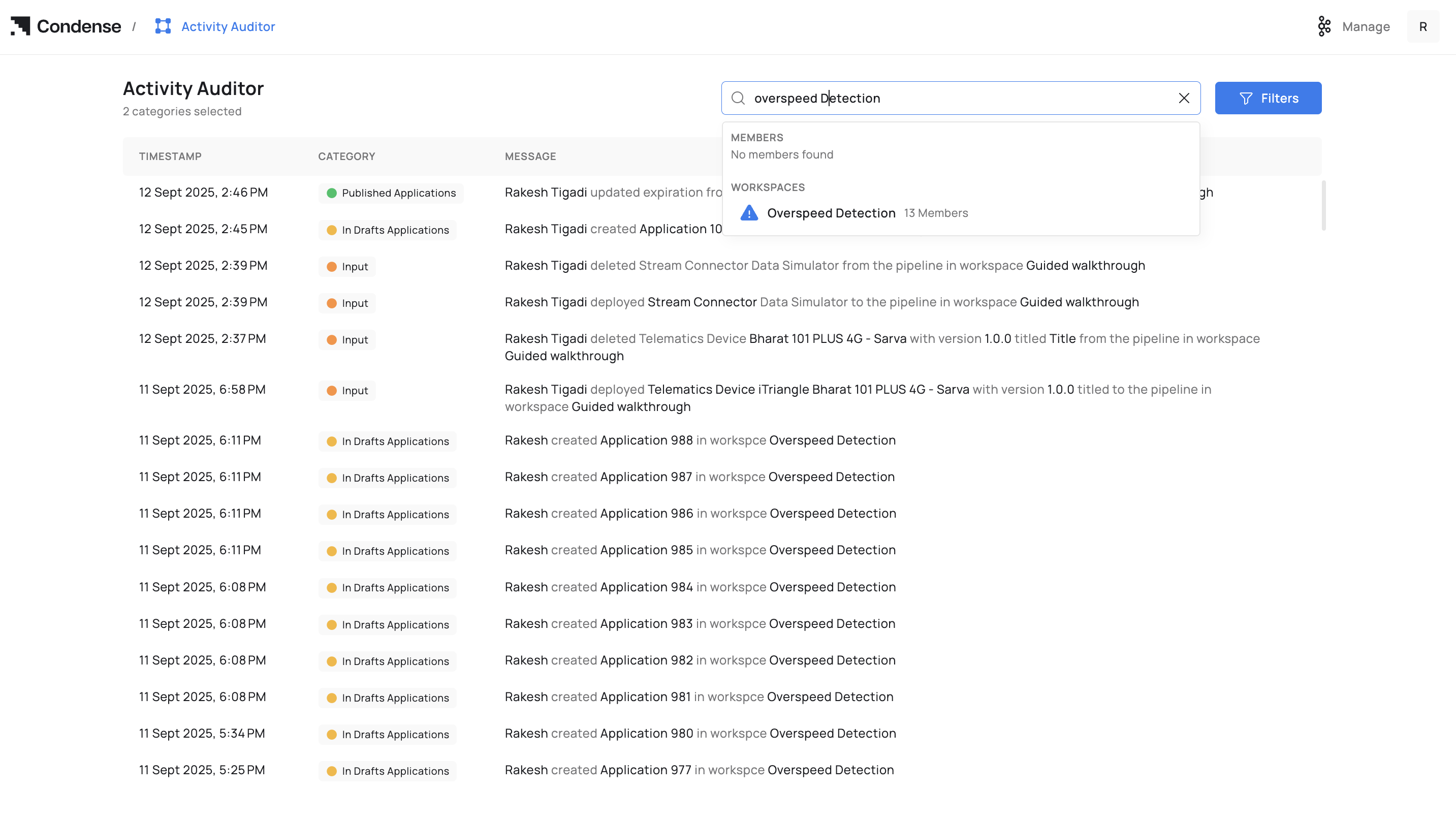
1. Navigate to the **Activity Auditor** section in the Condense platform as showed in the above iimage.
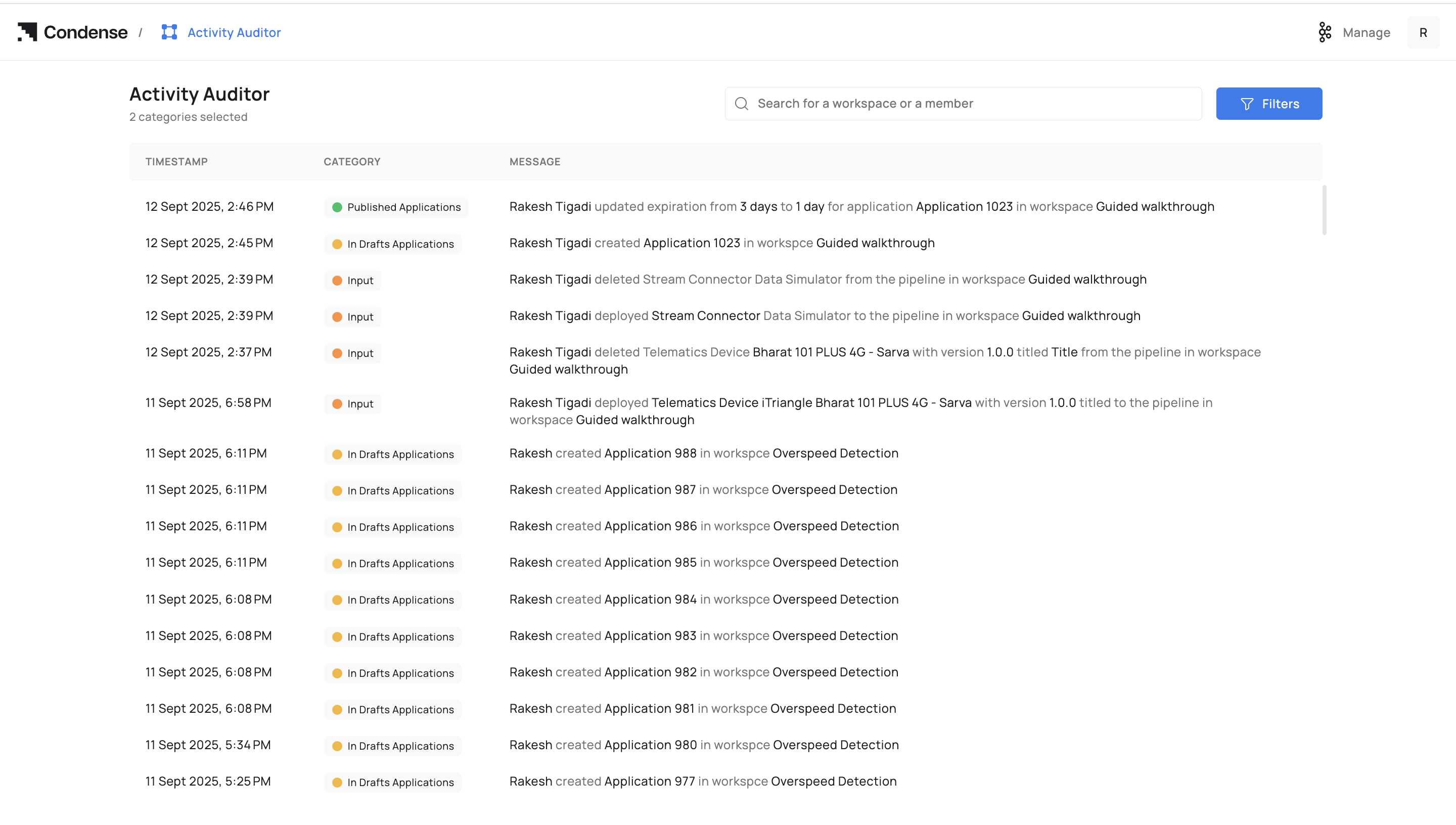
2. The dashboard displays a summary of activities and logs.
### **Viewing Logs**
1. Select the feature you want to monitor (e.g., **Workspaces**, **Pipelines**, **Connectors**).
2. The logs for the selected feature will be displayed. If no logs are available, the message **"All Quiet on the Logging Front"** will appear.
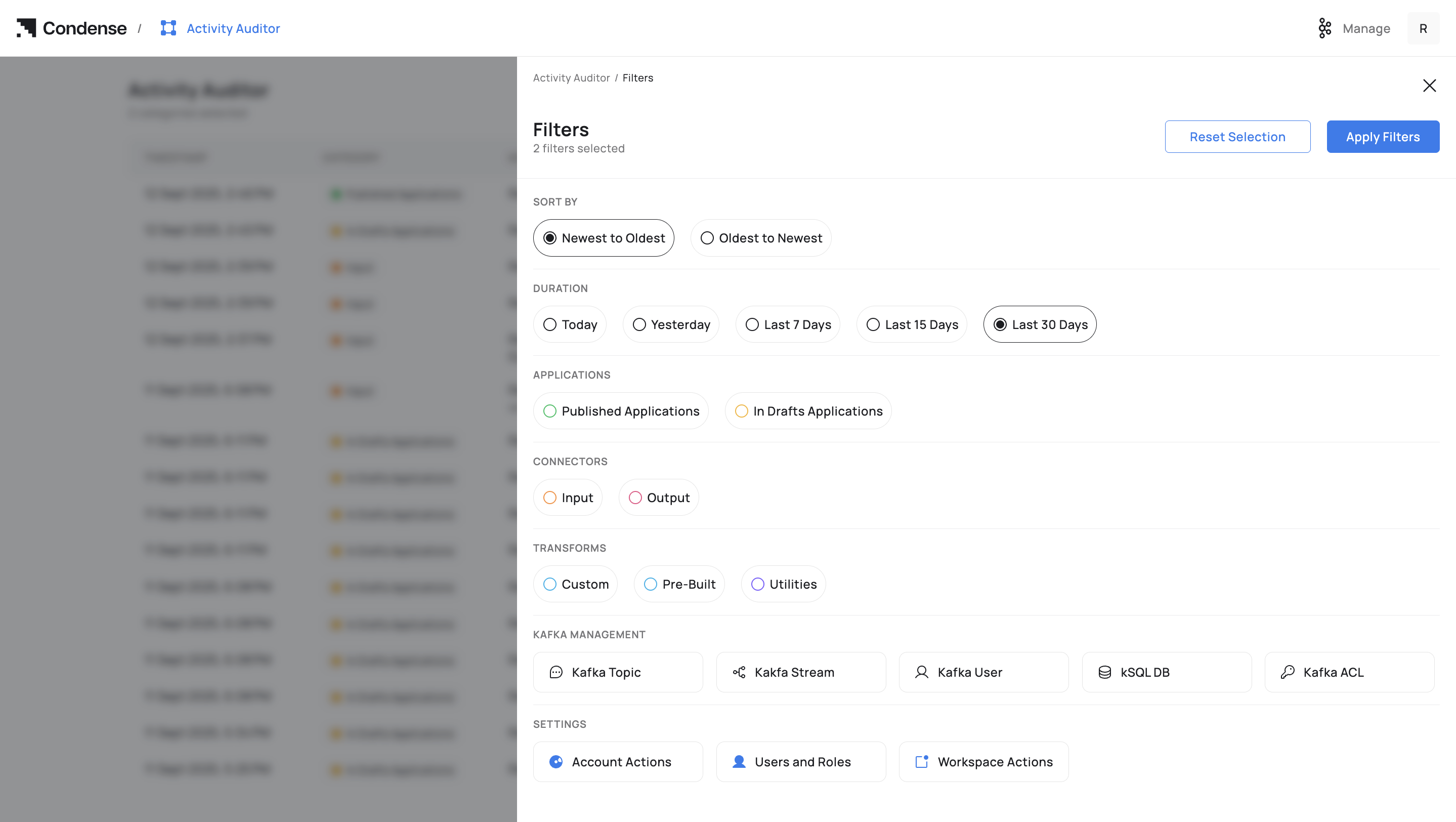
### **Filtering Logs**
1. Use the **Select All** option to view logs across all components.
2. Alternatively, select specific workspaces or components (e.g., `AES Testing`, `C2D-Validation`) to filter logs.
### **Searching for Logs**
1. Use the search bar to find specific logs by keywords, workspace, user names, or dates.
2. This is useful for quickly locating relevant activities.
3. Review and track user activities, such as create, edit, delete actions, and failure logs, to monitor user actions with usernames added to the organization.
## **Frequently Asked Questions (FAQs)**
#### **Q1: Why are no logs displayed in the Activity Auditor?**
**A:** If no logs are displayed, it means no activities have been performed yet. Start using the platform to generate logs.
#### **Q2: Can I export logs from the Activity Auditor?**
**A:** No, currently, we do not have an export feature available.
#### **Q3: How far back can I view logs?**
**A:** Logs are retained for 30 days. Check with your administrator for specific details.
#### **Q4: Can I filter logs by user?**
**A:** Yes, you can filter logs by user to track specific actions performed by individuals.