> For the complete documentation index, see [llms.txt](https://docs.zeliot.in/condense/llms.txt). Markdown versions of documentation pages are available by appending `.md` to page URLs; this page is available as [Markdown](https://docs.zeliot.in/condense/v2.4.0/help-and-support.md).
# Help and Support
Unified In-Platform Ticketing & Issue Management
### Overview
The **Condense Support Widget** enables users to raise support tickets directly from the Condense Core. It provides a seamless way to report issues, request enhancements, track ticket progress, and collaborate with the Condense support team, all without leaving your workspace.
### **Accessing the Support Widget**
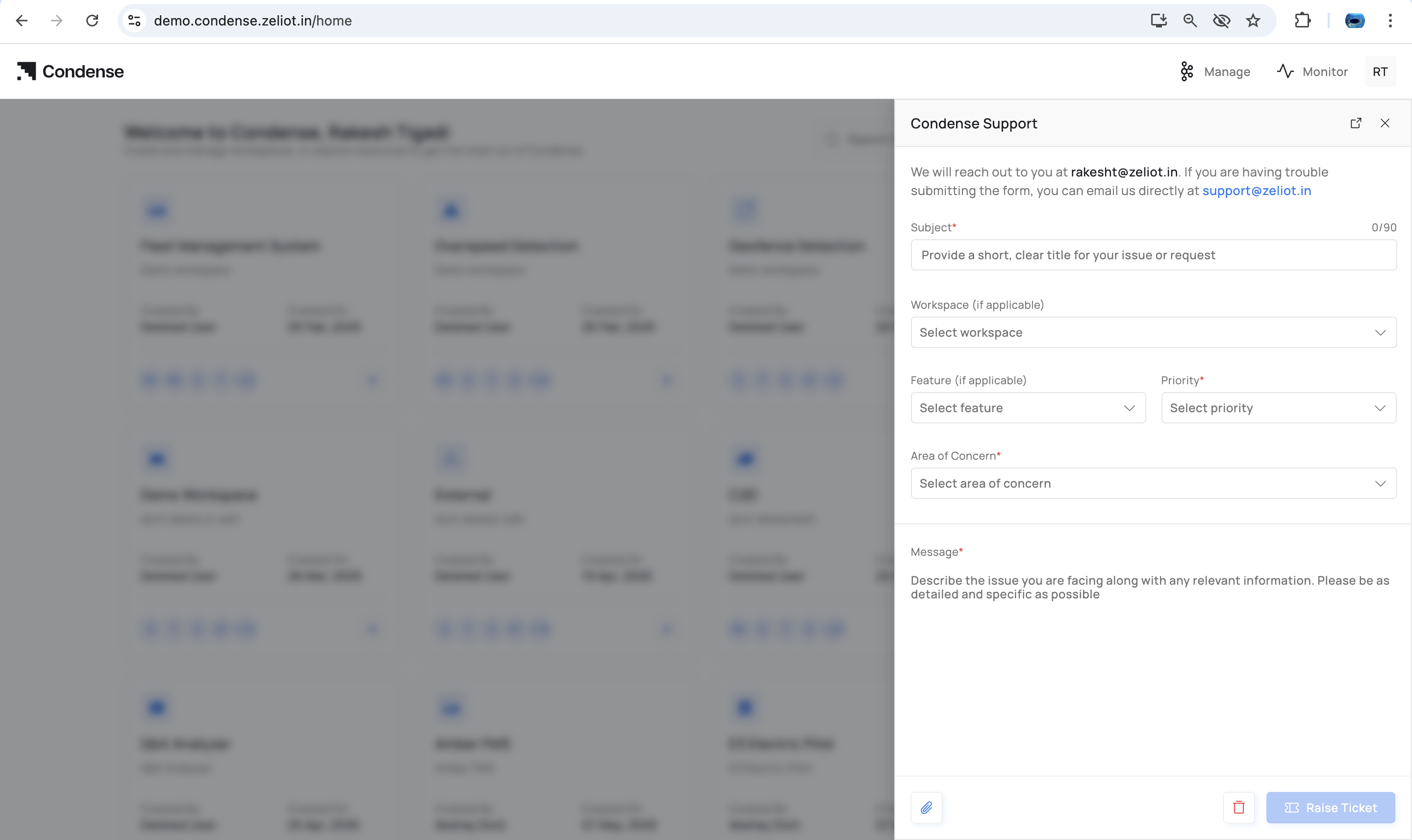
You can open the support panel from the Condense Core by clicking on floating widget or go to **Support → Raise a Ticket.** The widget opens as a slide-out panel on the right side of the dashboard.
### **Ticket Creation Form**
The ticket creation form includes the following fields:
#### **Subject (Required)**
A short, clear title describing your issue or request.
#### **Workspace (If applicable)**
Select the workspace where the problem occurred (e.g., *Fleet Management System*).\
If the issue is not workspace-specific, you may leave it unselected.
#### **Feature (If applicable)**
Choose the feature related to the issue. The options include:
* Pipelines
* Connectors
* Transforms
* Applications
* Settings
* Activity Auditor
* Kafka Management
#### **Priority (Required)**
Select the urgency level for your ticket:
* **P1** – Production down / Mission-critical blocked
* **P2** – System unstable / Critical development blocker
* **P3** – Time-sensitive issues with workarounds
* **P4** – Non-functional / Cosmetic issues
* **P5** – Documentation gaps or minor requests
#### **Area of Concern (Required)**
Categorize the issue under one of the following groups:
* Application
* Cloud / Infrastructure
* User Access Issues
* Billing
* Enhancements / Suggestions
* Others
#### **Message (Required)**
Describe the problem or request in detail. Include:
* What you expected to happen
* What actually happened
* Steps to reproduce
* Any supporting logs, IDs, or timestamps
#### **Attachments**
You may upload relevant files (max 20 MB total), such as logs or screenshots.\
Uploaded files appear in the attachment list with download and remove options.
#### **Submit**
Click **Raise Ticket** to submit the request. Ticket acknowledgment will be sent with unique ticket ID to the registered email address and also ticket status can be tracked in the ticket dashboard
### **Support Dashboard**
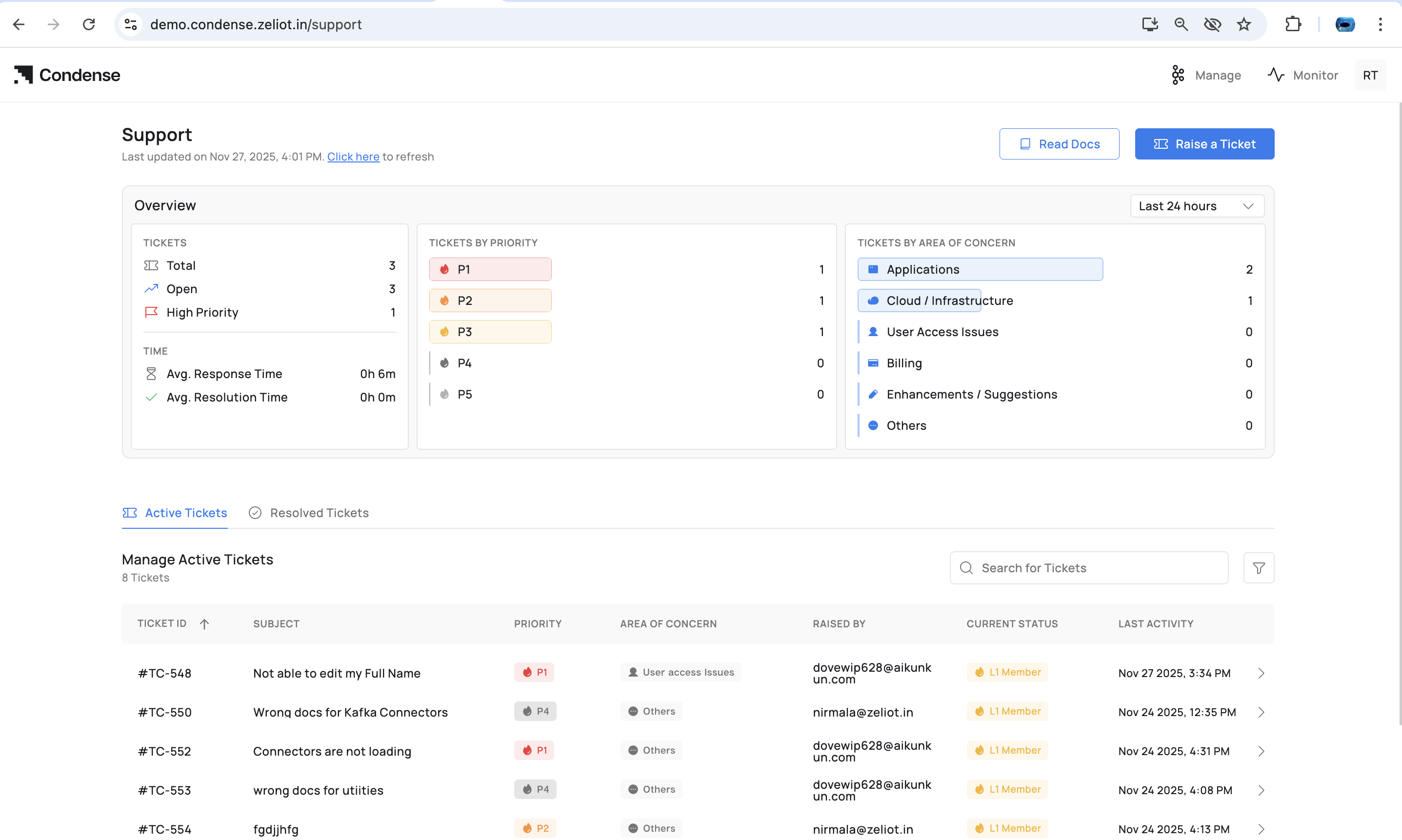
After submitting a ticket, you can view its status in the **Support Dashboard**.
The dashboard includes:
#### **Overview Metrics**
* Total Tickets
* Open Tickets
* High Priority Tickets
#### **Tickets by Priority**
A visual summary of P1–P5 distribution.
#### **Tickets by Area of Concern**
Categorized count of tickets raised by Applications, Infrastructure, Billing, etc.
#### **Time Metrics**
* Average Response Time
* Average Resolution Time
{% hint style="warning" %}
These metrics update periodically or via *Click here to refresh*.
{% endhint %}
### **Managing Active Tickets**
The “Active Tickets” tab lists all open tickets with:
* Ticket ID (e.g., #TC-552)
* Subject
* Priority
* Area of Concern
* Raised By
* Current Status (e.g., L1 Member)
* Last Activity
#### **Filtering**
You can filter the list using:
* Priority (P1–P5)
* Area of Concern
* Status (Under Review, In Progress, On Hold)
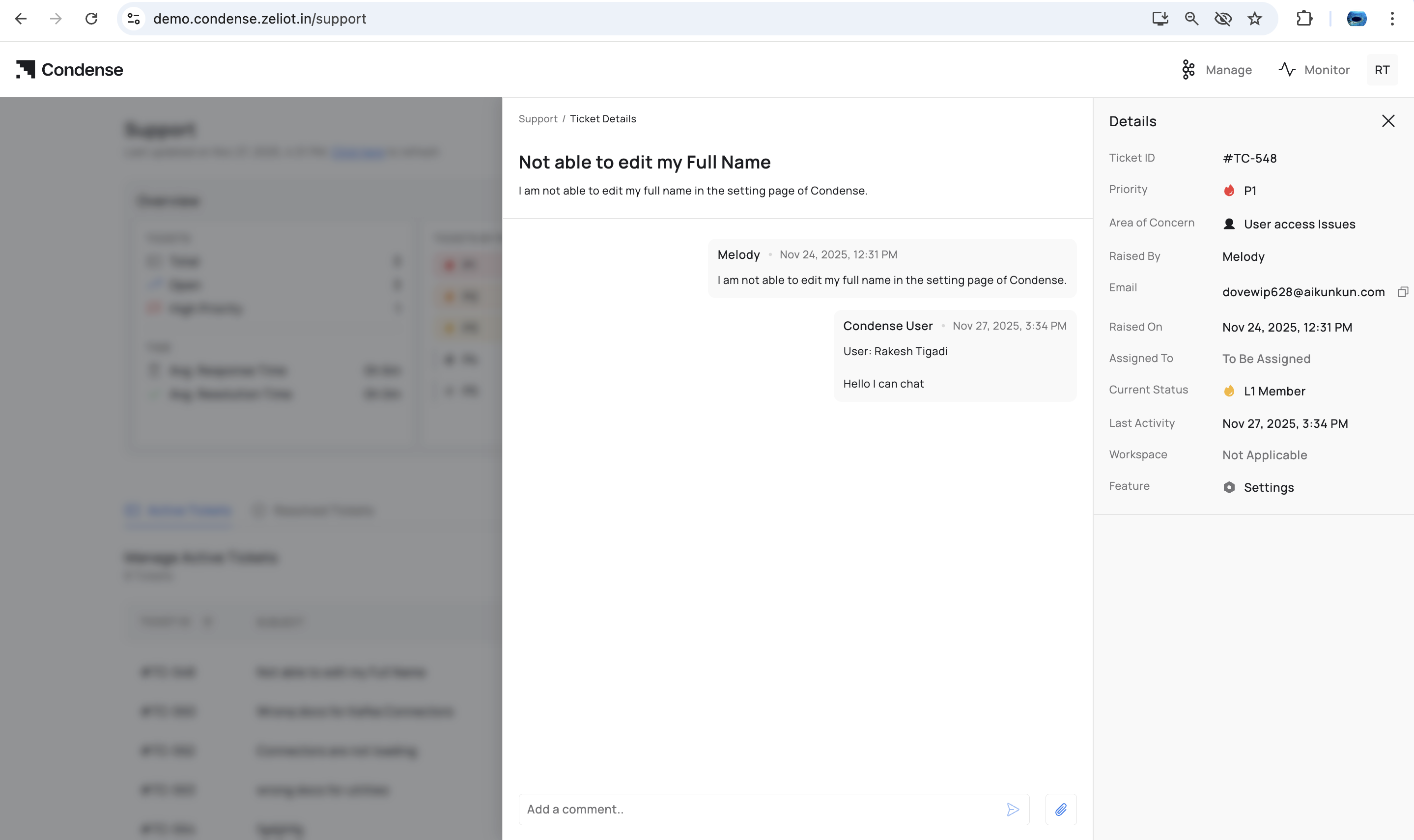
### **Ticket Details & Conversation View**
Selecting a ticket opens a detailed view with:
#### **Conversation Panel**
Shows threaded communication between:
* The Reporter (you)
* Condense Members (L1, L2, etc.)
Users can:
* Post follow-up comments
* Reply in real time
* Upload additional files
#### **Ticket Metadata**
Displayed on the right side, including:
* Ticket ID
* Priority
* Area of Concern
* Raised By
* Assigned To
* Current Status
* Workspace
* Feature
* Attachments
All updates are timestamped for transparency.
### **Resolved Tickets**
The **Resolved Tickets** tab shows completed tickets along with their resolution status and activity history. You can reopen a ticket by adding a new comment if the issue persists. Resolution is communicated to the registered email aswell.
### **Email Notifications**
Upon ticket creation, Condense sends confirmation to the registered email (e.g., **). All conversation replies also trigger email notifications.
The Condense Support Widget brings all support interactions into one streamlined experience. It centralizes ticket creation, communication, status tracking, and resolution within the Condense Core, ensuring complete transparency and faster turnaround. With unified visibility into priorities, concerns, activity history, and assigned teams, users can efficiently monitor progress and collaborate with support members in real time. The widget eliminates dependency on external channels and delivers a consistent, structured, and fully integrated support workflow across the entire Condense platform.
### **Condense Support Terms**
For detailed information regarding support policies, service levels, responsibilities, and escalation guidelines, please refer to the official **Condense Support Terms** published in the Legal Documentation section and can be access at [**Condense Support Terms**](/condense/v2.4.0/legal/support-terms.md)