# Accessing Status of Your Build

To access the build logs, please follow below steps: &#x20;

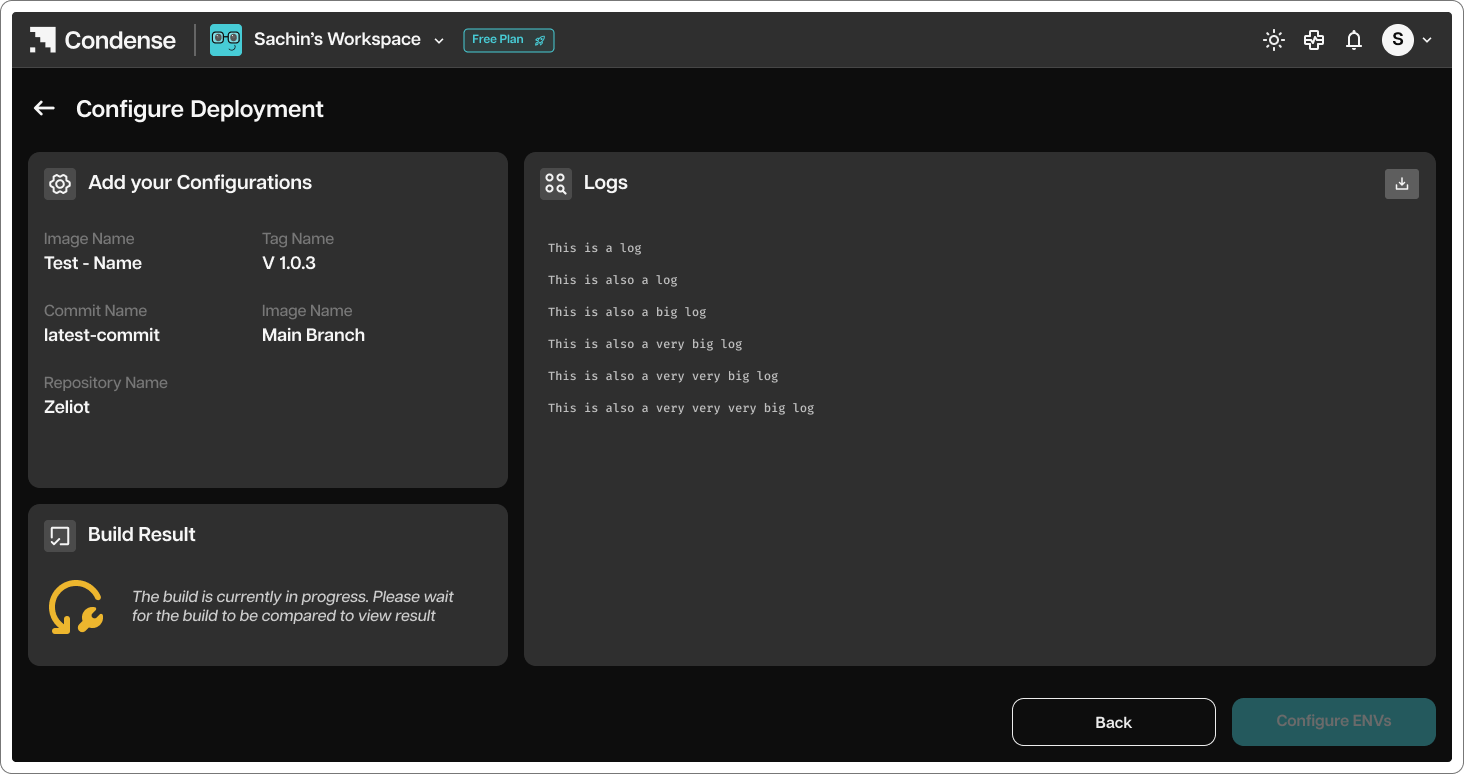
Once you click on build, you will be redirected to Build Logs page

<figure><img src="/files/NxuiyXJMeTRJSCKv0EE2" alt=""><figcaption></figcaption></figure>

The build logs showcases how the build is taking place based on the dockerfile. In general, the build logs will show below info:  &#x20;

1. Pulling Base Image - The process starts by attempting to pull the base image from the Docker Hub registry. &#x20;
2. Creating Directory &#x20;
3. Setting Working Directory&#x20;
4. Copying Package Files &#x20;
5. Installing Dependencies &#x20;
6. Exposing Port &#x20;
7. Setting Entrypoint&#x20;

After all steps are completed, the log indicates successful building of the image. Finally, the image is tagged with a name creating a reference to the built image with a specific version identifier. &#x20;

The build logs serve as a tool for monitoring, troubleshooting the Docker image building process. &#x20;

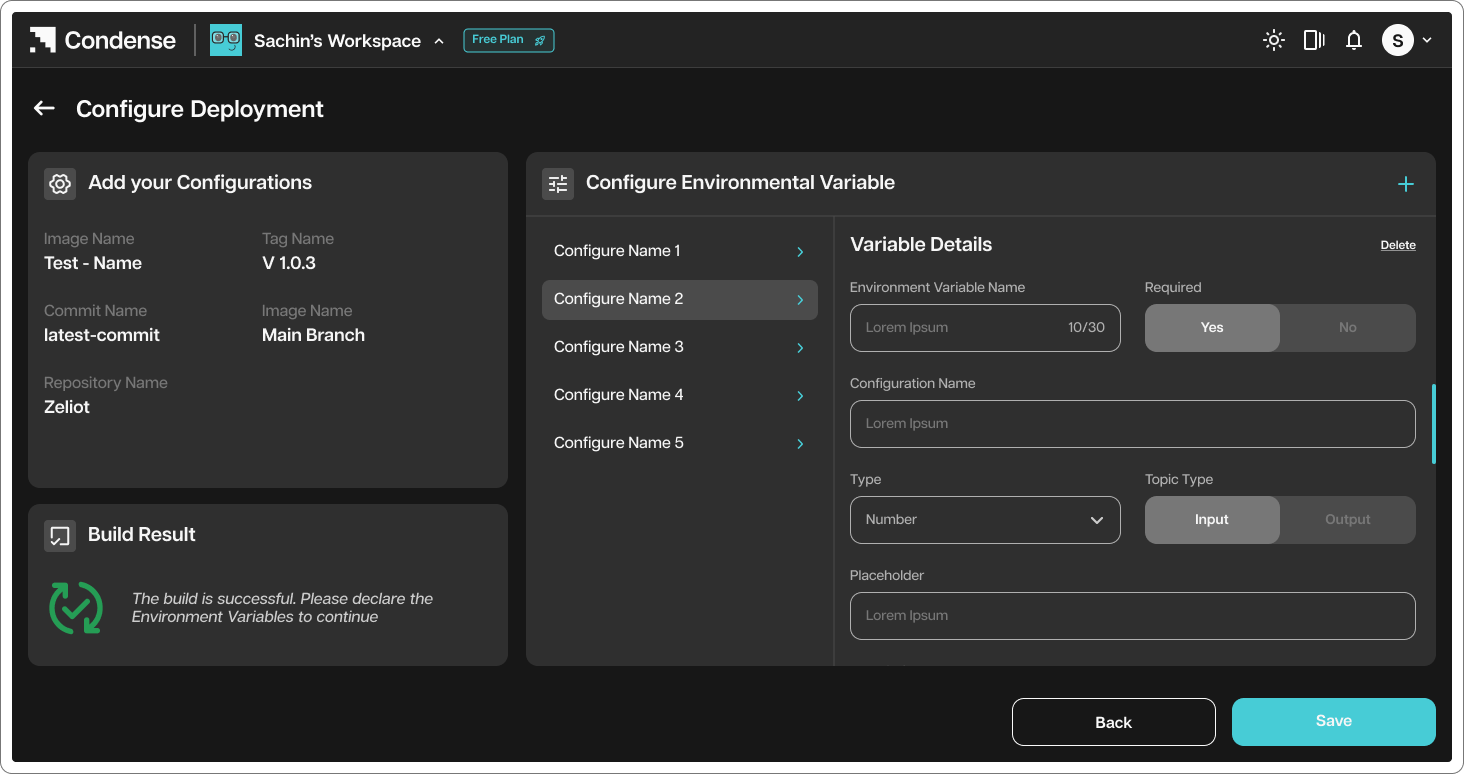
Build statuses: You can check the status of your build in this page:&#x20;

<figure><img src="/files/NxuiyXJMeTRJSCKv0EE2" alt=""><figcaption><p>Indicates that the build is in progress. </p></figcaption></figure>
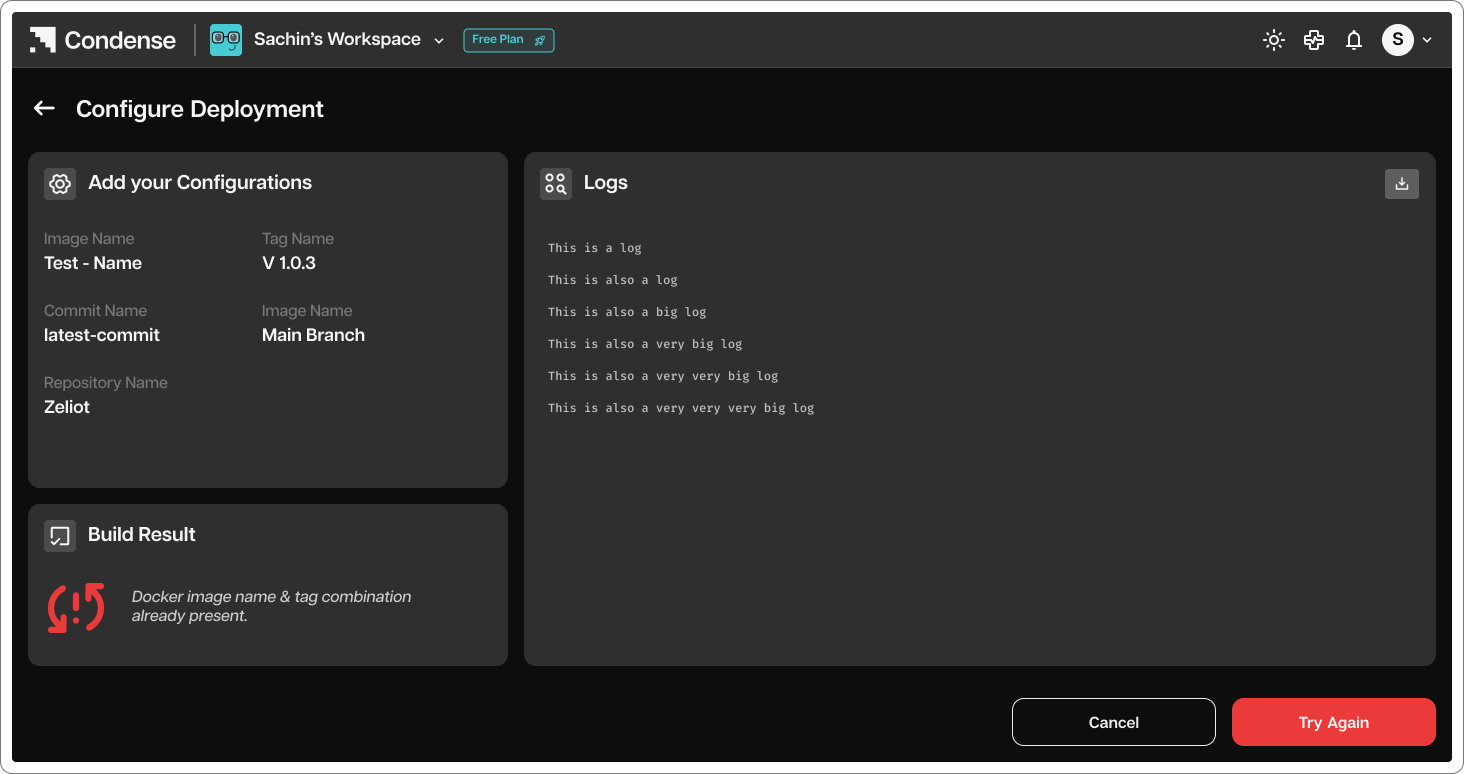
<figure><img src="/files/3QSLZCZHUPrN78cS1ru4" alt=""><figcaption><p>Indicates that the build has failed. User can access build logs to troubleshoot </p></figcaption></figure>
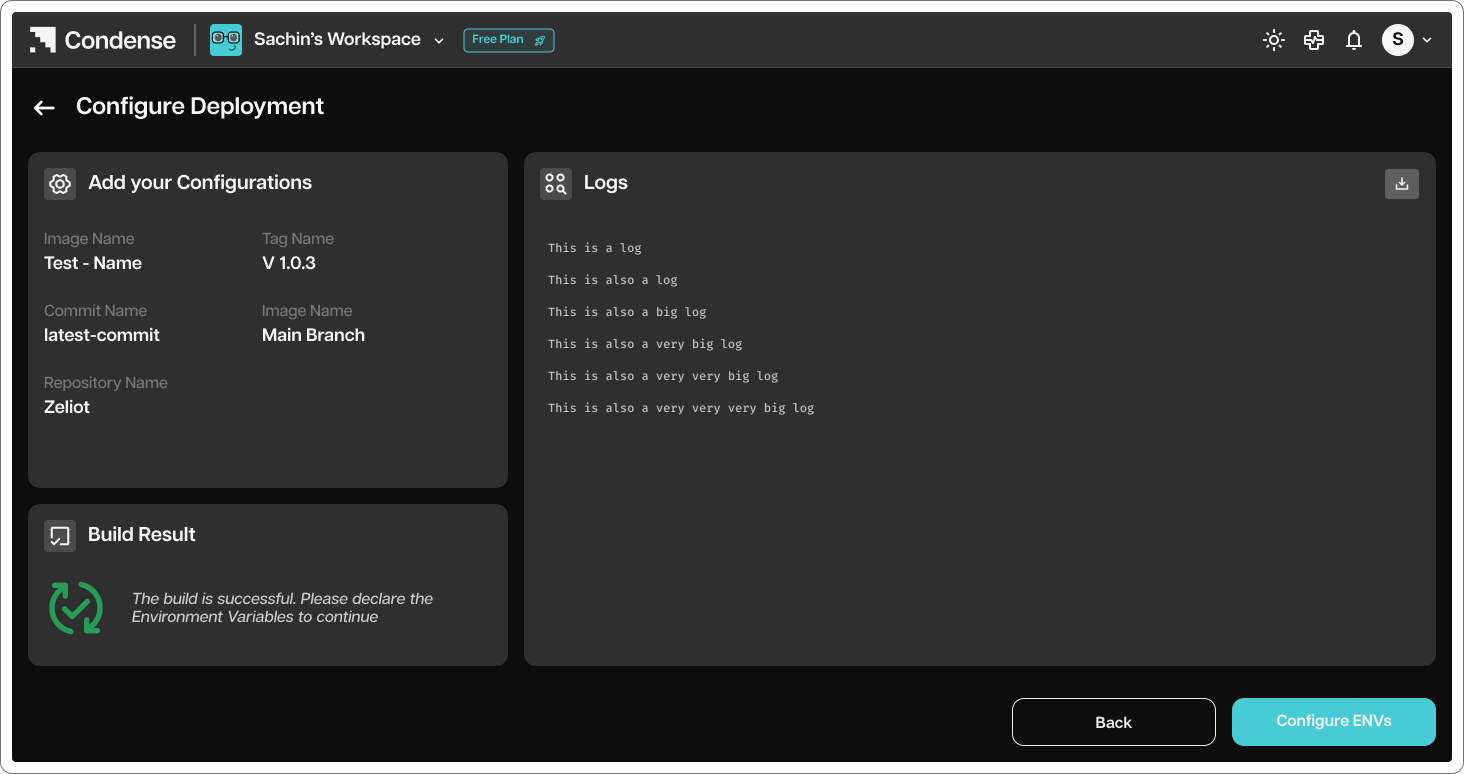
<figure><img src="/files/r7uw7MIDQUXoxWyP3L36" alt=""><figcaption><p>Indicates that the build is successful.</p></figcaption></figure>

<figure><img src="/files/FlQrjZYBF2j7R1wY268t" alt=""><figcaption><p>Configure ENV</p></figcaption></figure>

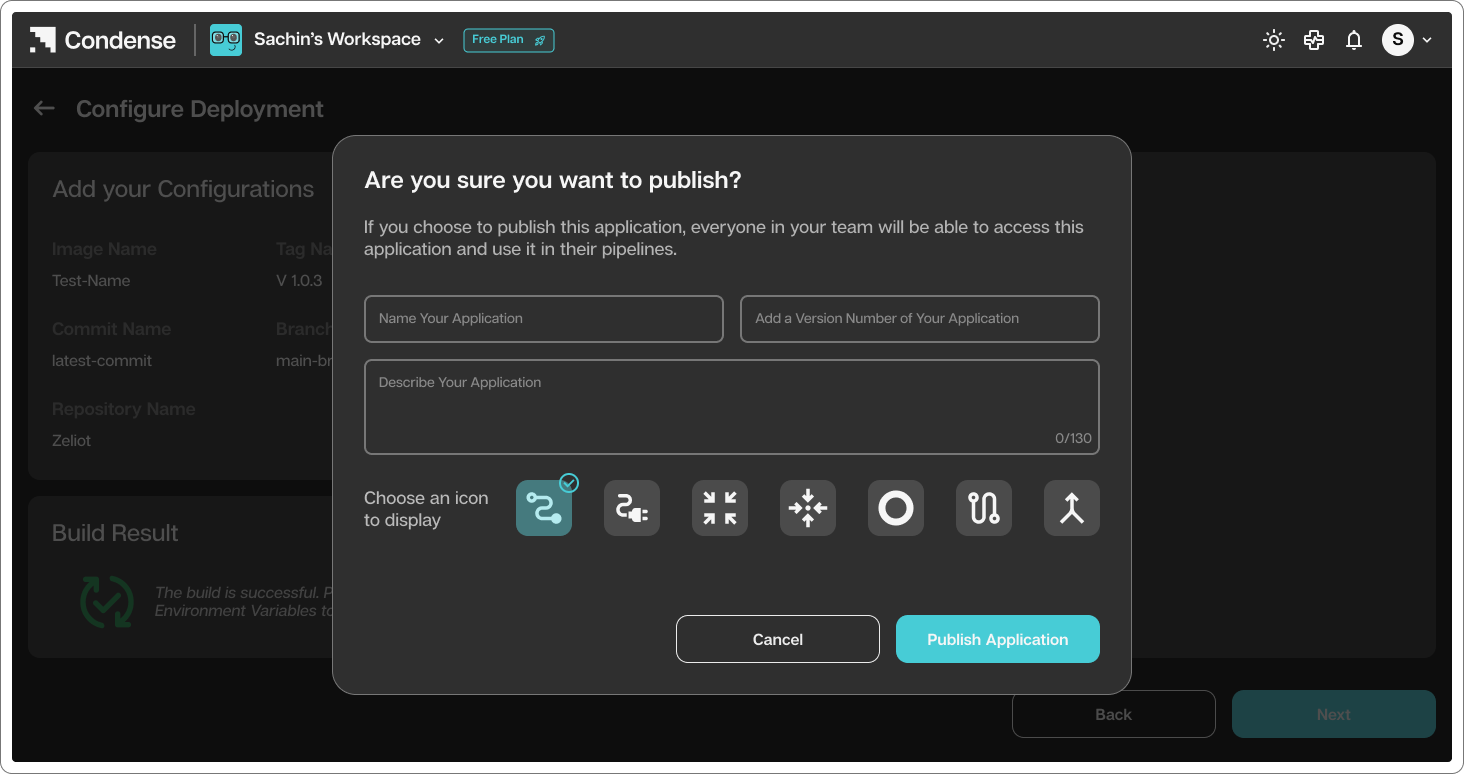
<figure><img src="/files/T9iUHVa07TNNge9UHjHx" alt=""><figcaption><p>Name the Application and Choose Icon</p></figcaption></figure>

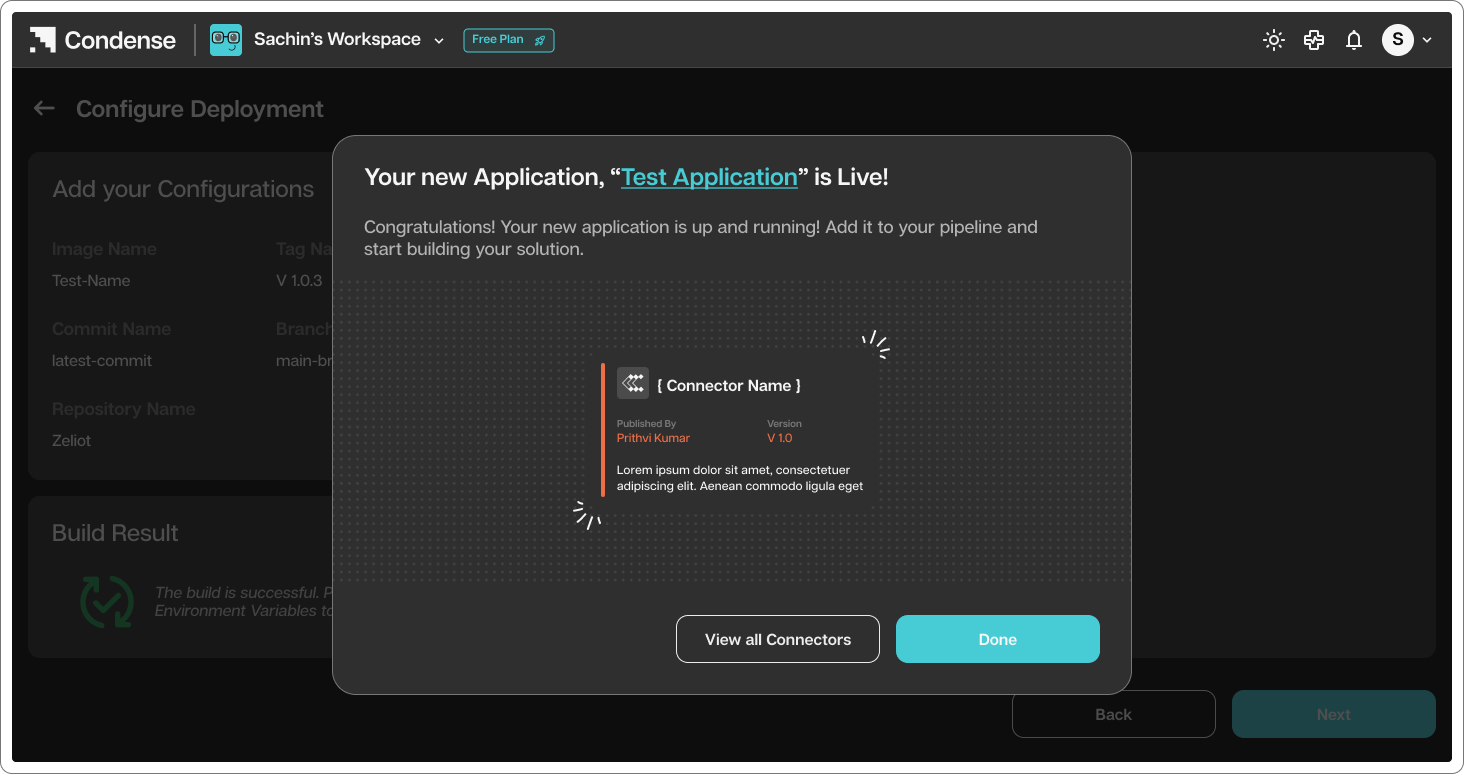
<figure><img src="/files/1UOVSDbJ3Ct5GxUi6dR3" alt=""><figcaption><p>Your custom transformation is published successfully with application name as provided</p></figcaption></figure>


---

# Agent Instructions: Querying This Documentation

If you need additional information that is not directly available in this page, you can query the documentation dynamically by asking a question.

Perform an HTTP GET request on the current page URL with the `ask` query parameter:

```
GET https://docs.zeliot.in/condense/v2.4.0/fundamentals/getting-set-up/accessing-status-of-your-build.md?ask=<question>
```

The question should be specific, self-contained, and written in natural language.
The response will contain a direct answer to the question and relevant excerpts and sources from the documentation.

Use this mechanism when the answer is not explicitly present in the current page, you need clarification or additional context, or you want to retrieve related documentation sections.