> For the complete documentation index, see [llms.txt](https://docs.zeliot.in/condense/llms.txt). Markdown versions of documentation pages are available by appending `.md` to page URLs; this page is available as [Markdown](https://docs.zeliot.in/condense/v2.4.0/deep-dive/pipelines.md).
# Pipelines
Overview
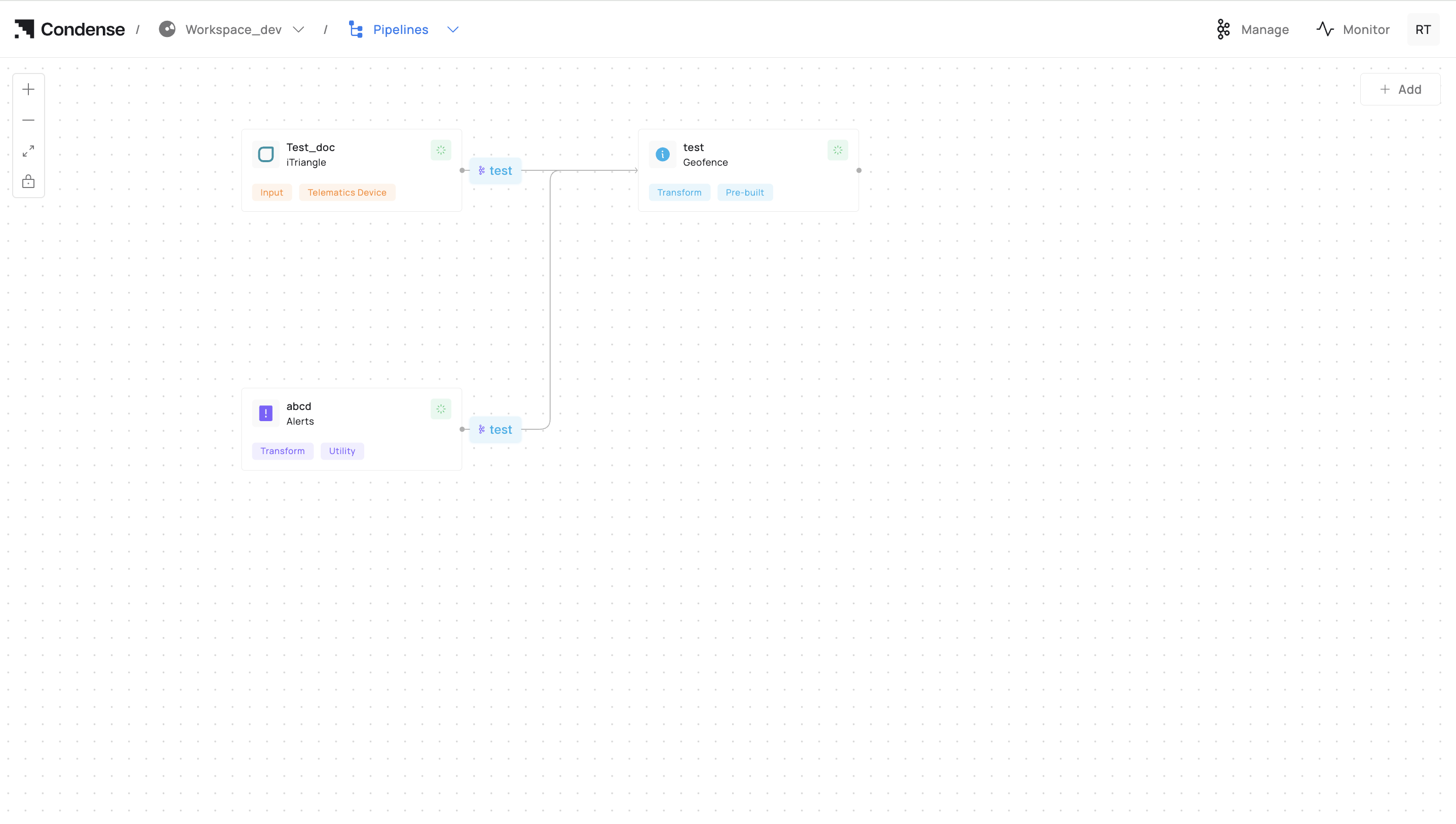
A Pipeline in Condense is the visual and functional representation of data flow between deployed connectors, transforms, and utilities inside a workspace. \
It is automatically materialized when a connector or transform is deployed and configured with its environment parameters. \
The pipeline canvas displays these deployed components as blocks, with lines between them representing live topic-based data flows.
Pipelines help:
* Visualize and manage real-time event flows
* Understand relationships between sources, processing steps, and sinks
* Monitor the state of each component in the context of the overall data flow
* Ensure that topic connections between components are correctly mapped
## How Pipelines Work in Condense
* Auto-Materialization: A pipeline is not manually created. It appears automatically when at least one connector or transform is deployed in a workspace.
* Canvas Representation:
* Each deployed connector, transform, or utility appears as a block.
* Lines between blocks are drawn based on matching output topics (from one block) to input topics (of another block).
* Multiple blocks can publish to or subscribe from the same topic, enabling branching or merging flows.
* Execution Model:
* Each block operates independently, processing messages from Kafka topics.
* There is no central “pipeline engine”; data movement follows Kafka’s publish–subscribe model.
* The pipeline view is a real-time reflection of deployed components and their topic mappings.
## Configuring Components in a Pipeline
To have a component appear in the pipeline:
1. Configure the Connector or Transform
1. Provide environment variables (connection endpoints, credentials, topic mapping, etc.).
2. Configure authentication if required (API keys, tokens, certificates).
3. Define input and/or output topics.
2. Deploy the Component
1. Once deployed, the component block will appear on the pipeline canvas.
2. If its output topic matches the input topic of another deployed component, Condense will draw a connection line.
## Updating a Pipeline
When you update any deployed component:
* Adding a Component
* A new block is added to the canvas after deployment.
* Any topic that matches existing blocks will automatically create new connections.
* Changing Topic Configuration
* New matches: Additional connections are drawn between blocks.
* Removed matches: Lines are removed if topics no longer align.
* Deleting a Component
* Removes the block from the canvas.
* Associated Kafka topics remain unless explicitly deleted in the configuration.
## Viewing Component Details
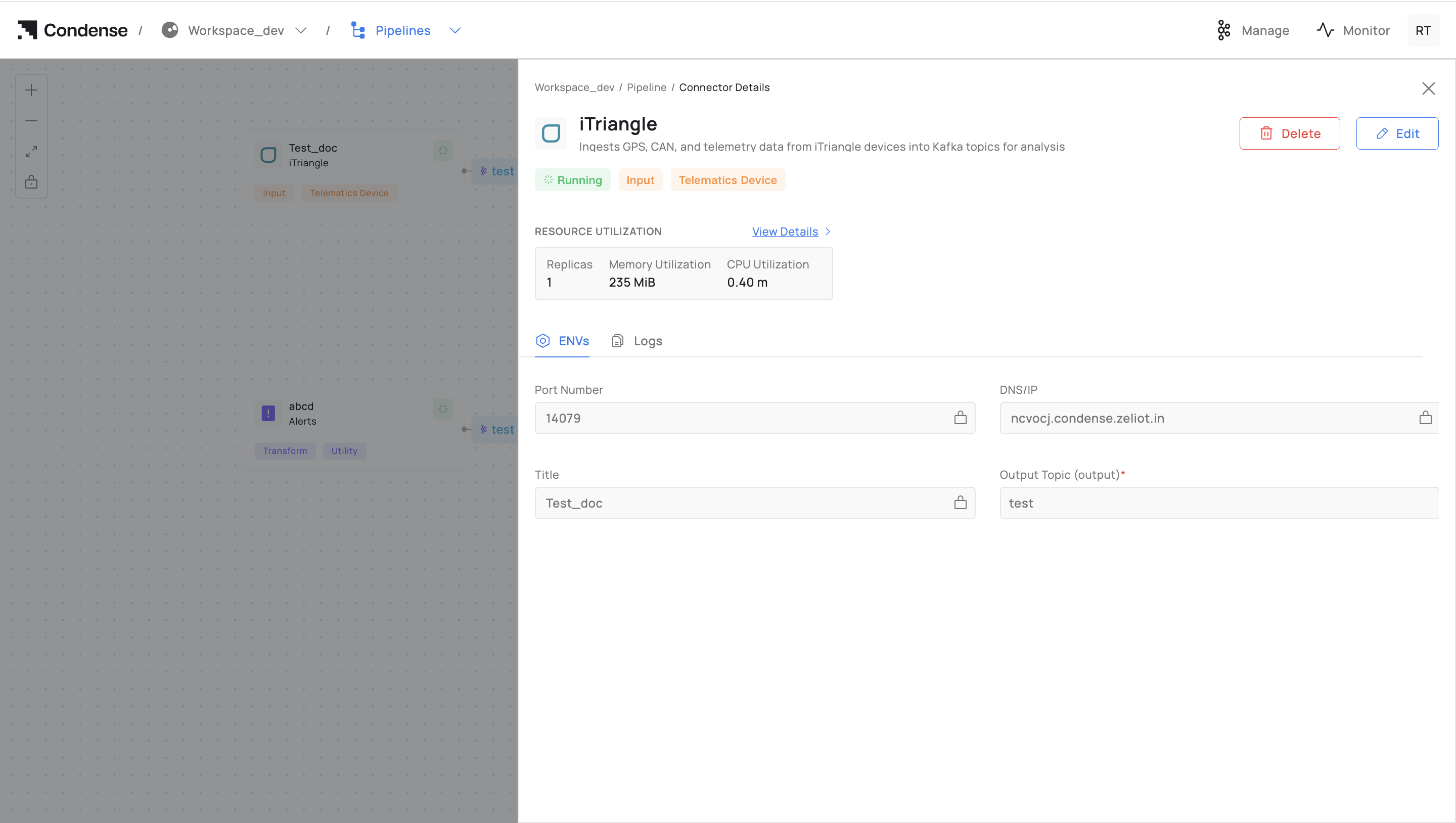
Clicking a block on the pipeline canvas opens its Component Detail Panel, which provides:
* Status: Running, stopped, error state
* Version: Active code or configuration version
* Topics: Subscribed (input) and published (output) topics
* Metrics: Throughput, error counts, processing latency
* Logs: Recent operational logs for troubleshooting
* Actions: Restart, redeploy, edit configuration, or delete
## Key Features
### **Node Details Panel**
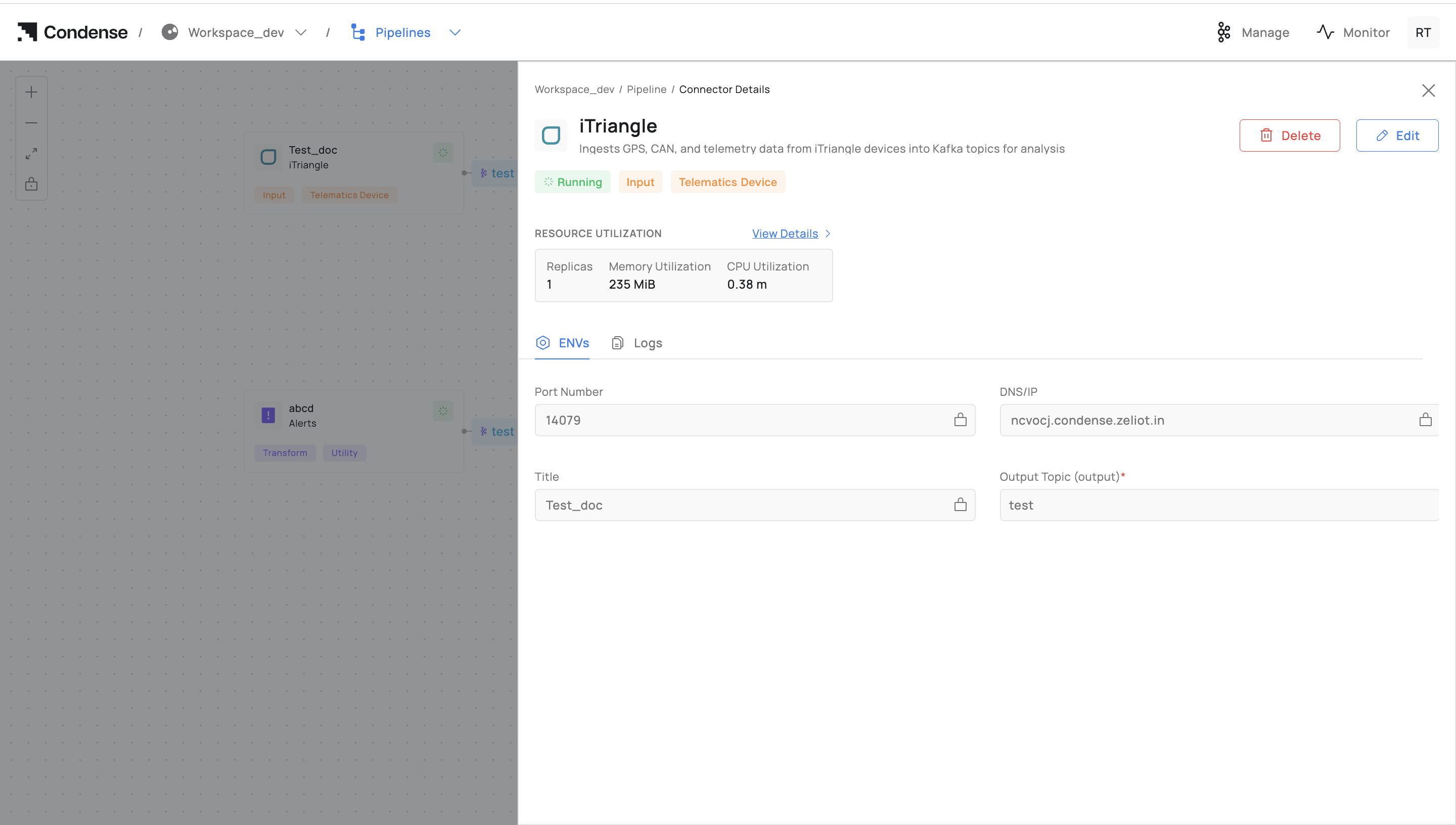
When a node (e.g., a connector transform) is clicked, a detailed section opens with:
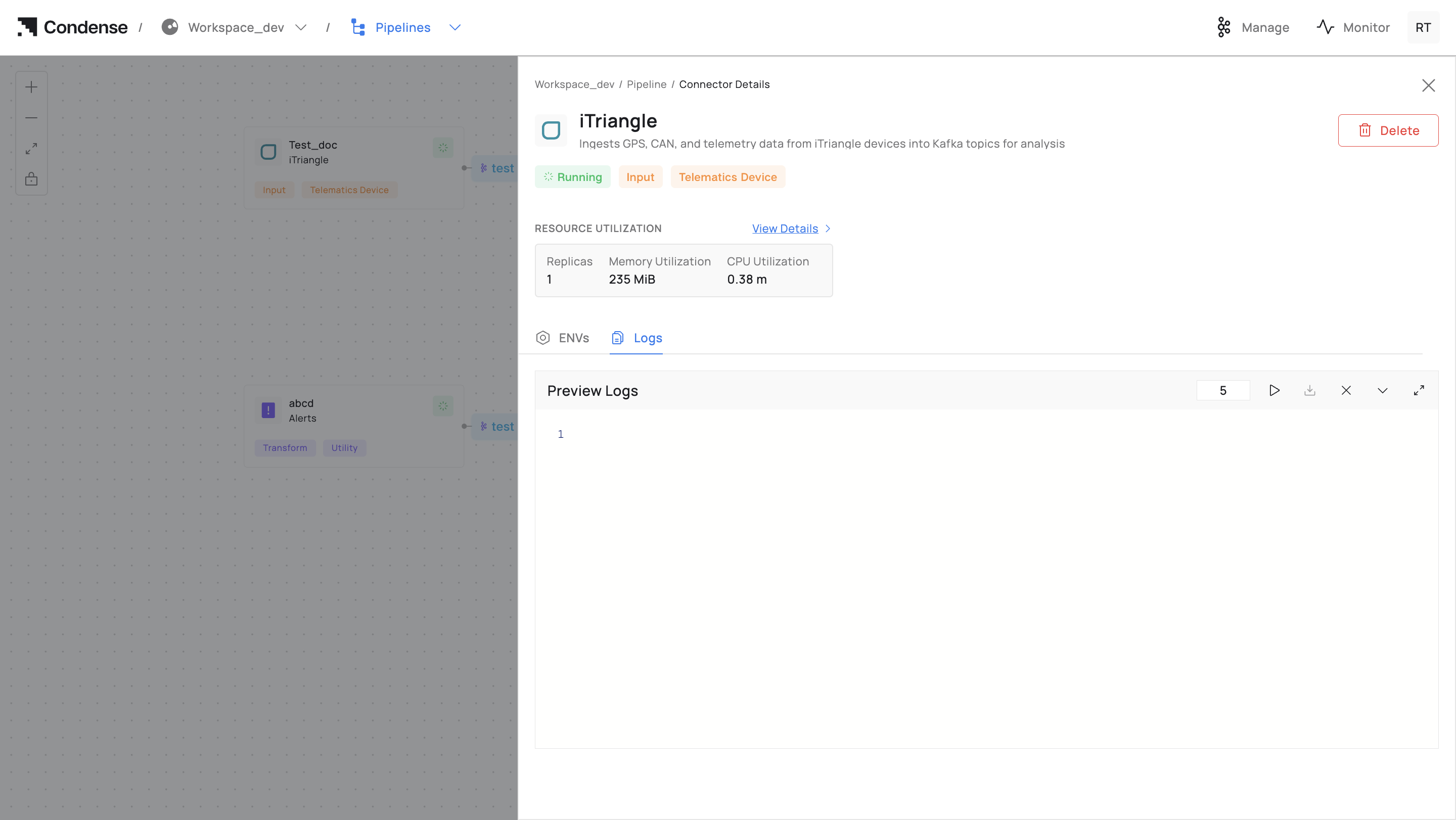
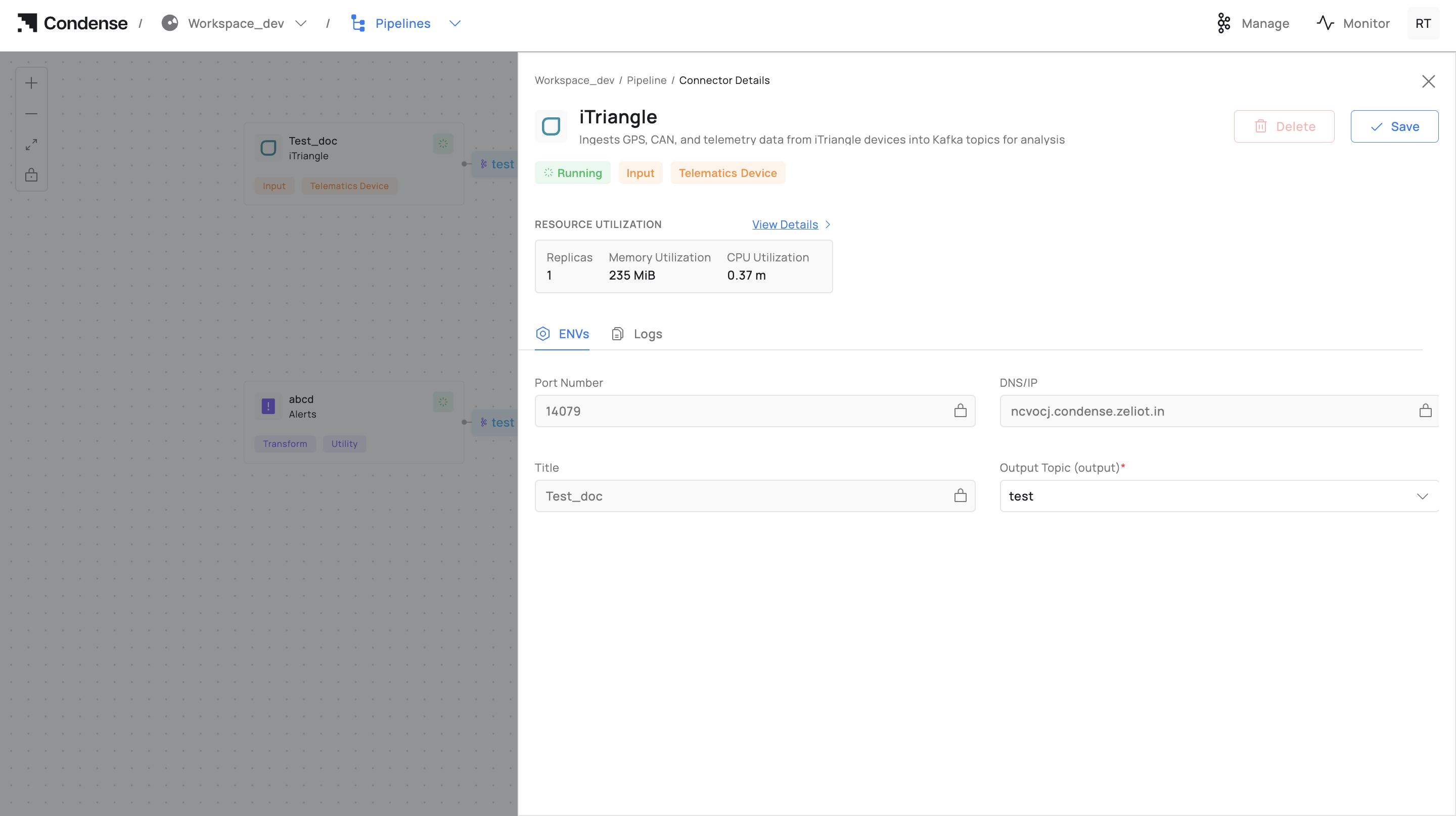
* **Connector Information**: Name, category, type, and status (e.g., `Teltonika` as a `Input` connector with category as `Telematics Device` type and status as `Running` ).
* **Kafka Topic Information**: Input and output topics configured by the user for the deployment of the connector.
### **Real-Time Monitoring**
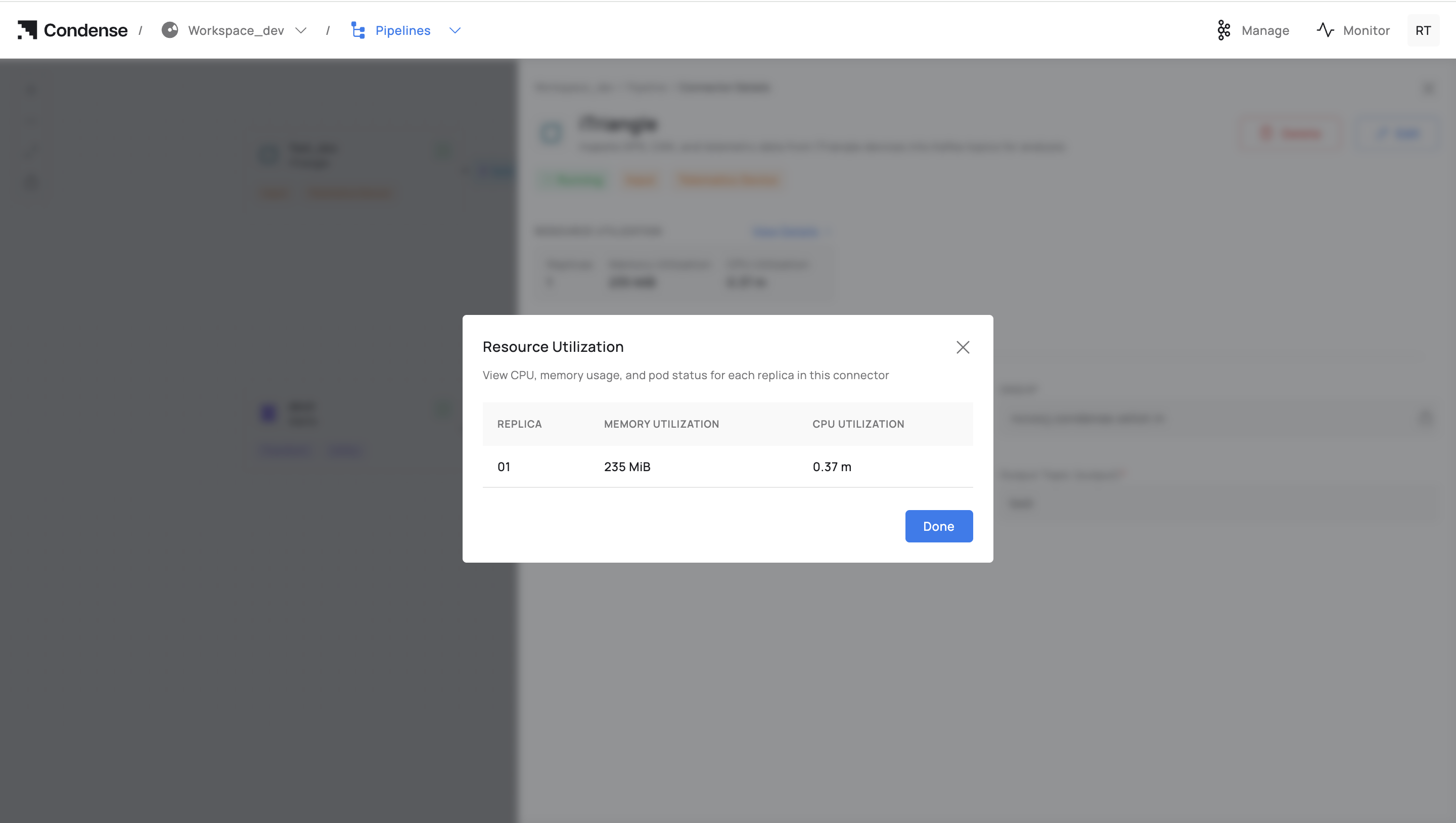
* Displays real-time metrics for each node, such as resource utilization (memory and CPU utilization).
* Visual indicators (e.g., colour-coded status for running, stopped, etc ) to quickly identify issues
### **Logs and Debugging**
* Access detailed logs for each node to track activities and troubleshoot issues.
* It supports **real-time log streaming** with customizable intervals (e.g., 5 seconds by default) and allows users to **play**, **stop**, and **control** the flow of logs for better monitoring and debugging.
### **Edit Configurations of deployed connectors / Transforms**
After a system or pipeline is deployed, issues or bugs may be discovered that require adjustments to ensure smooth operation. The **Edit Configurations** functionality allows users to resolve these problems by correcting misconfigurations.
#### **Types of Edit Configurations**
Edit Configurations are categorized into two distinct types, each serving specific use cases:
#### **Edit Configurations for Custom Transform as a Connector**
Step 1: Accessing the Edit Configuration Page
1. Navigate to the **Pipeline** section where the **custom transform** connector is deployed.
2. Click on the **custom transform** connector card that you want to “Edit”.
3. Click on the **Edit Configuration** tab to make changes.
Step 2: Editing the Configuration Fields
1. All the configurations associated with the custom transform connector are populated.
2. Make changes to the configuration field values as required.
{% hint style="info" %}
#### Example
\
**Title**
The current title is set to **data-validator**. If you need to change the title, enter the new title in the **Title** field.
\
**Port Number**
The current port number is set to **9000**. If you need to change the port number, enter the new port number in the **Port Number** field.
{% endhint %}
Step 3: Saving or Cancelling Changes
**Save Changes**:
If you are satisfied with the changes, click the **Save Changes** button to apply the new configurations. Note that once you save, the previously added configurations will be overwritten.
**Cancel**
If you do not wish to save the changes, click the **Cancel** button to exit without making any modifications.
#### **Edit Configurations for Telematics Device Type**
Step 1: Accessing the Edit Configuration Page
1. Navigate to the **Pipeline** section where the **telematics device type** connector is deployed.
2. Click on the **telematics device type** connector card that you want to “Edit”.
3. Click on the **Edit Configuration** tab to make changes.
Step 2: Editing the Configuration Fields
1. All the configurations associated with the telematics device type connector are populated.
2. Make changes to the configuration field values as required.
{% hint style="info" %}
**Example**
**Title**
The current title is set to **data-validator**. If you need to change the title, enter the new title in the **Title** field.
**Output Topic**
The current output topic is set to **user data**. If you need to change the output topic, enter the new output topic in the **output topic** field.
{% endhint %}
Step 3: Saving or Cancelling Changes
**Save Changes**
If you are satisfied with the changes, click the **Save Changes** button to apply the new configurations. Note that once you save, the previously added configurations will be overwritten.
**Cancel**
If you do not wish to save the changes, click the **Cancel** button to exit without making any modifications.
### **Delete Connector**
The **Delete Connector** functionality allows users to remove a connector that is no longer needed or is causing issues in the pipeline. However, deleting a connector can have significant consequences, including:
1. **Disruption of Data Flow**: Removing a connector may break the flow of data in the pipeline, affecting downstream processes and applications.
2. **System Integrity**: Deleting a connector without proper consideration can lead to errors or failures in deployed applications that rely on the connector.
3. **Resource Cleanup**: Deleting unused or obsolete connectors helps free up system resources, such as memory and CPU, improving overall system performance.
### **Steps to Delete a Connector**
Step 1: Access the Connector Information\
Navigate to the **Pipeline** section where the connector that you wish to delete is listed.
Step 2: Confirm the Connector to Delete\
Click on the **Delete Connector** option associated with the connector.
Step 3: Review the Warning Message
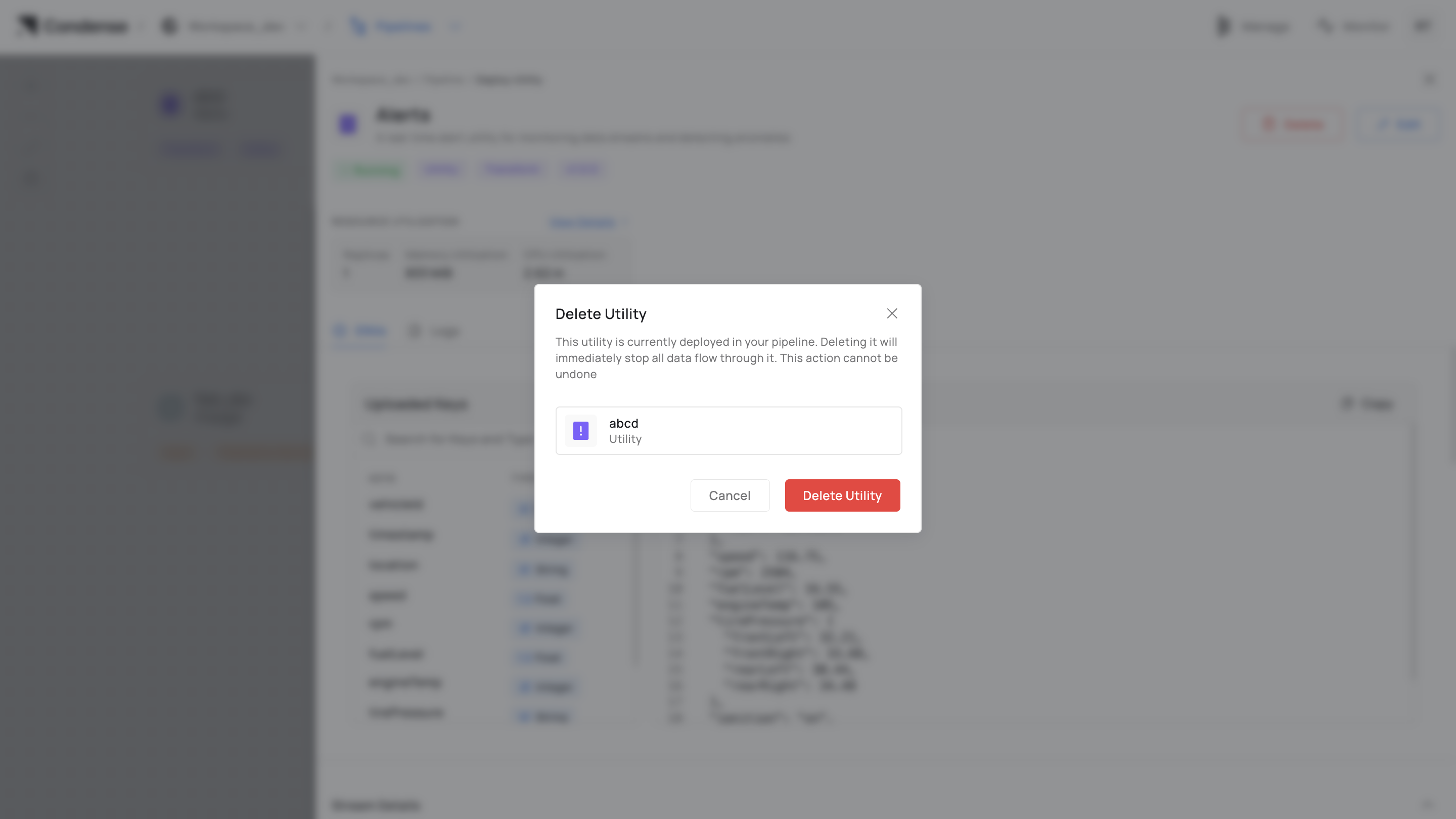
{% hint style="danger" %} **A warning message will appear, stating:**\
\
"***Are you sure you want to delete the connector Title?***"\
\
"***If you delete the Connector title, you might break the flow of data in the pipeline and might cause problems in your deployed applications.***"
{% endhint %}
Carefully read the warning to understand the potential impact of deleting the connector.
#### Step 4: Proceed or Cancel **Delete Connector** If you are certain that deleting the connector will not affect your system, click **Delete Connector** to proceed.
**Cancel**\
If you are unsure or want to reconsider, click **Cancel** to abort the deletion process.
## Roles and Permissions in Pipelines
Only workspace members with appropriate roles can modify pipelines:
| Operation | Admin | Maintainer | Developer | Viewer |
| :--------------------------------------: | :---------------------------------------------------------------------------------------------------------------------------------------------------------------------------------------------------------------------------------------------------: | :---------------------------------------------------------------------------------------------------------------------------------------------------------------------------------------------------------------------------------------------------: | :---------------------------------------------------------------------------------------------------------------------------------------------------------------------------------------------------------------------------------------------------: | :---------------------------------------------------------------------------------------------------------------------------------------------------------------------------------------------------------------------------------------------------: |
| Deploy pre-built connectors | | | | |
| Deploy custom connectors/transforms | | | | |
| Configure deployed connectors/transforms | | | | |
| Delete deployed components | | | | |
| View pipelines and connections | | | | |
| View component logs/configuration | | | | |
## Monitoring Pipelines
From the pipeline view, you can:
* See the health status of each component
* Inspect live throughput and latency metrics
* Identify broken or disconnected topic links
* Access logs for deployed connectors and transforms
* Track active vs. idle topic flows
## Best Practices
* Use clear topic naming to make the pipeline canvas self-explanatory.
* Group related connectors and transforms logically to simplify understanding.
* Avoid unused topic links to reduce visual clutter.
* Regularly check component logs to catch issues early.
* Document the pipeline purpose in the workspace for long-term maintainability.
## Common Pitfalls and How to Avoid Them
1. Misaligned Topic Names \
**Avoidance**: Double-check topic mappings in each component’s configuration to ensure intended connections appear.
2. Unused Components Left Running \
**Avoidance**: Remove or disable unused connectors and transforms to prevent unnecessary processing and costs.
3. Overcrowded Canvas \
**Avoidance**: Use multiple workspaces or separate flows logically when a single pipeline becomes visually dense.
## Related Links
* [Connectors](/condense/v2.4.0/condense-guide/condense-core/deploy-an-input-connector.md)
* [Transforms & Utilities ](/condense/v2.4.0/deep-dive/transforms.md)
* [Workspace](/condense/v2.4.0/condense-guide/condense-core/create-your-workspace.md)
* [RBAC](/condense/v2.4.0/condense-guide/condense-console/roles-and-permissions.md)
 |
|  |
|