> For the complete documentation index, see [llms.txt](https://docs.zeliot.in/condense/llms.txt). Markdown versions of documentation pages are available by appending `.md` to page URLs; this page is available as [Markdown](https://docs.zeliot.in/condense/v2.4.0/condense-app-getting-started/sso-single-sign-on-creating-an-account-logging-into-the-condense-app.md).
# SSO (Single Sign On) - Creating an Account/Logging into the Condense App
The Single Sign-On (SSO) feature in Condense allows users to authenticate seamlessly using their existing corporate or third-party identity provider credentials, eliminating the need for multiple login credentials. Currently, Condense supports SSO via Google and Microsoft. This guide will walk you through signing up and signing in to Condense.
## Condense currently uses 2 kinds of authentication methods
1\. **Native Sign-up and Log-in**: Users can create an account using their email and password.
2\. **Single Sign On (SSO)**: Users can sign in using their existing corporate or third-party identity provider credentials (e.g., Google - GSuite, Microsoft-M365).
{% hint style="info" %}
IMPORTANT
Right now, you will be able to log in or sign up through your work email using Google (GSuite) and Microsoft (M365). We will soon be enabling Single Sign On (SSO) using your work email address for other Identity Providers, too.
{% endhint %}
## Accessing the Sign-up and Sign-in Page
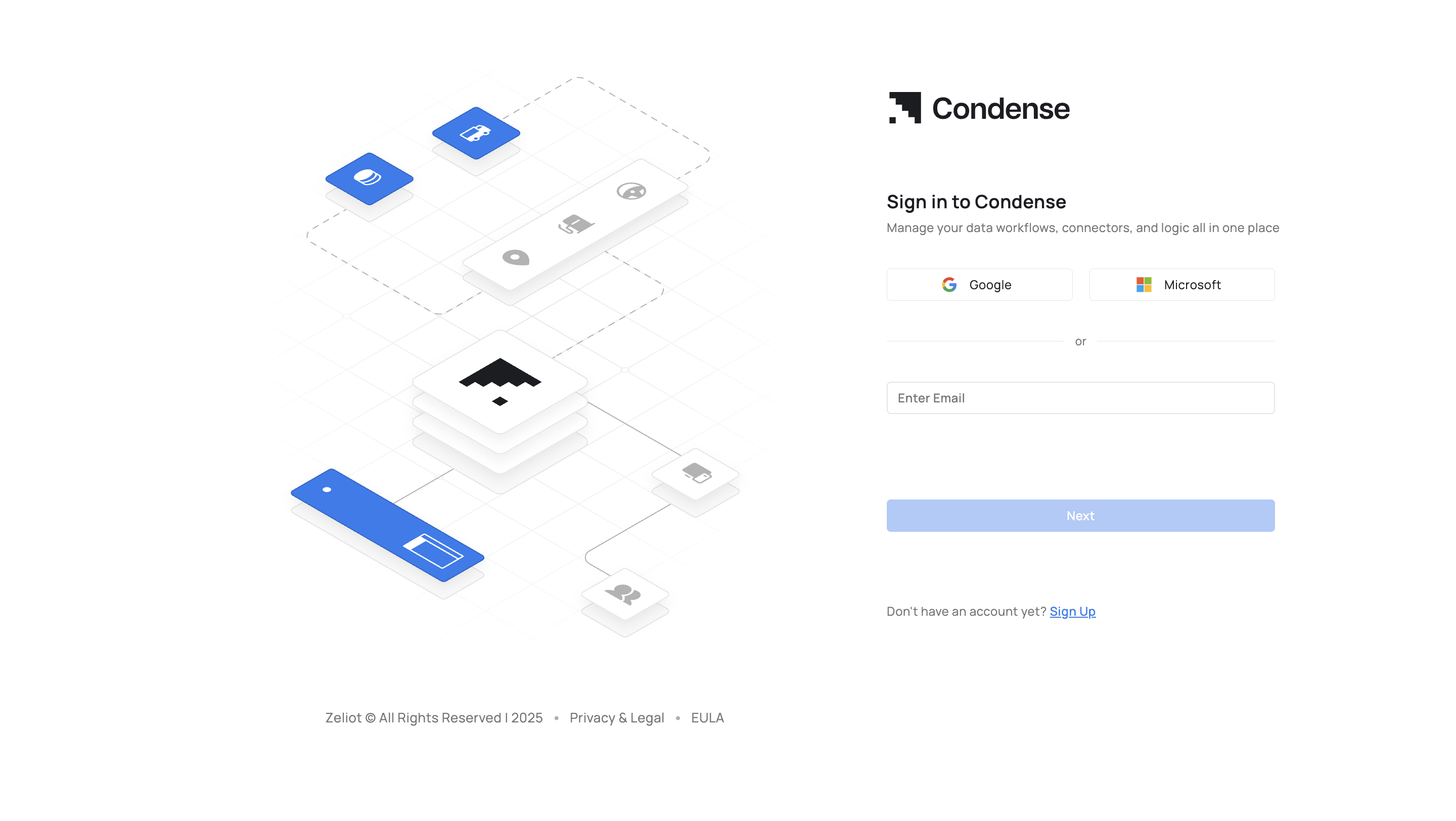
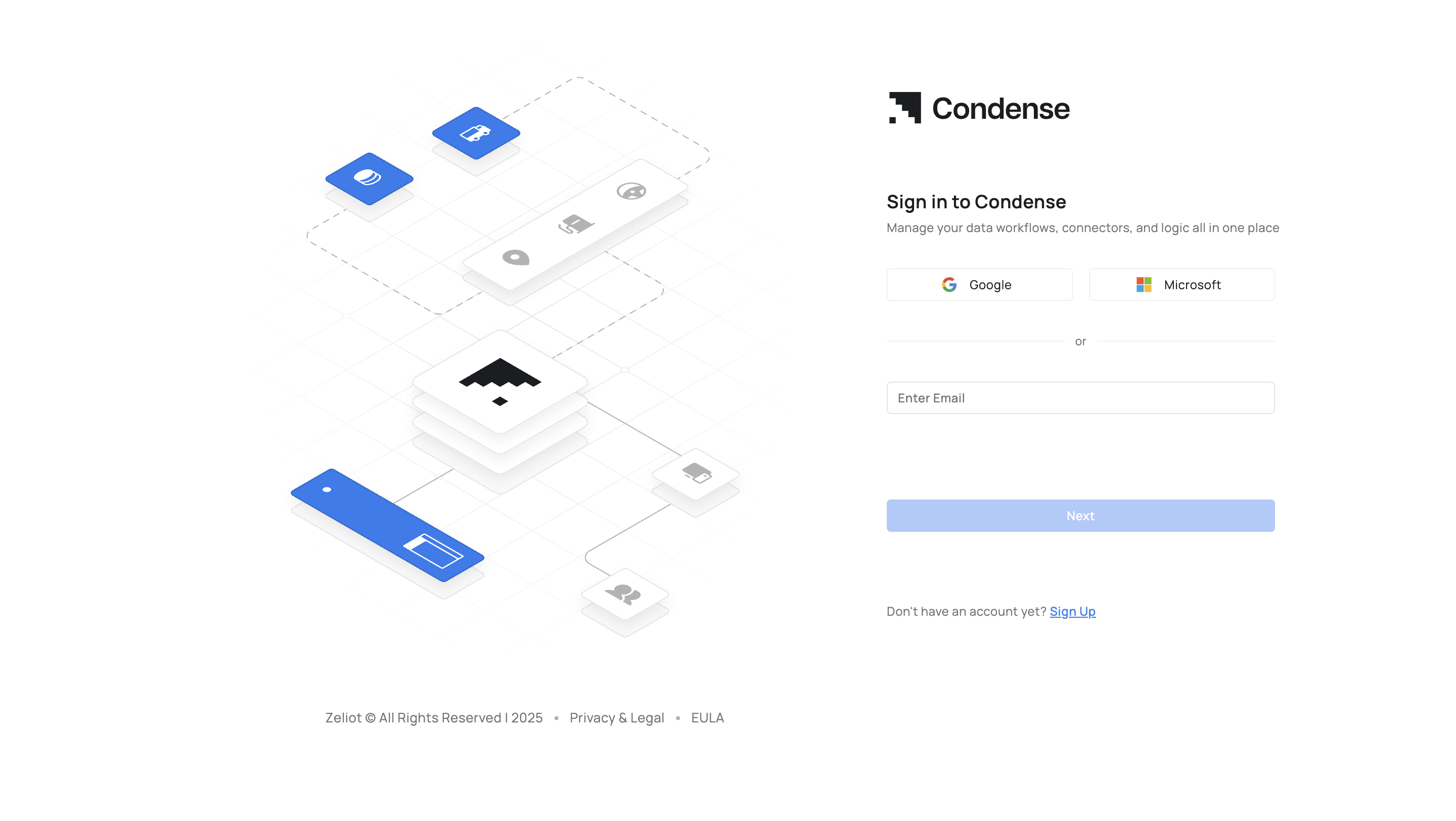
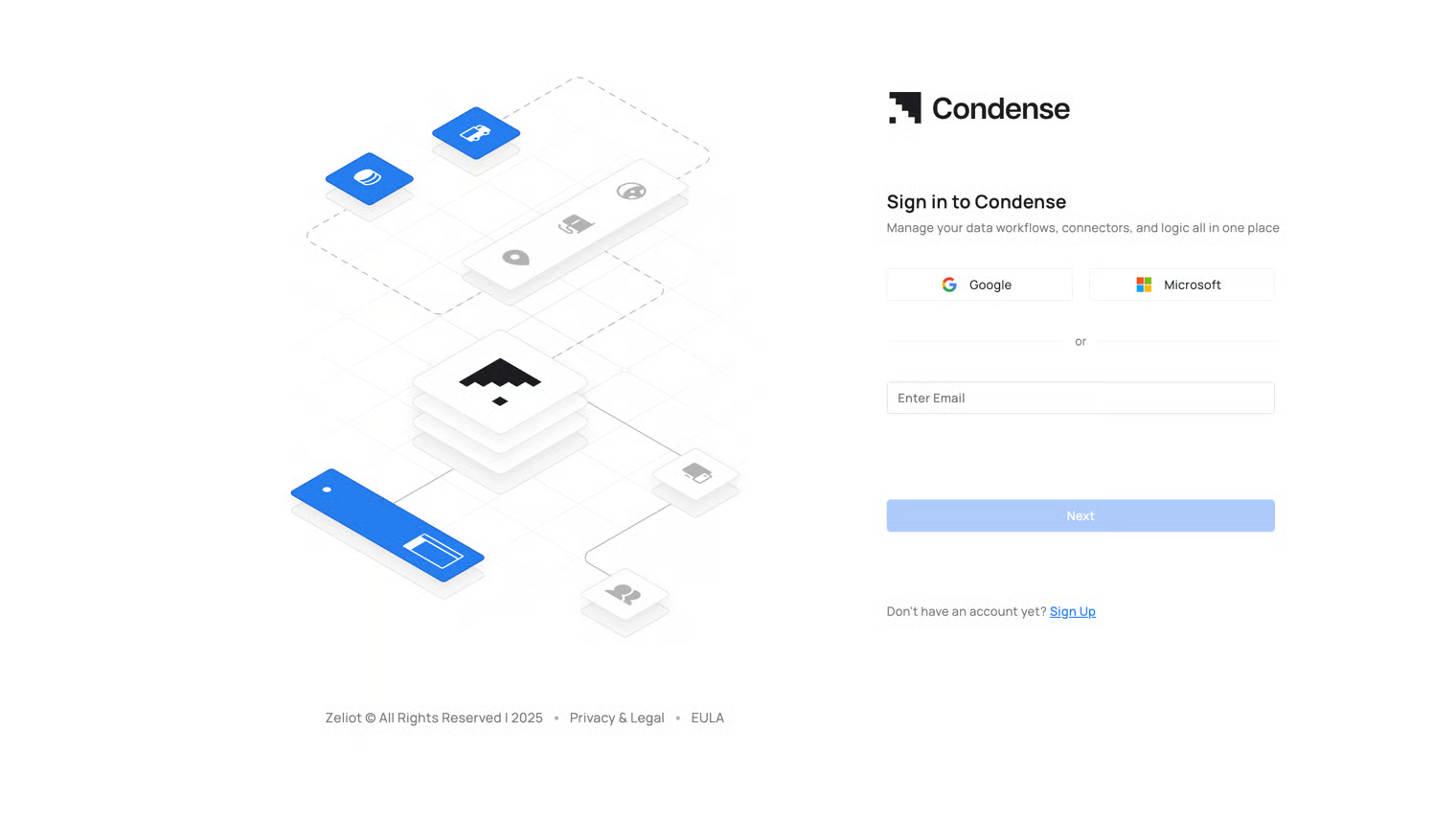
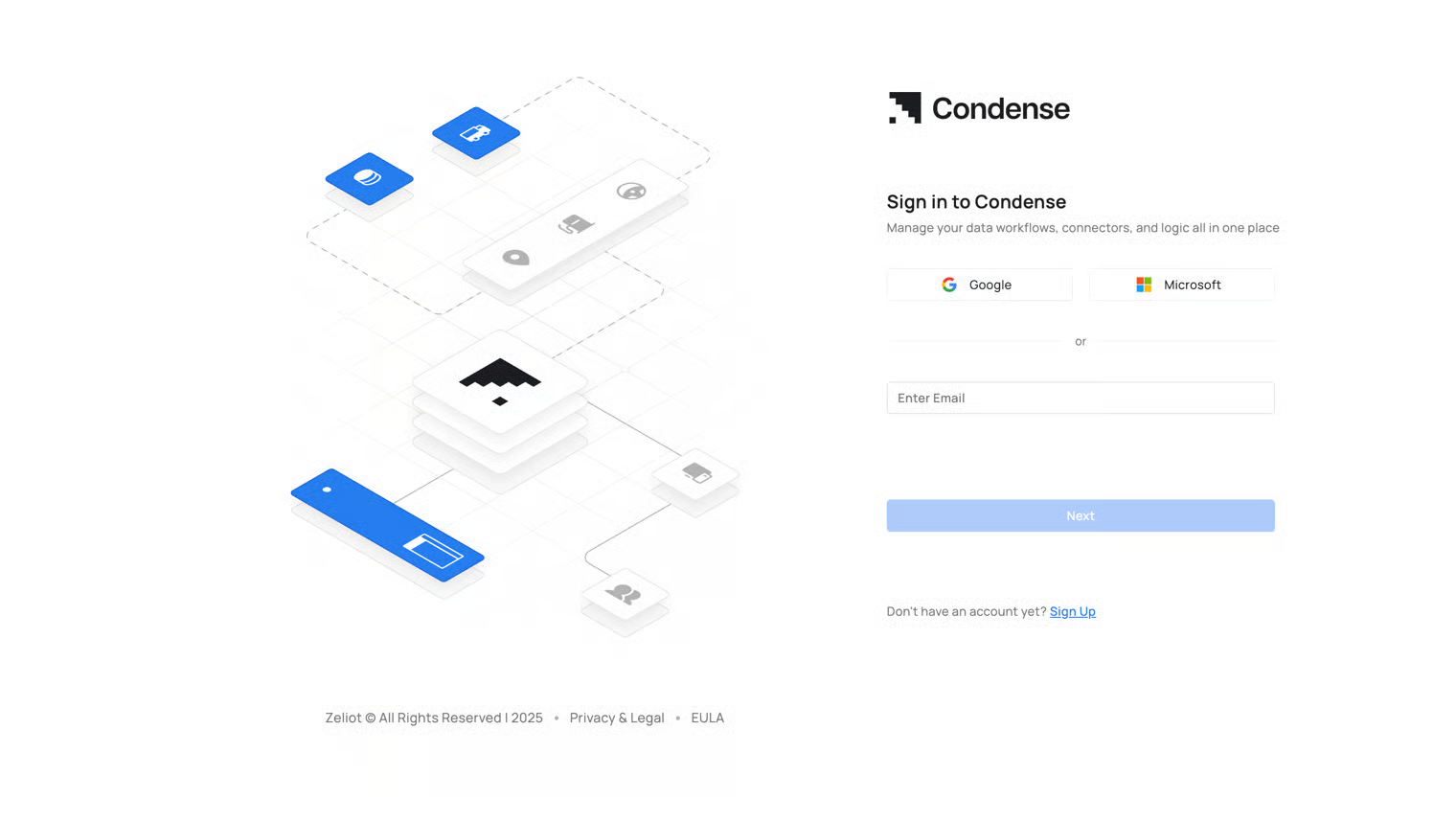
**Step 1:** Visit the login page for the Condense App
{% hint style="info" %}
Look for the email from ** that has the unique URL for you to sign up and start using the Condense App.
{% endhint %}
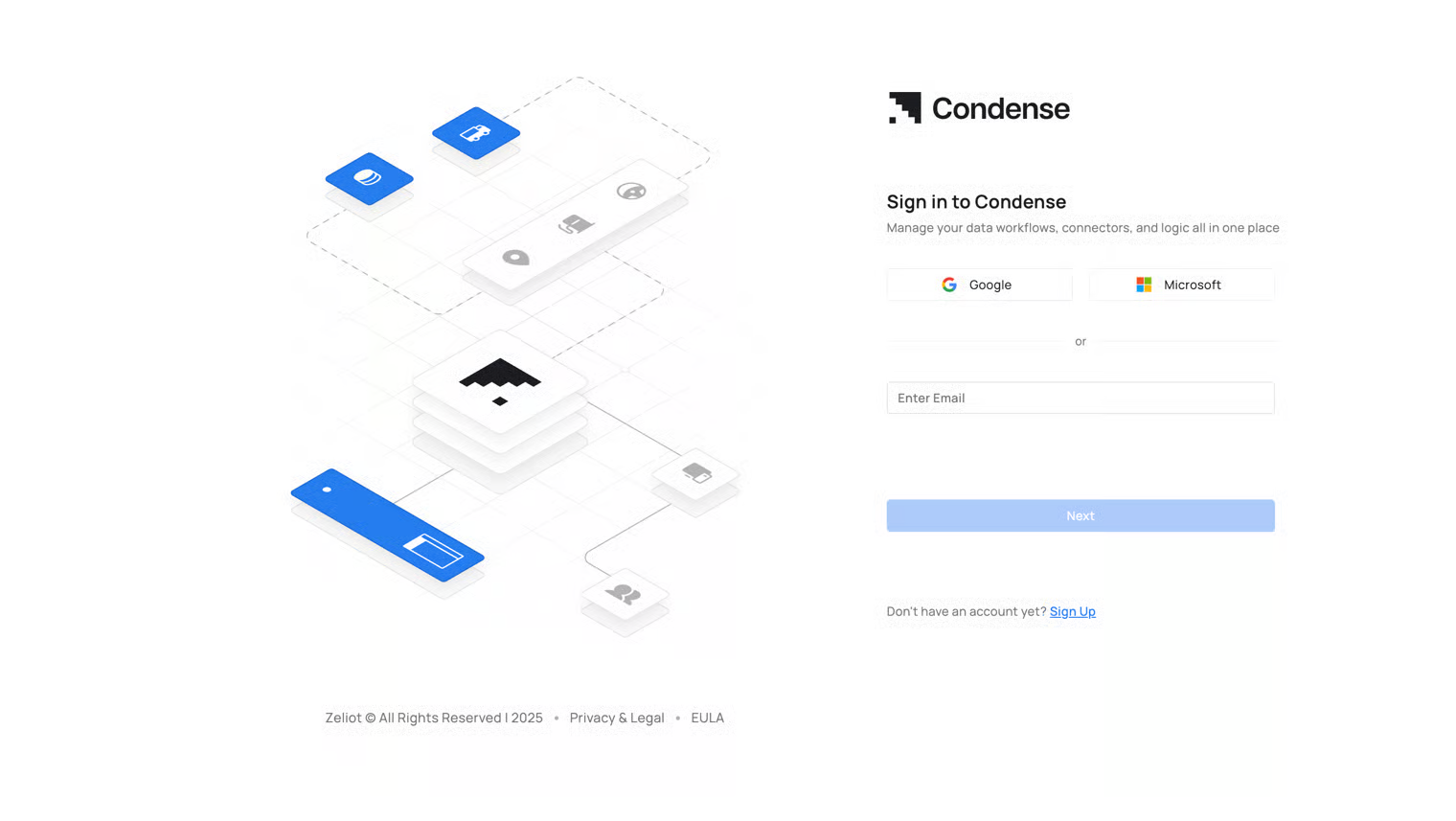
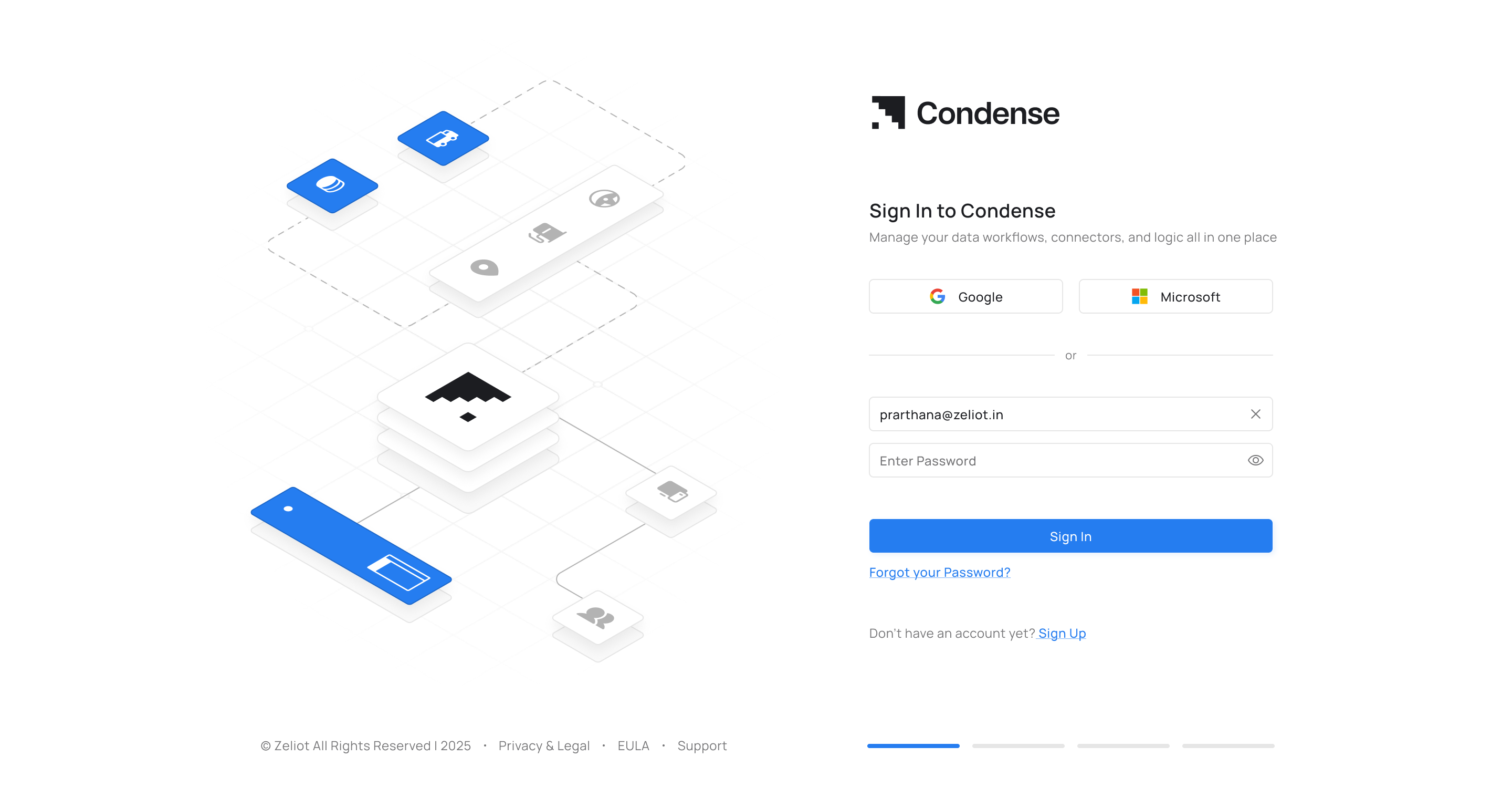
**Step 2:** You will see the following options for signing in:
1. with Google
2. with Microsoft
3. with email
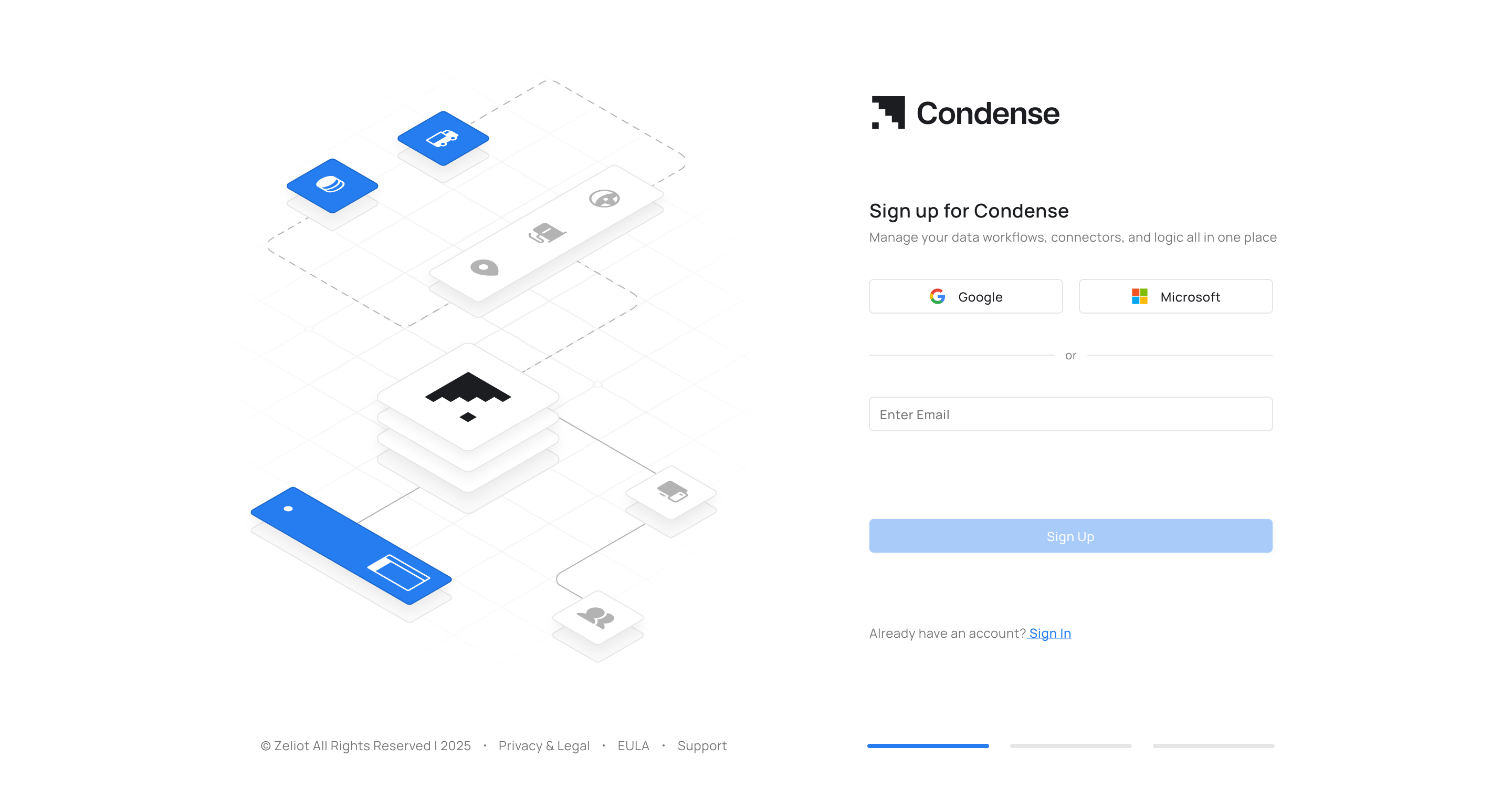
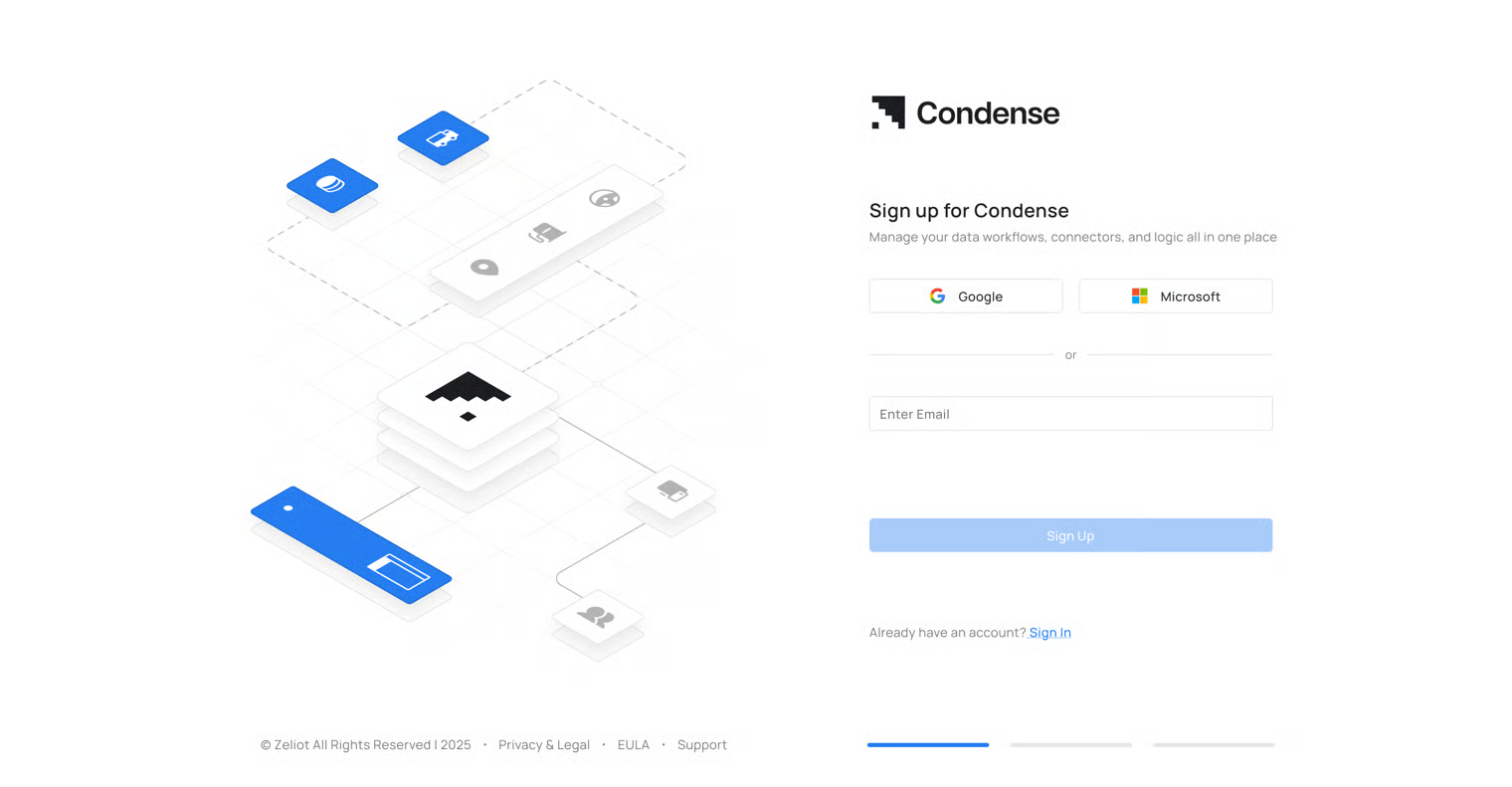
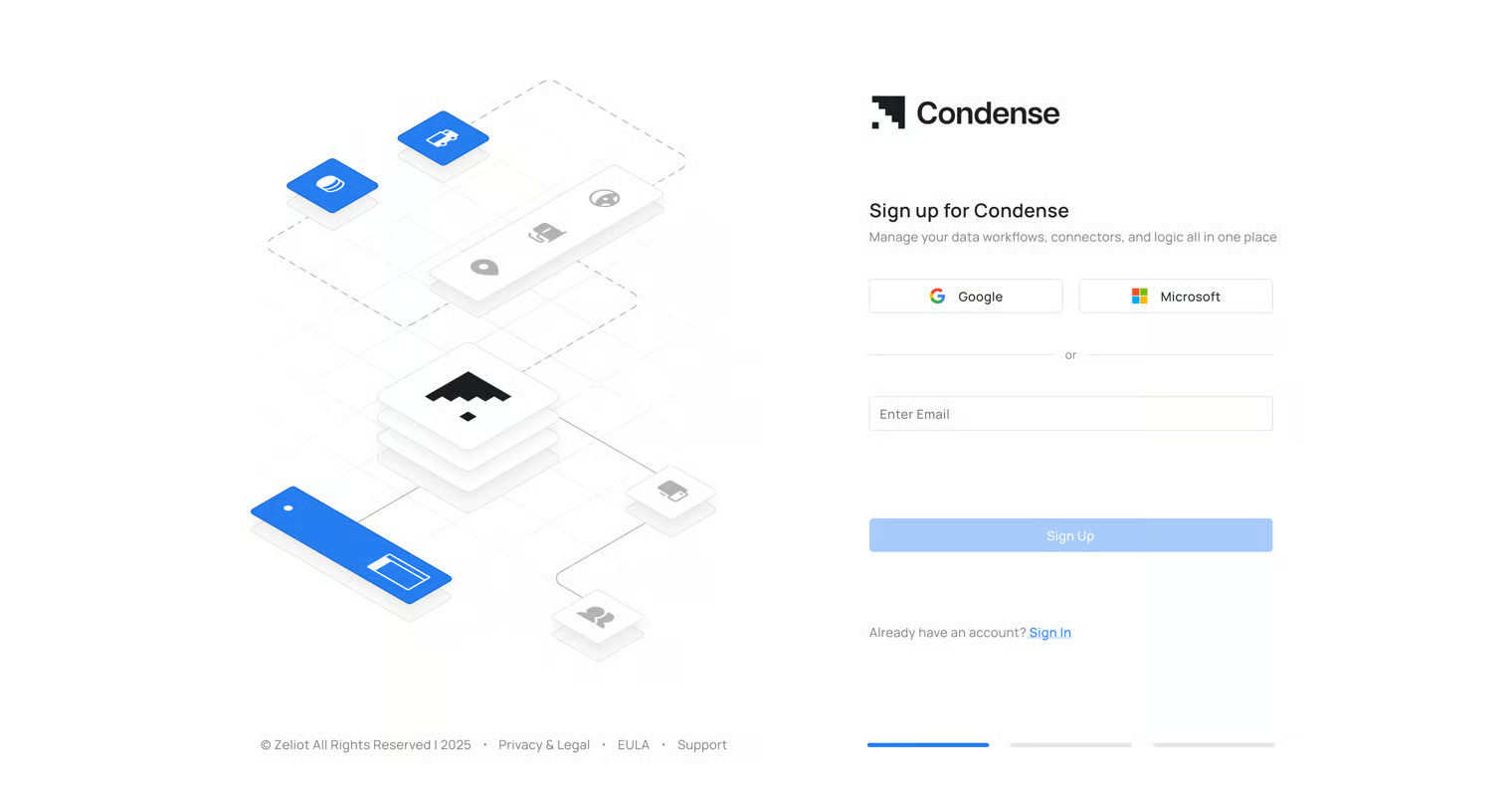
**Step 3:** You will also see an option to create a new account where options for creating accounts using the following will be present:
1. With Google
2. With Microsoft
3. With email
## Sign-up Process to access the Condense Application
### Signing up with Google (GSuite)
**Step 1:** Go to the Condense login page
**Step 2:** Click on the "Signup" button on the login page
{% hint style="info" %}
The "Signup" Button is located at the bottom of the login page
{% endhint %}
**Step 3:** Sign-up page will appear.
**Step 4:** Click on the "Google" button
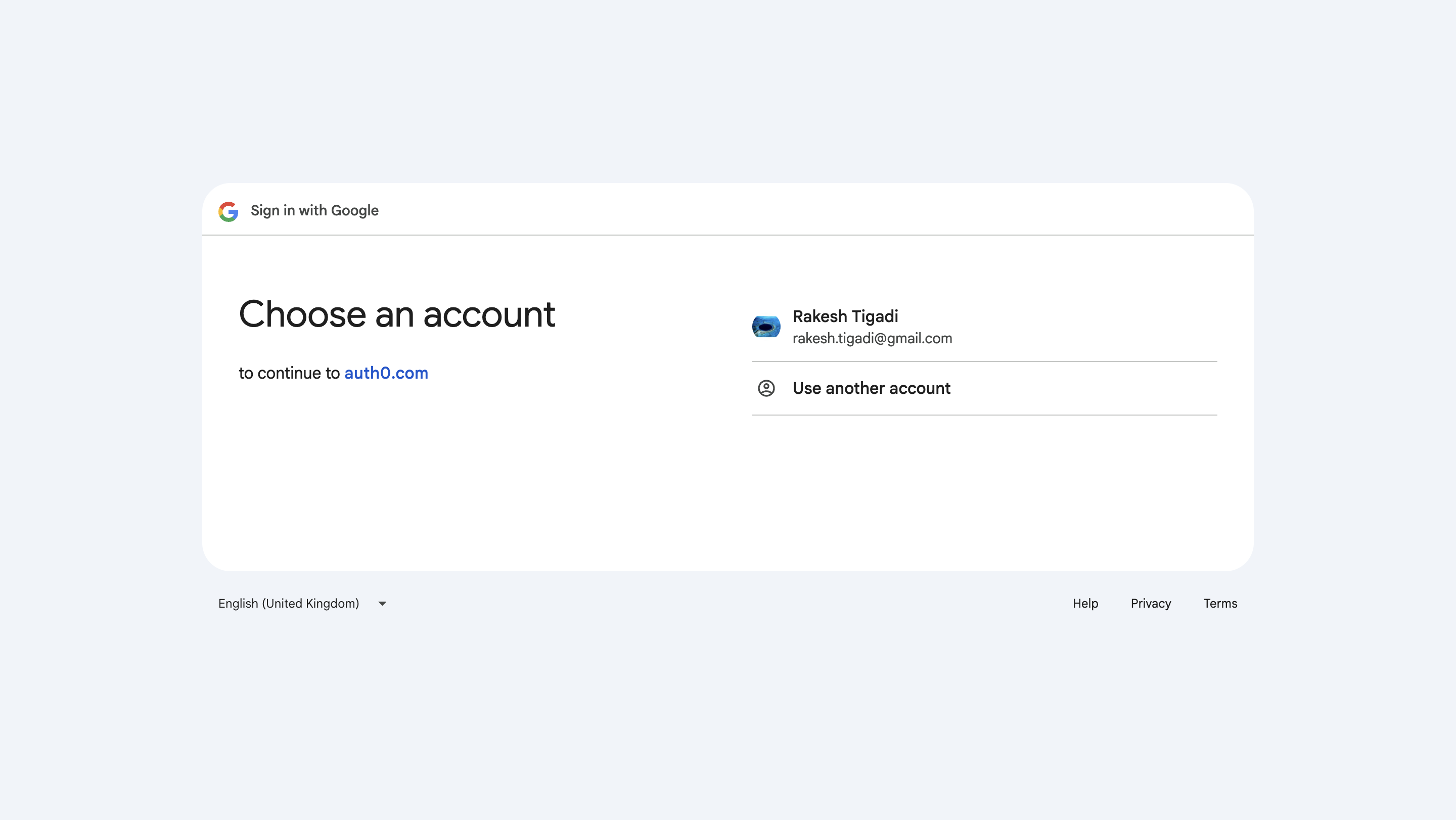
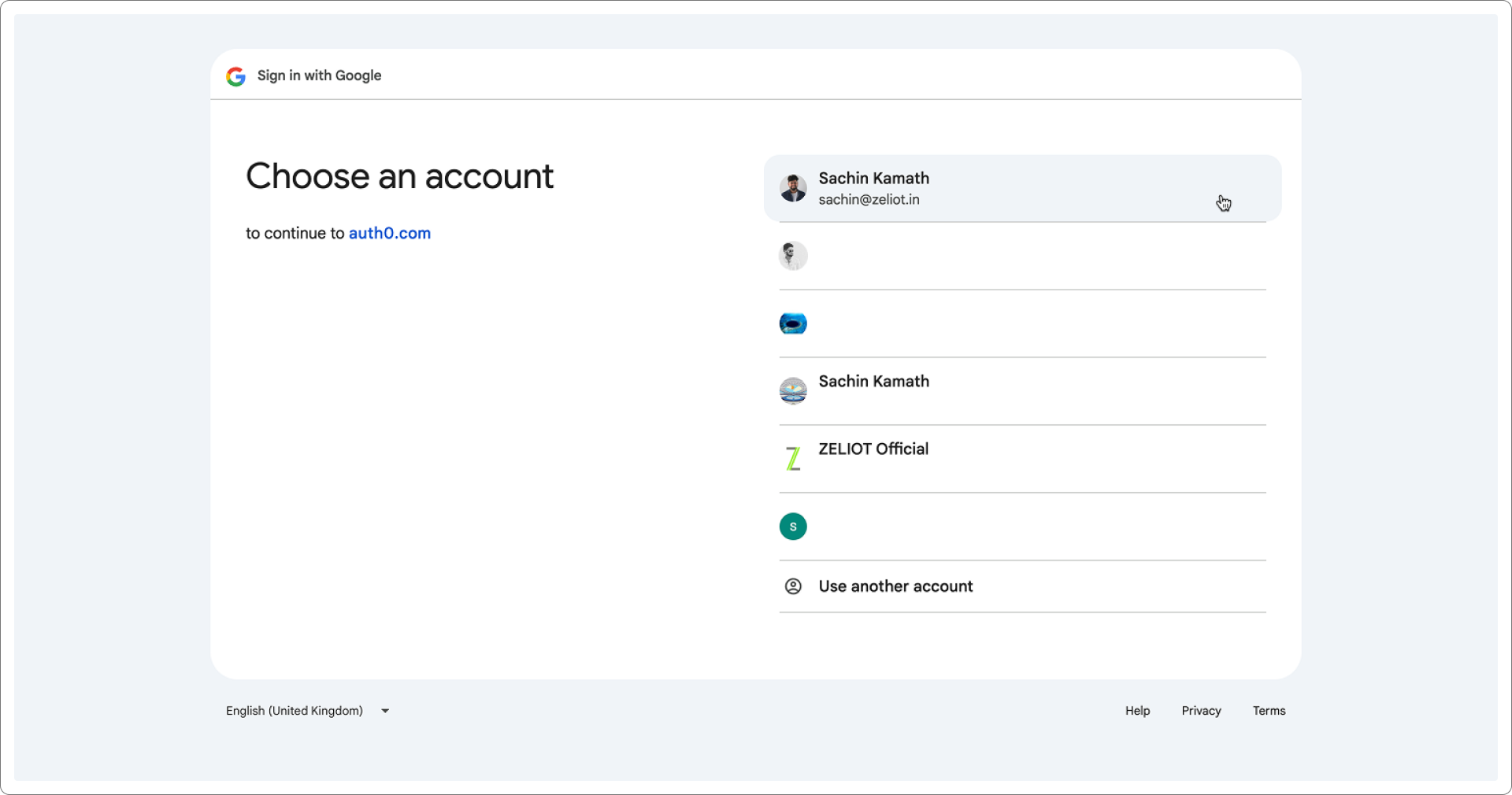
**Step 5:** Select your Google account or enter your credentials if prompted.
**Step 6:** Grant permissions if required.
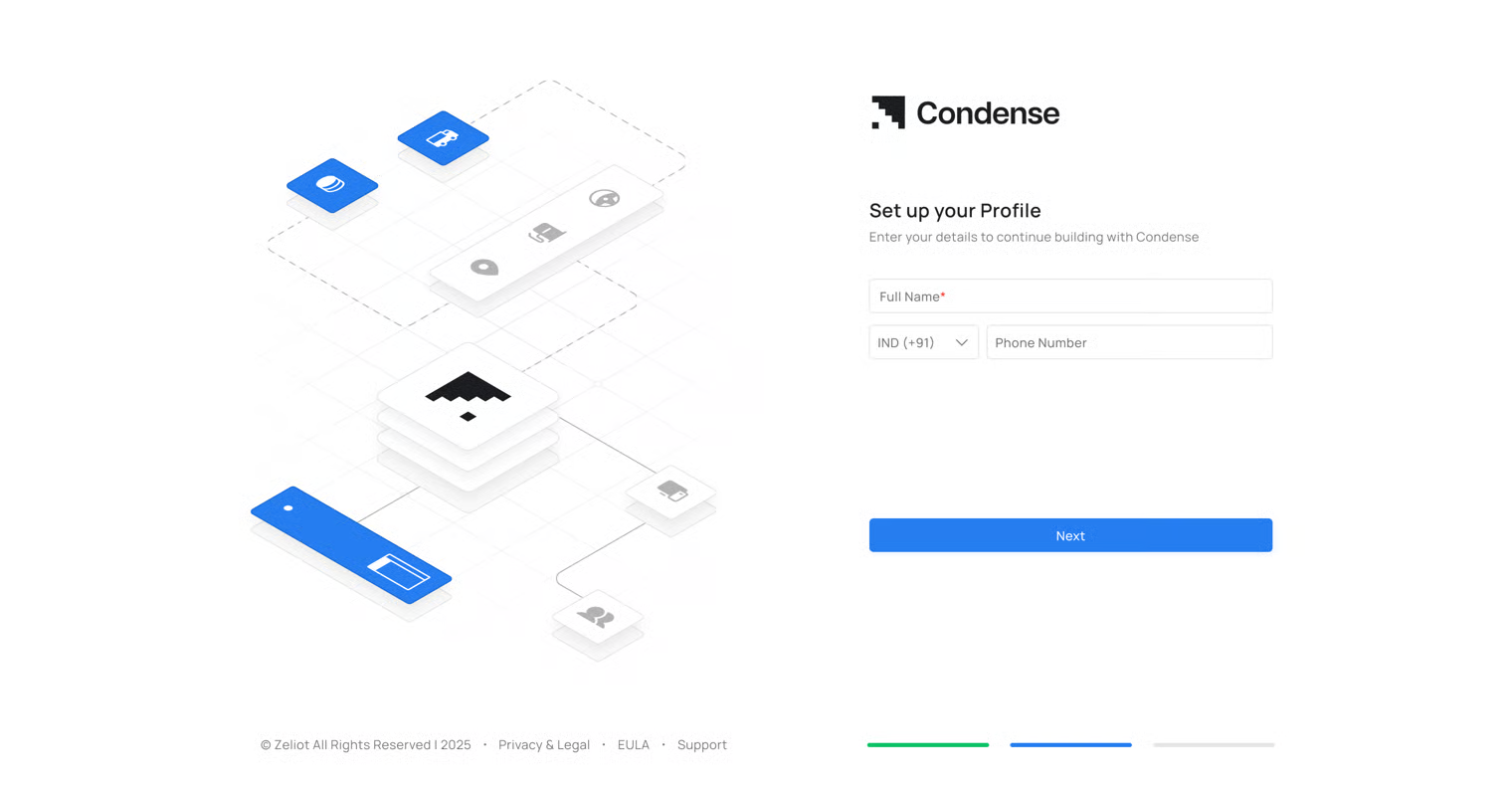
**Step 7:** Enter the Full name and phone number
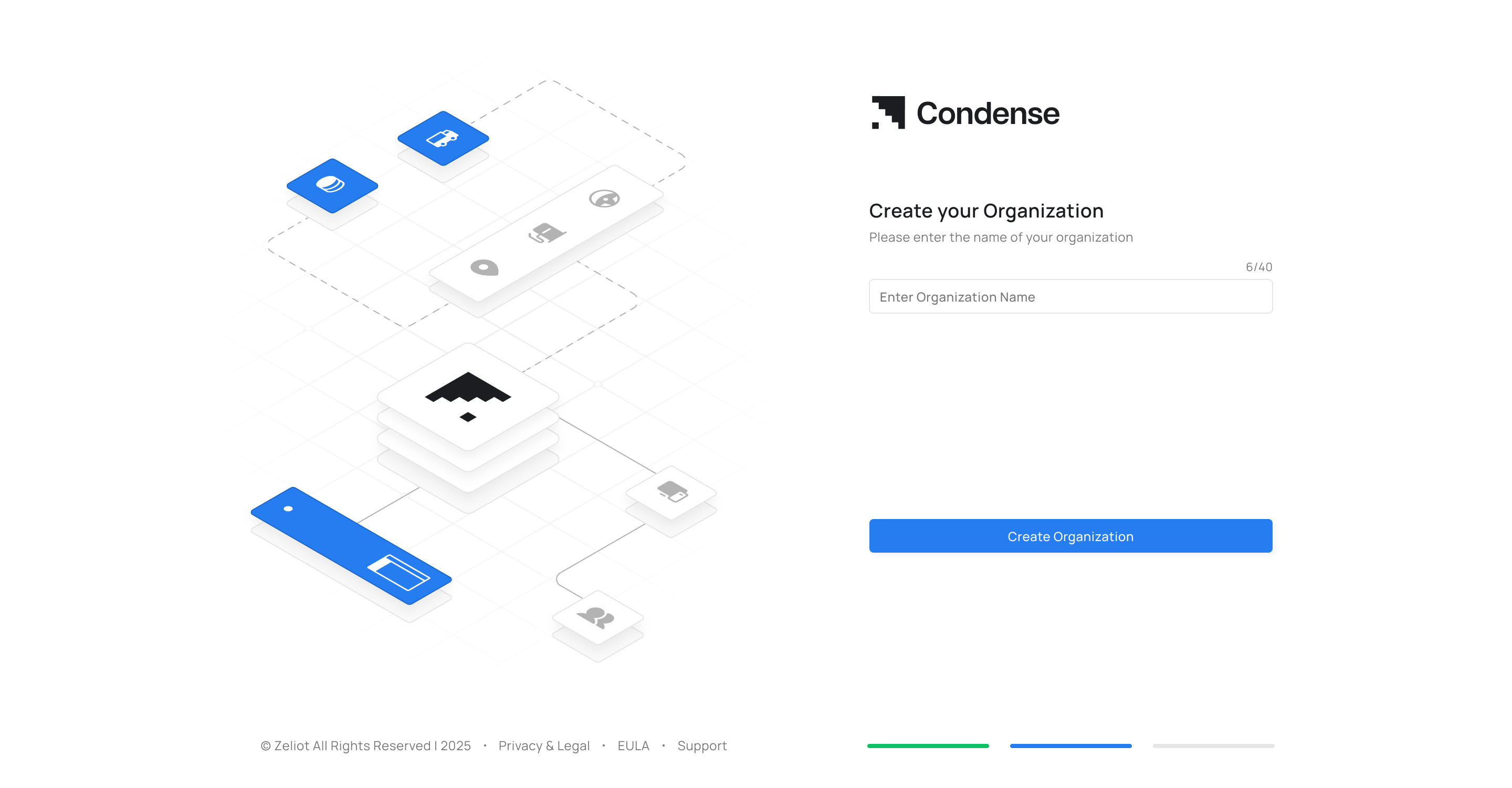
**Step 8:** Upon successful authentication, you will be redirected to the organization page
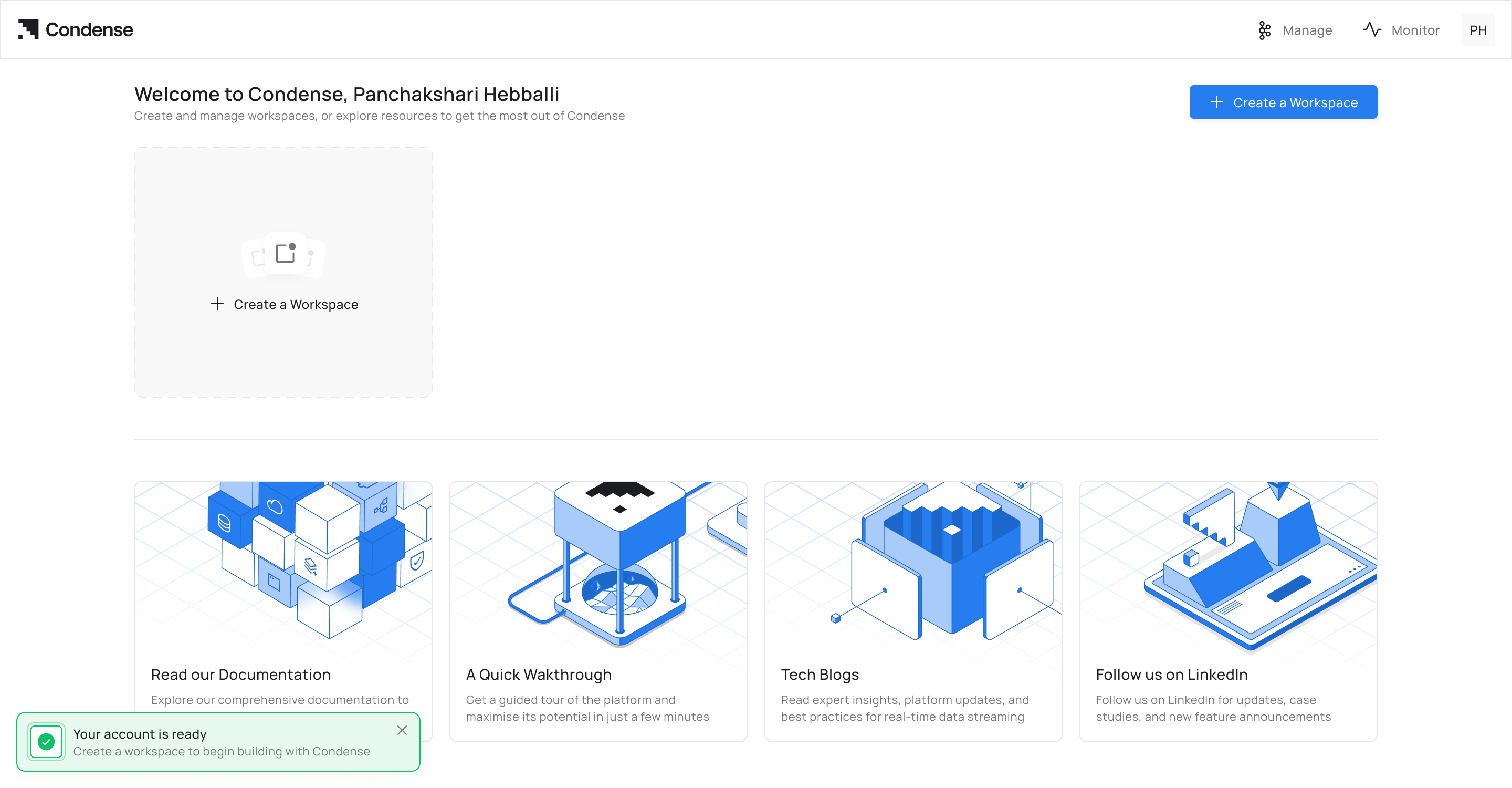
Upon successful organization creation, you will be redirected to the all workspace section in the Condense Application.
### Signing up with Microsoft (M365)
**Step 1:** Go to the Condense login page
**Step 2:** Click on the "Signup" button on the login page
{% hint style="info" %}
The "Signup" Button is located at the bottom of the login page
{% endhint %}
**Step 3:** The sign-up page will appear
**Step 4:** Click on the "Microsoft" button
**Step 5:** Select your Microsoft account or enter your credentials if prompted
**Step 6:** Grant permissions if required
**Step 7:** Enter the Full name and phone number
**Step 8:** Upon successful authentication, you will be redirected to the organization page
Upon successful organization creation, you will be redirected to the all workspace section in the Condense Application.
### Signing up with Email and Password
**Step 1:** Go to the Condense login page
**Step 2:** Click on the "Signup" button on the login page
{% hint style="info" %}
The "Signup" Button is located at the bottom of the login page
{% endhint %}
**Step 3:** Enter your email address in the email text field
**Step 4:** Click on the Signup button
{% hint style="info" %}
You can invite another user to your workspace by asking them to create an account to use the Condense App from Settings. Read More about this [here](/condense/v2.4.0/other-features/settings.md)
{% endhint %}
**Step 6:** Click on the "Signup" Button
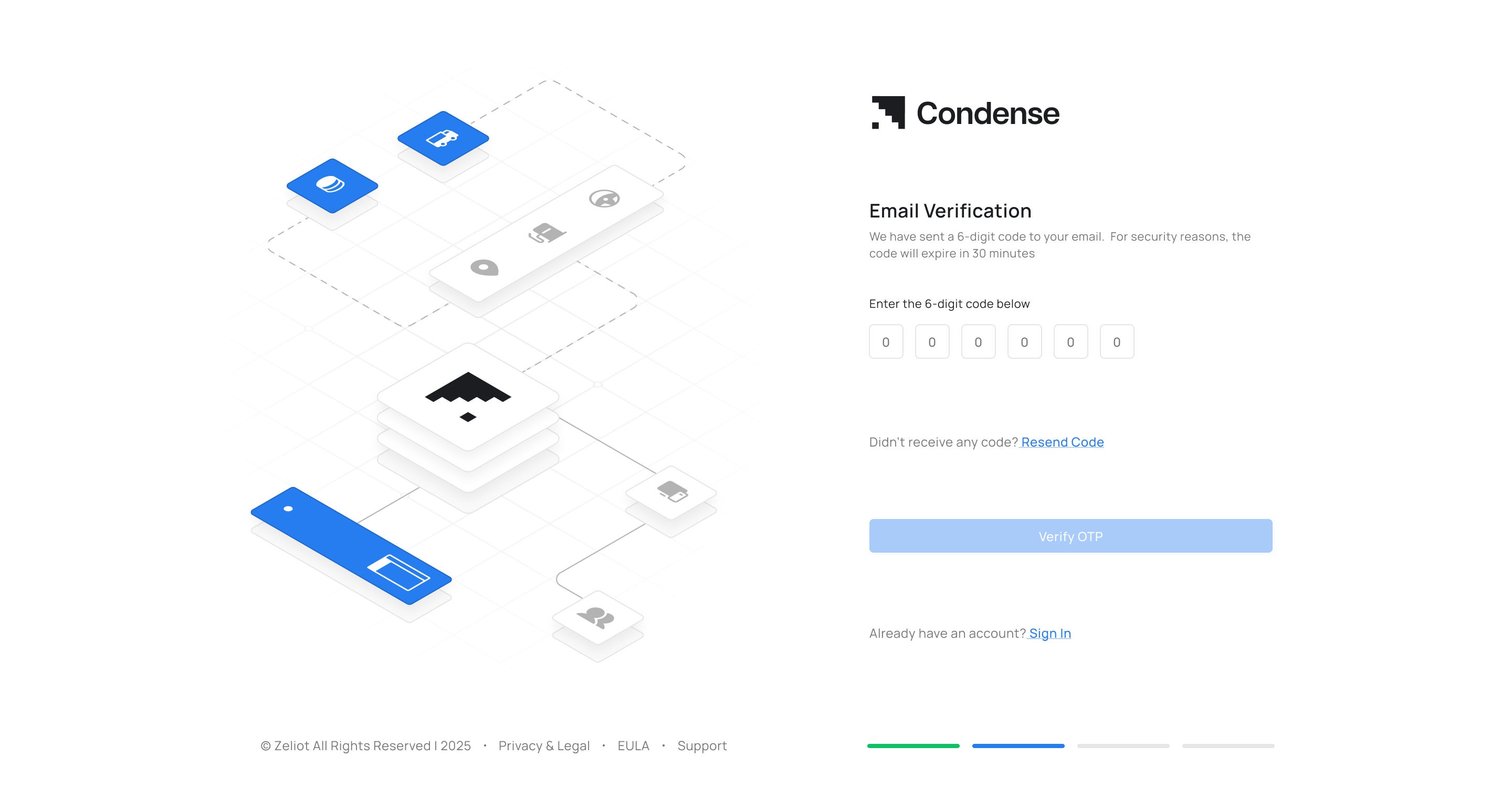
**Step 7:** Verify the OTP
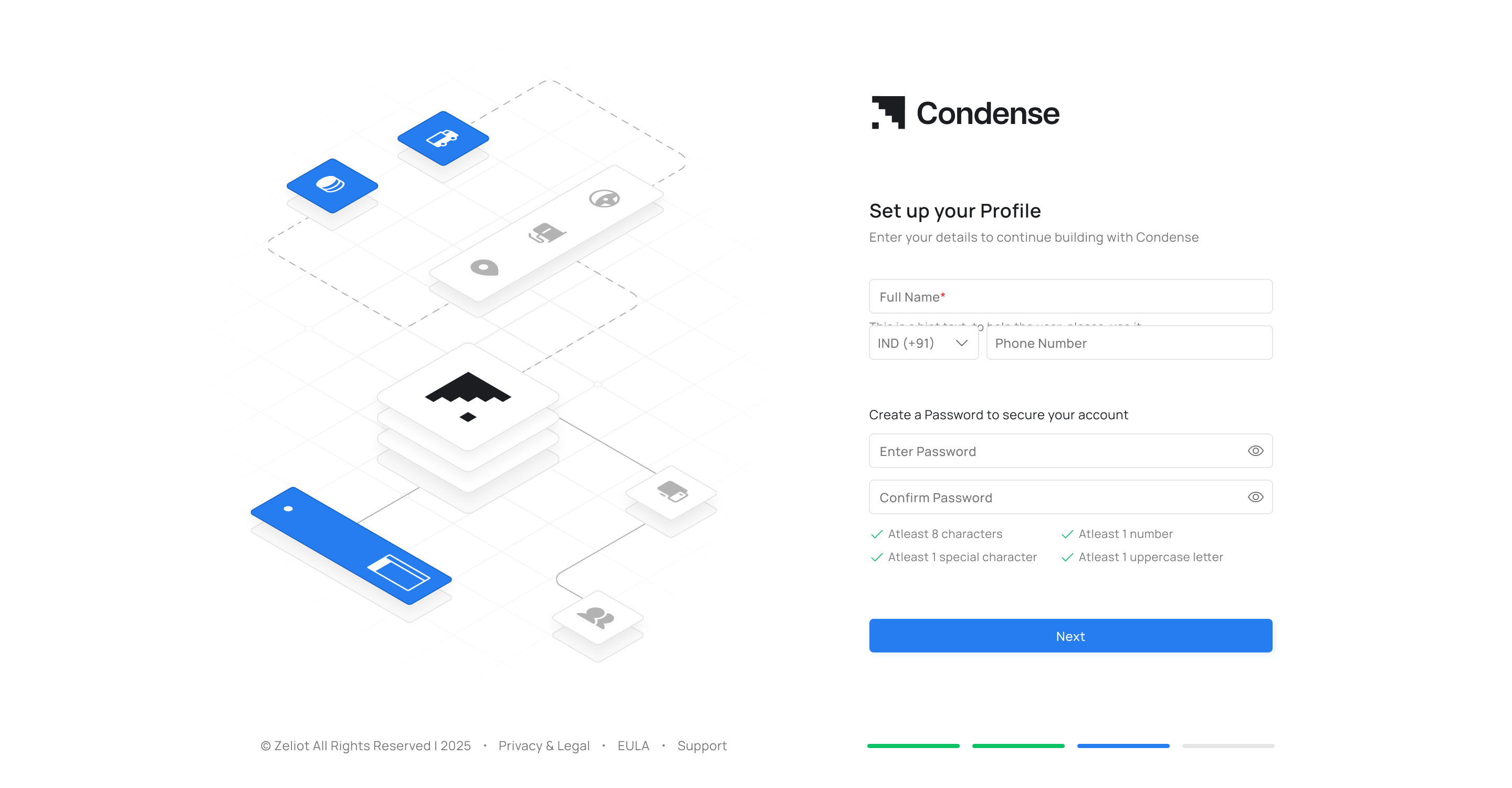
**Step 8:** Set the profile and password after OTP verification
**Step 9:** Upon successful authentication, you will be redirected to the organization page
Upon successful organization creation, you will be redirected to the all workspace section in the Condense Application.
## Sign-in Process
### Signing in with Google (GSuite)
**Step 1:** Go to the Condense login page
**Step 2:** Click on the Google button on the login page
**Step 3:** Select your Google account
**Step 4:** Upon successful authentication, you will be redirected to the dashboard.
### Signing in with Microsoft (M365)
**Step 1:** Go to the Condense login page
**Step 2:** Click on the Microsoft button on the login page
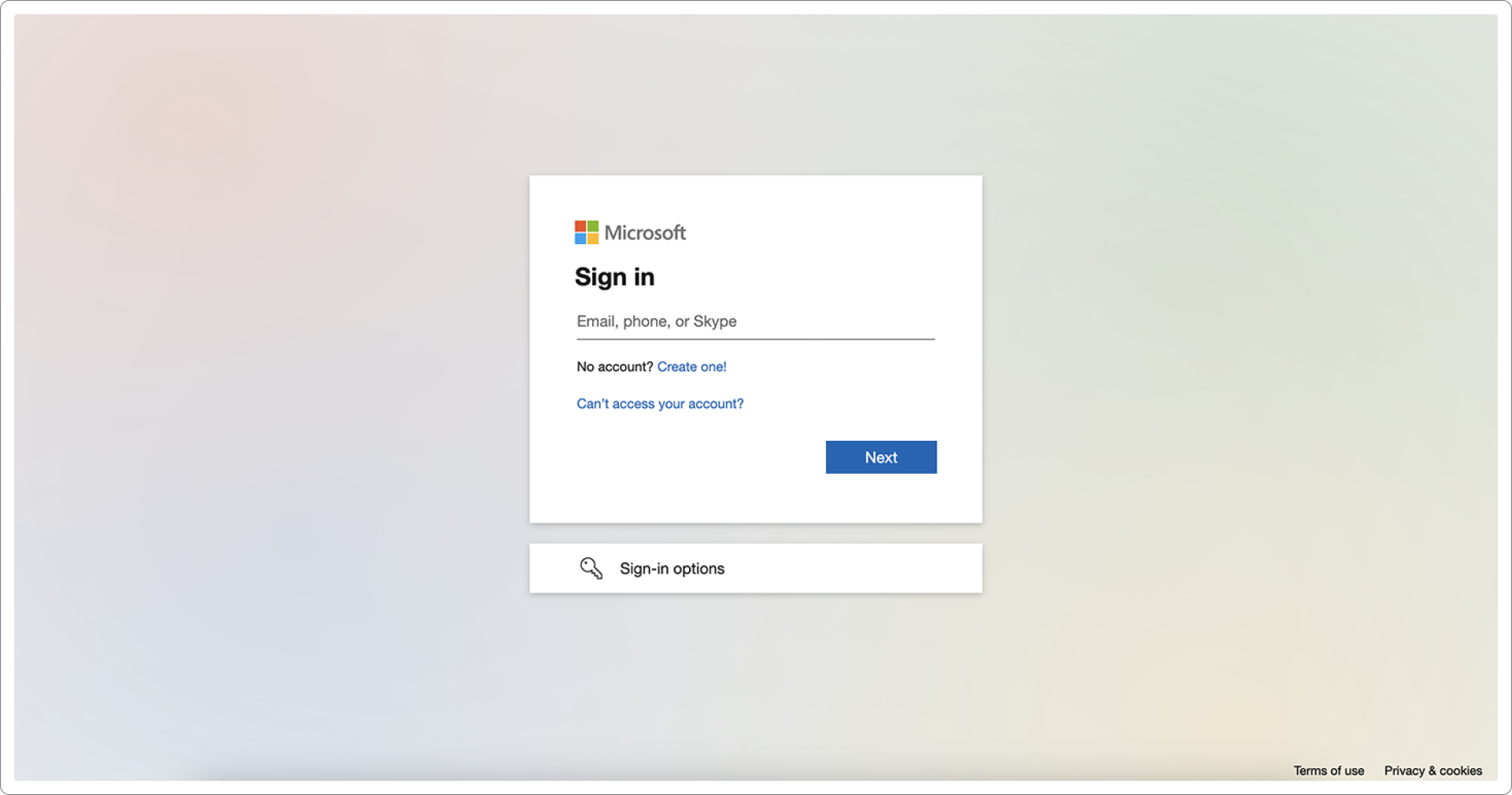
**Step 3:** Enter the Microsoft account
**Step 4:** Log in to your Microsoft (M365) account
**Step 5:** Upon successful authentication, you will be redirected to the dashboard
### Signing in with Email and Password
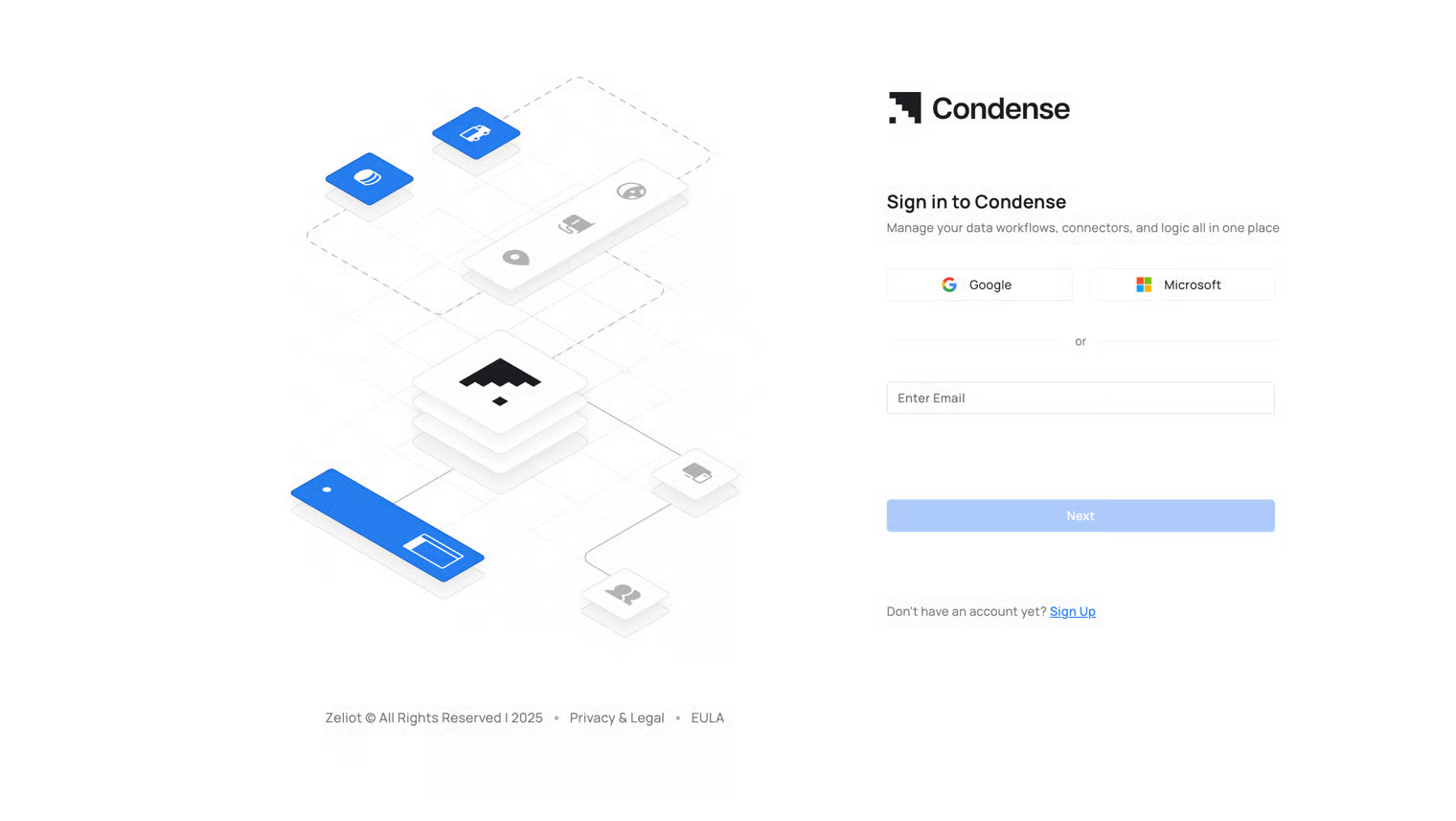
**Step 1:** Open your Condense application which will land you on the login page.
**Step 2:** Enter your registered email.
**Step 3:** Click on the Next button.
{% hint style="warning" %}
If you have signed up using SSO, you will be redirected to the corresponding SSO account page or else the password field will be displayed
{% endhint %}
**Step 4:** Enter the password in the password text field
**Step 5:** If the credentials are correct, you will be redirected to the dashboard
{% hint style="warning" %}
IMPORTANT!
1. Log-in using email and password will only be available for the user accounts that are created using the regular *sign-up flow* (i.e. email address and password)
2. Users have the option to log in to their respective accounts using the SSO option or the regular *sign-up* *flow* (i.e. email address and password)
3. The '**Change password**' and '**Forgot Password**' will only work for accounts which are signed up using the regular *sign-up* *flow* (i.e. email address and password)
{% endhint %}